
See reports and errors
The owner of Moket reads the reports people send, the errors Moket Studio caught and the feedback agents send on one page. Other accounts do not see it.
Access: Problems in the Home sidebar (owner only). The badge shows how many reports you have not opened yet.
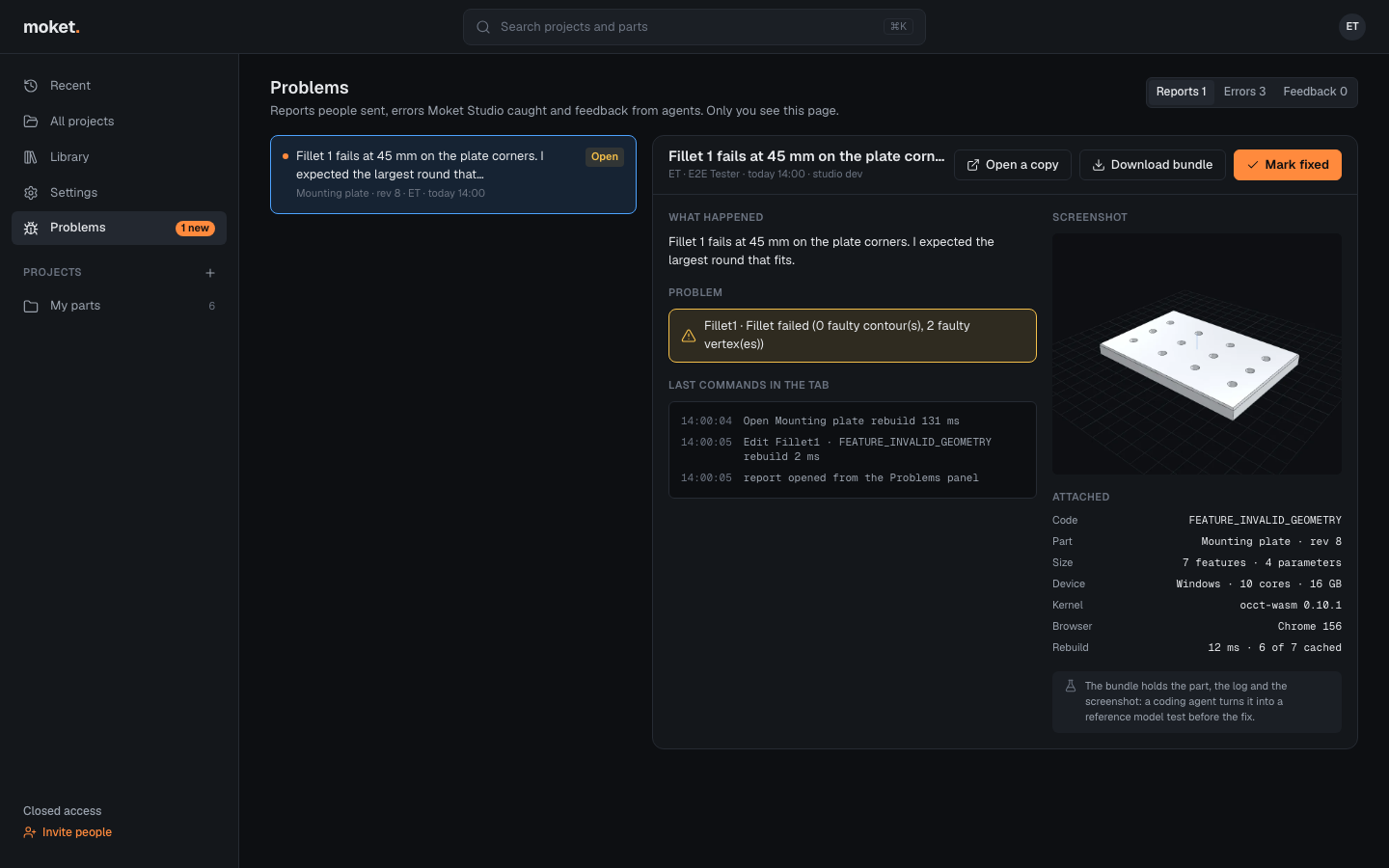
Work through a report
- Click Problems, then a report in the Reports list. New reports have an orange dot; opening one marks it seen.
- Read What happened, the Problem it was made from, the Last commands in the tab and the Screenshot. Attached lists the document, its size, the kernel, the browser and other facts.
- Use the actions at the top:
| Action | What it does |
|---|---|
| Open a copy | Copies the attached document into your Sandbox project and opens it. The author's original is untouched. |
| Download bundle | Saves one JSON file with the document, the log, the facts and the screenshot. |
| Mark fixed | Sets the report to Fixed with the current version; the author sees it in Settings. Reopen undoes it. |
Errors
The Errors tab groups the errors Moket Studio sent automatically by their code, place and the line of code they came from.
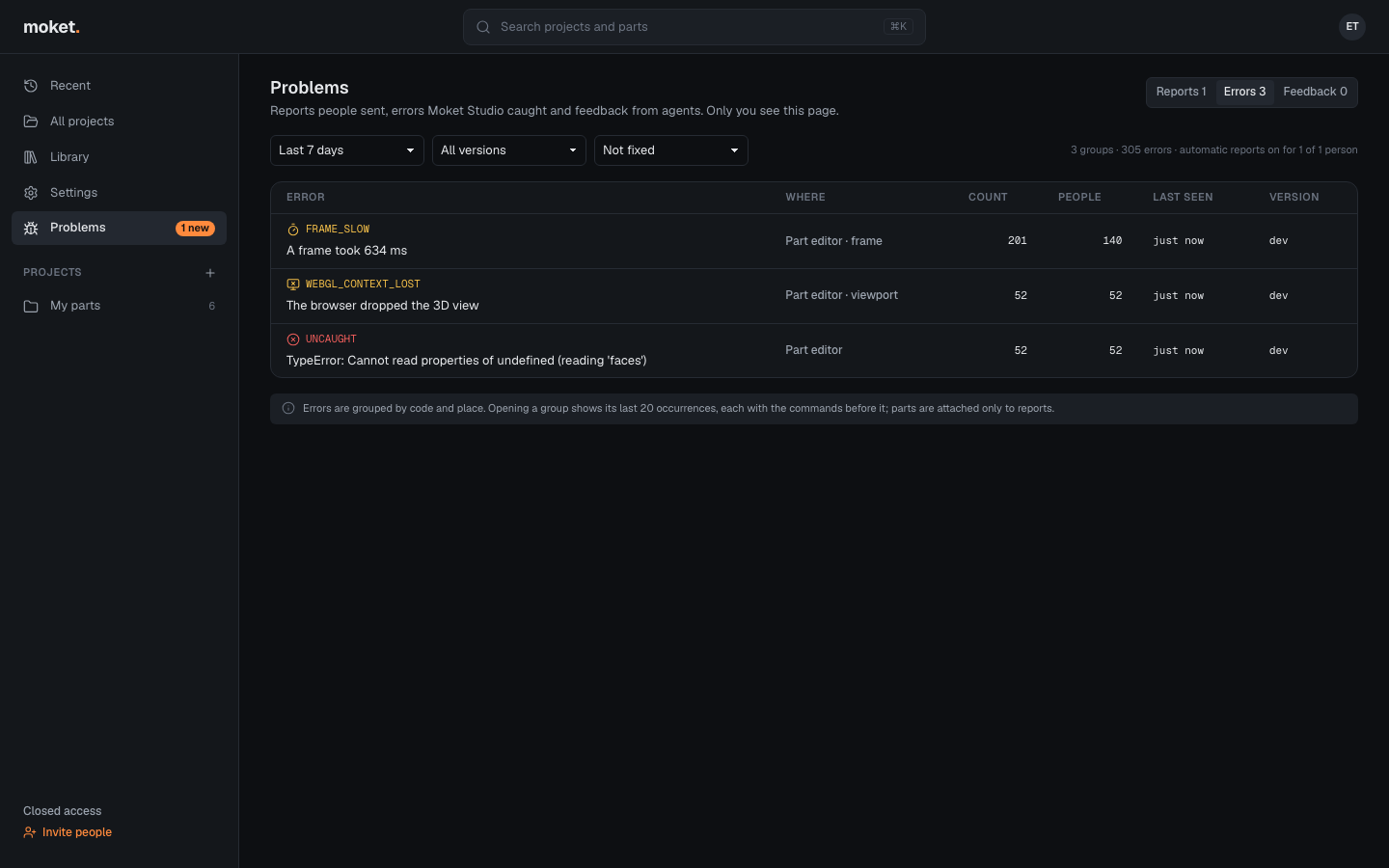
- Click the Errors tab.
- Narrow the list by time, version and status (Not fixed by default).
- Click a group to see its last 20 occurrences: when, who, the version, browser and device, the kinds of commands before it and the stack trace.
- Click Mark fixed or Won't fix. A fixed error that comes back in a newer version is open again.
The line above the table counts the groups and errors and how many people have automatic reports on. Occurrences older than 90 days are deleted; reports stay.
Feedback from agents
The Feedback tab lists what Moket AI and MCP agents found while they worked: a tool that behaved differently from its description (Bug), something Moket cannot do yet (Missing), a better way (Suggestion) or a description that misled them (Docs). Messages with the same kind and title are one group.
- Click the Feedback tab.
- Narrow the list by kind and status (Not fixed by default).
- Click a group to see each message: when, who, which agent, the tool or command, what the agent did and what it expected.
- Click Mark fixed or Won't fix. A fixed group that an agent reports again is open again.