
Use subassemblies
An assembly of the project can be a component of another assembly: a clamp in a fixture, the head of a drill press on its column. Inside the bigger assembly it is one component, a subassembly, that you place, ground and join like a part. Its own components and joints stay in it: open it to change them, and every assembly that uses it follows its latest revision.
Access: assembly editor > Insert > Assemblies.
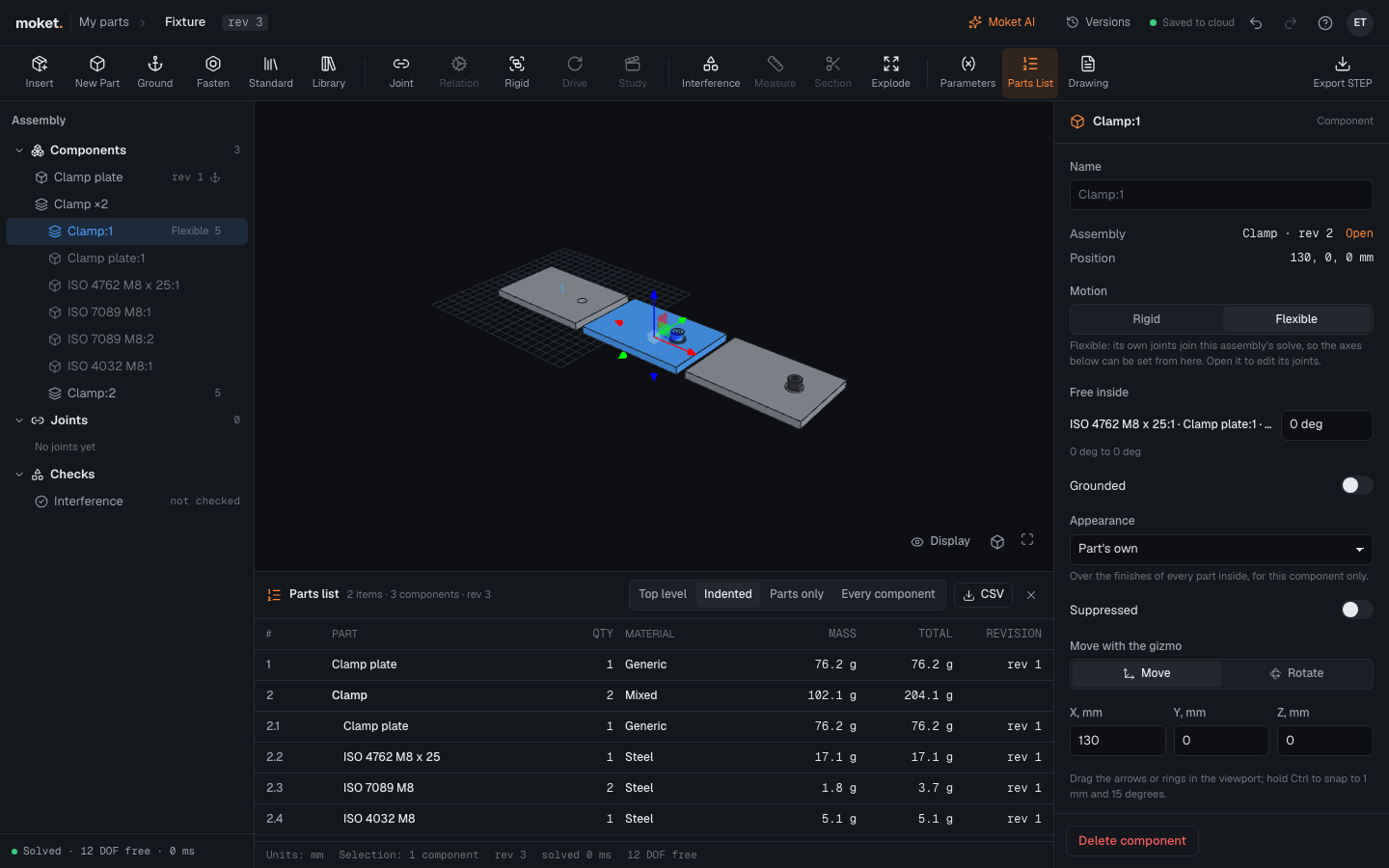
Insert a subassembly
- Click Insert, or press
I. - Under Assemblies, click the assembly to insert. The assembly you are in is not listed.
- Set the quantity and Ground if you want, then click Insert.
The subassembly lands next to the assembly, free to move, unless it is the first component. Select it to see its components under it in the tree.
Place it
A subassembly moves like a part: by its position, with the gizmo, or by joints. A joint can attach to a face or an edge of any part inside it: click that face in the viewport. The joint holds the whole subassembly there.
Rigid or flexible
Select the subassembly and choose its Motion in its properties:
| Motion | What it does |
|---|---|
| Rigid | The default. It moves as one body; its own joints stay where it has them. |
| Flexible | Its joints are solved with this assembly's, and their free axes count in its degrees of freedom. Free inside lists them: type a rotation or a distance to set one here, for this component only; the subassembly itself keeps its own. |
A value outside a joint's limits is held at the limit.
Parts list
With subassemblies, the parts list has three ways to count:
| Rows | What they show |
|---|---|
| Top level | A subassembly is one row, with the mass of everything in it. |
| Indented | Each subassembly's rows under it, numbered 2.1, 2.2, ..., counted for one of it. |
| Parts only | Every part, counted through all the subassemblies: two clamps of four screws are eight screws. |
Tips
- An assembly cannot contain itself, also through another subassembly. Insert refuses it and says why.
- When a subassembly has problems of its own, this assembly says so: open it to fix them.
- Check interference compares the subassemblies with the rest of the assembly; parts inside one subassembly are checked in it.
STEP
Export STEP writes each subassembly as an assembly inside the file, and Import STEP on a project page makes the assemblies of a file again, subassemblies included.
Limitations
- Drawings of an assembly do not balloon parts inside its subassemblies yet.