
Choose when Moket AI asks before applying
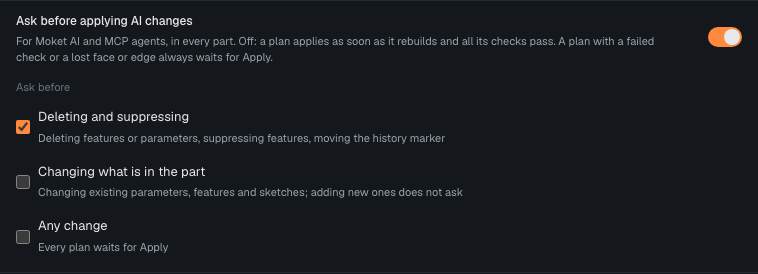
By default, a change from Moket AI or an MCP agent applies as soon as Moket has checked it. Turn on Ask before applying AI changes to approve some changes yourself, or all of them. The setting is one for your account: it applies to Moket AI and to MCP agents, in every part.
Access: Settings > Moket AI > Ask before applying AI changes.
How a plan is applied
Every change arrives as a plan that Moket previews first. What happens next:
| The plan | Ask before applying is off | Ask before applying is on |
|---|---|---|
| Rebuilds, passes every check, loses no face or edge | Applies at once | Applies at once, unless it does something checked below |
| A check fails, or a face or edge another feature uses would disappear | Waits for Apply | Waits for Apply |
| Does not rebuild | Never shown as a plan | Never shown as a plan; Moket AI fixes it or tells you why |
A plan that applies at once shows Applied automatically on its card, with Undo. Whichever way it applies, every plan is one undo step and a saved revision.
Choose what needs your approval
- Open Settings and turn on Ask before applying AI changes.
- Under Ask before, check what you want to approve:
| Option | Plans that wait for Apply |
|---|---|
| Deleting and suppressing | Deleting features or parameters, suppressing features, moving the history marker. Checked when you turn it on. |
| Changing what is in the part | Changing existing parameters, features and sketches, renaming or reordering them. Adding new ones does not ask. |
| Any change | Every plan. |
The change takes effect with the next plan, also for agents that are already working.
Tips
- State your limits in the message (
keep the wall at least 2 mm): they become checks, and a plan that fails one always waits for you. - Check Any change while you work on a part that must not change without you, such as a released design.