
Project model edges
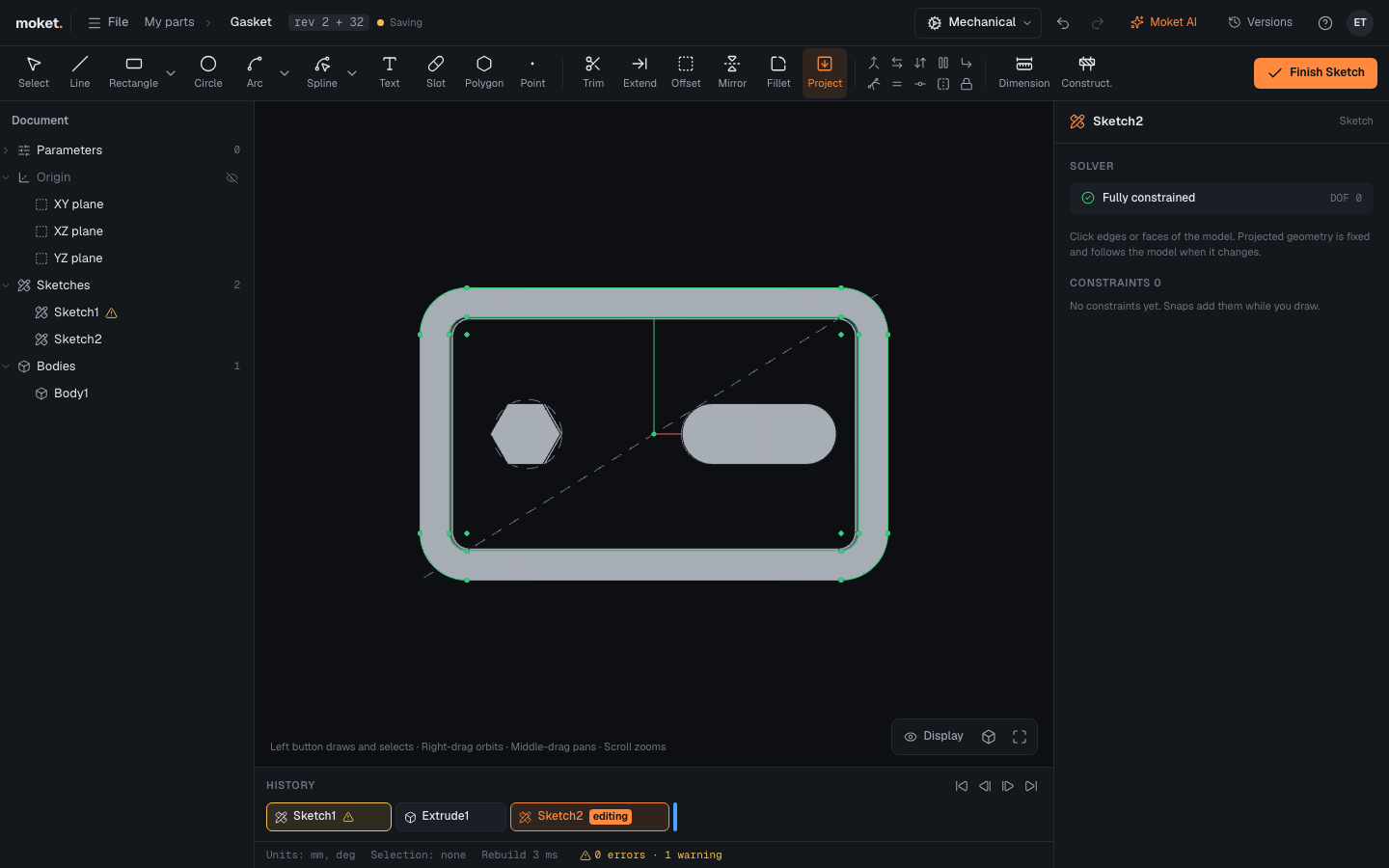
Project brings edges of the model into the sketch as fixed geometry. Use them to draw against the model: a lid along the rim of a box, a pocket around a boss. Projected geometry follows the model when it changes.
Access: Sketch mode toolbar > Project (P).
Steps
- Click Project.
- Click an edge of the model to project it, or a face to project all of its edges.
- Draw and constrain against the projected curves.
How projected geometry behaves
- It is fixed: it cannot be dragged, trimmed or extended. Constraints and dimensions to it work as to any curve.
- At every rebuild it moves to where its edge is now, so the sketch follows changes earlier in the history.
- If its edge is gone, it stays where it was and the sketch shows a warning (
SKETCH_PROJECTION_DANGLING). Delete the projection and project the new edge. - Delete a projected curve or point to remove the whole projection.
Limitations
- Straight edges and circles or arcs parallel to the sketch can be projected. Other curves, such as a circle seen at an angle, cannot yet.
- Edges of features after the sketch in the history cannot be projected into it.