
Shell
Shell hollows a body to a wall thickness, the way a case or a box is made. The faces you pick are removed and stay open; with no face picked the body becomes closed and hollow.
Access: Toolbar > Shell.
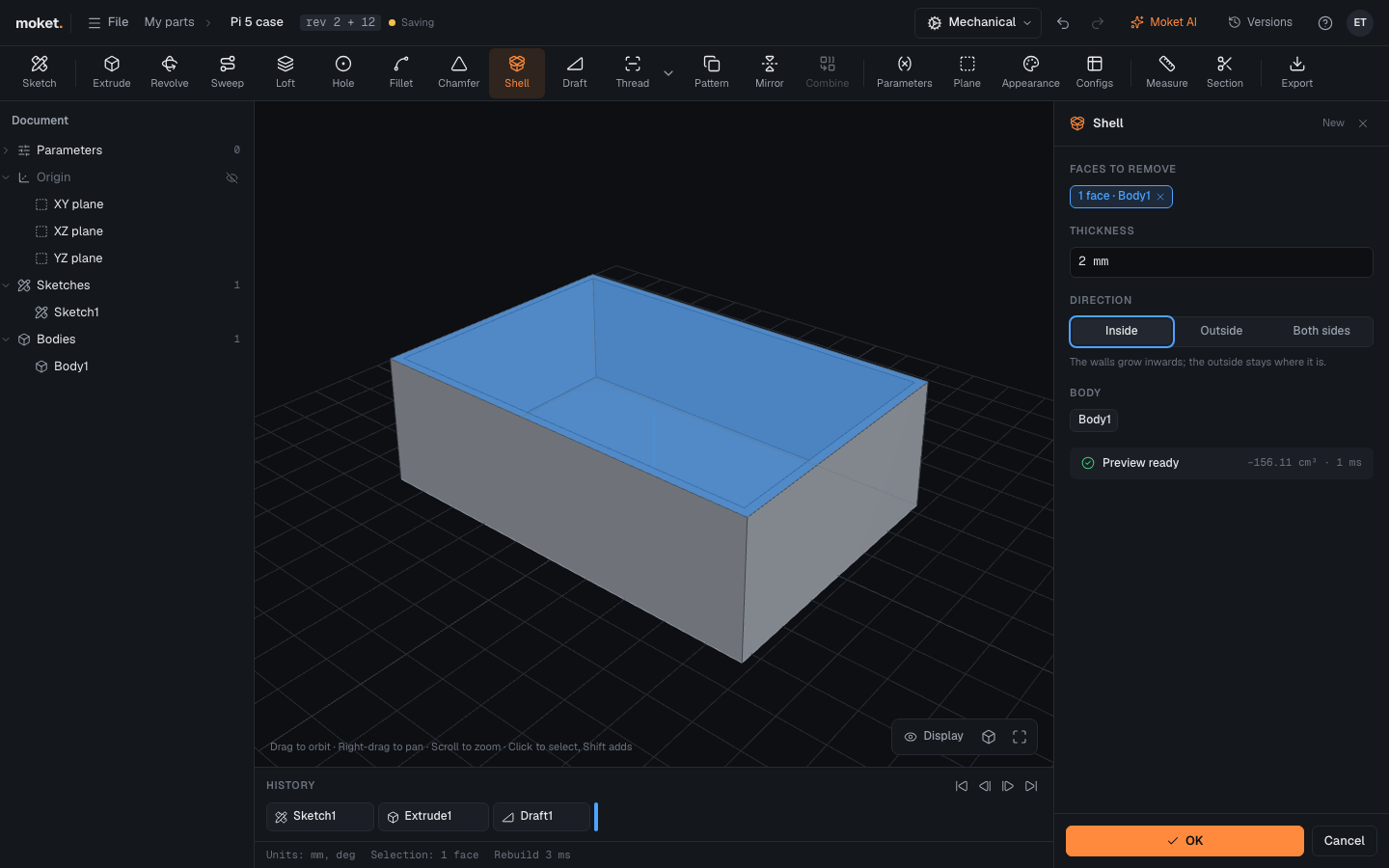
Steps
- Click the faces to open, for example the top face. Click a face again to unpick it.
- Click Shell. You can also click Shell first and pick the faces with the dialog open.
- Enter the Thickness and choose the Direction.
- Click OK.
Options
| Option | Description |
|---|---|
| Faces to remove | The faces left open. None: a closed hollow body |
| Thickness | The wall thickness; a value or an expression such as wall |
| Direction | Inside (the outside stays where it is), Outside, or Both sides (half each) |
Tips
- Shell after Draft and before Fillet: a wall cannot be as thick as a fillet radius or more.
- The inner walls keep their names when the thickness changes, so a fillet or a sketch on an inner face stays where it is.
- Use a parameter for the thickness to change all walls at once.
Troubleshooting
| Problem | What to do |
|---|---|
| Shell failed with "The wall is not thinner than a fillet radius" | Make the wall thinner than the smallest fillet, make the fillet larger, or move Shell before the fillet in the history |
| Shell failed without a fillet | A face is too small or too curved for the thickness: try a thinner wall or open other faces |
| Shell failed with "no wall: the thickness is too large for this body" | The wall leaves no room inside the body: make it thinner |