
Create a drawing
A drawing shows a part on a sheet drawn to ISO or ASME: standard views, dimensions and a title block. It is a document of its own in the part's project and follows the part: when the part changes, the views change with it.
Access: in the part editor, File > New drawing.... In a project, New > Drawing. For an assembly, see Draw an assembly.
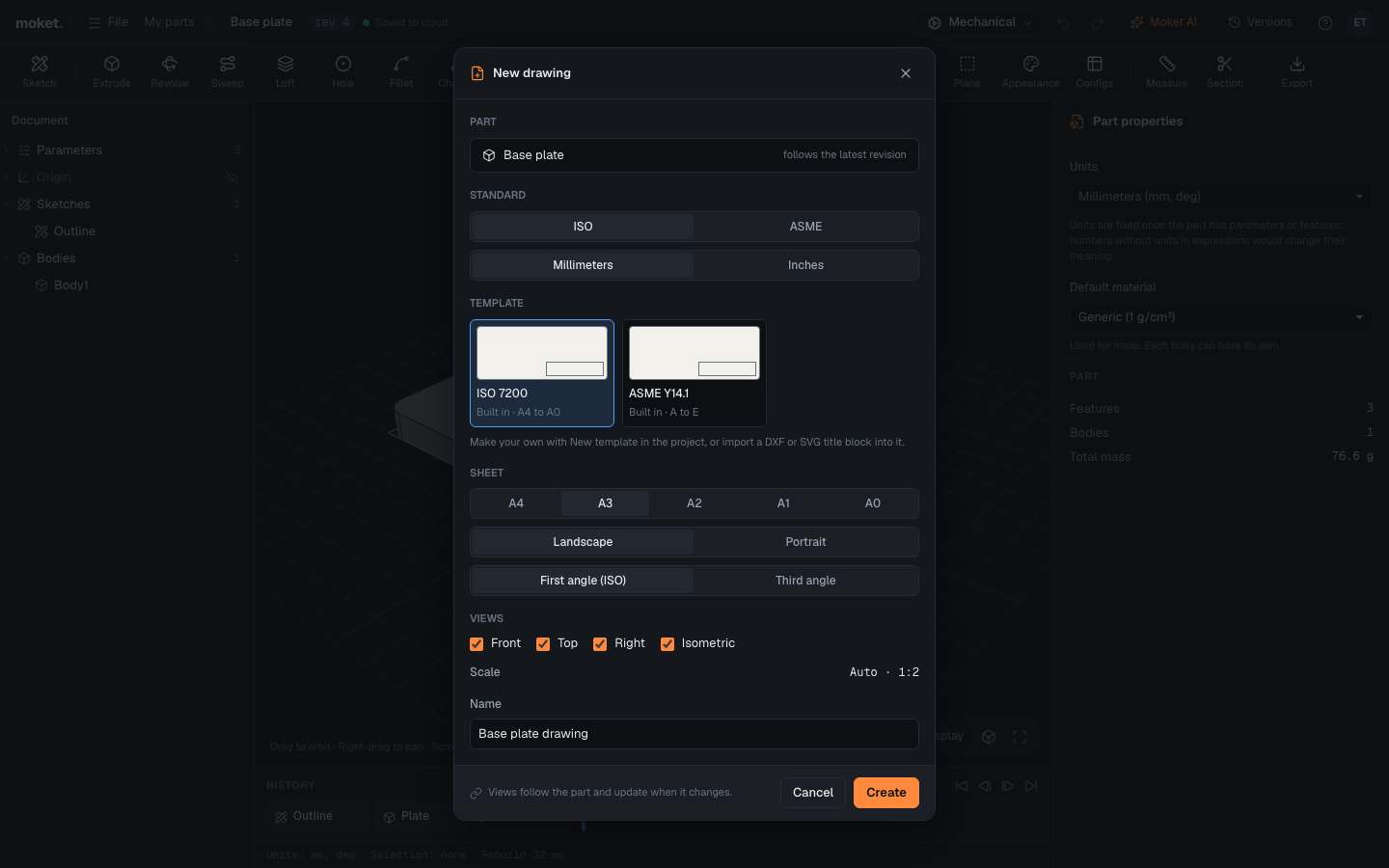
Make a drawing of a part
- Open the part and choose File > New drawing....
- Pick the Standard: ISO or ASME, and the Units the drawing shows: Millimeters or Inches. A part modeled in inches starts with ASME and inches.
- Pick the Template: the project's own templates, or the built-in ISO 7200 or ASME Y14.1 one (each follows its standard). The last template you picked in the project is picked again.
- Pick the sheet: A4 to A0 for ISO, A to E (ANSI, 8.5 x 11 in to 34 x 44 in) for ASME, Landscape or Portrait, and the projection method: First angle (ISO) or Third angle. Choosing a standard sets its usual sheet (A3 or ANSI B) and projection (first angle for ISO, third angle for ASME).
- Under Views, check the views to place: Front, Top, Right and Isometric by default. Scale shows the largest scale of the standard at which they fit: ISO 5455 scales, and for ASME also 1:4, 1:8 and 1:16.
- Change the Name if you want, and click Create.
The drawing opens with the views placed around the front view: in first angle the top view goes below it and the right view on its left; in third angle the other way round. From a project, New > Drawing asks which part to draw and places the four default views.
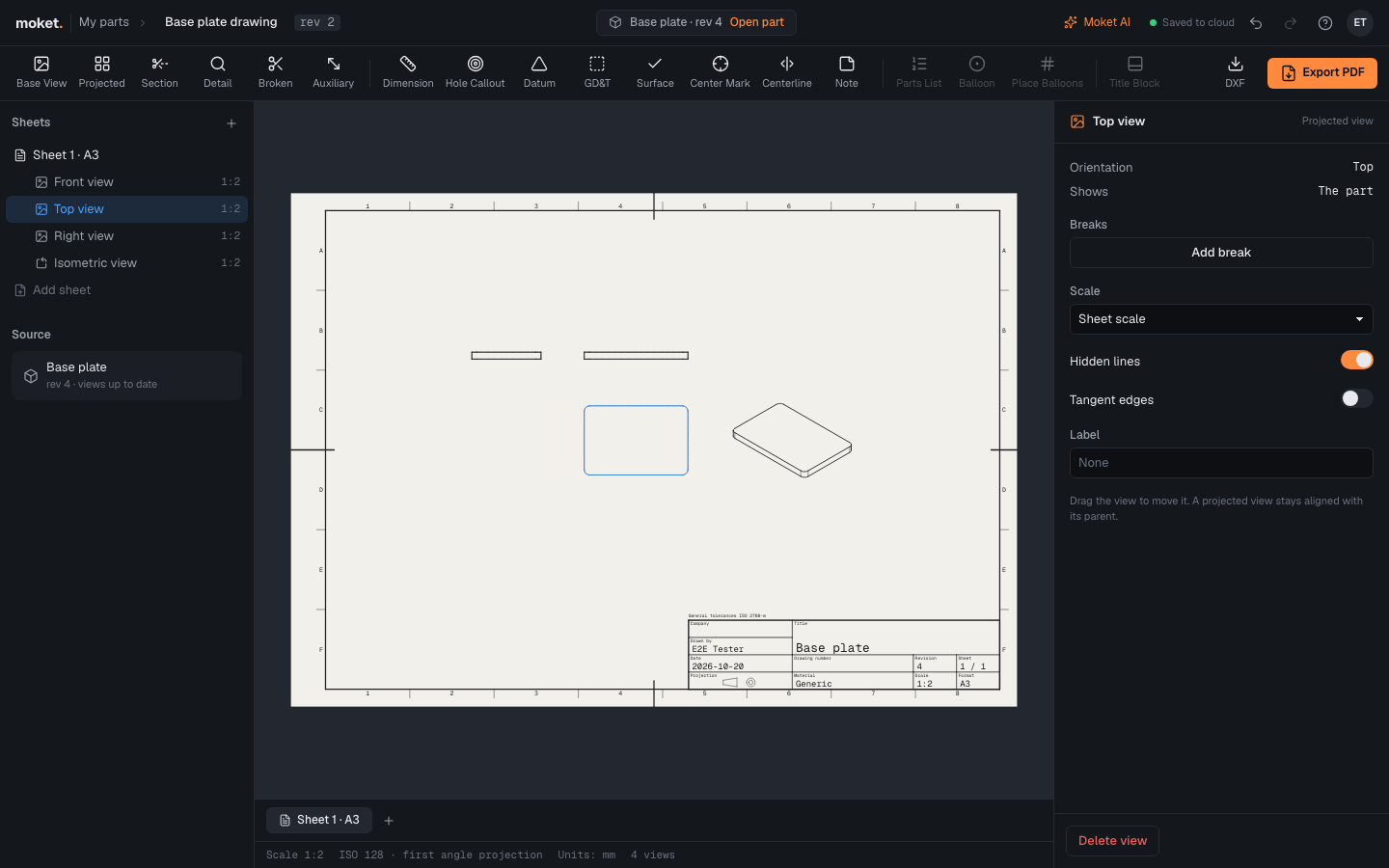
The drawing editor
| Area | What it does |
|---|---|
| Top bar | The drawing's project and name (click the name to rename), its revision and save state, and the part it draws with Open part, Moket AI, undo and redo, and Help (with Report a problem...). |
| Toolbar | Base View and Projected place views, Section, Detail, Broken and Auxiliary make section, detail, broken and auxiliary views; Dimension, Center Mark, Centerline and Note annotate them; DXF and Export PDF download the drawing. |
| Sheets | The sheets of the drawing with their views; click a view to select it. Add sheet adds a sheet. Source shows the part's state. |
| Sheet | The sheet as it prints. Drag a selected view to move it. |
| Properties | The selected view, or the sheet when nothing is selected. |
| Tabs and status | Switch sheets; the status bar shows the scale, the projection method and problems. |
Move around the sheet with the mouse wheel (zoom at the pointer) and the middle button or Space and drag (pan). Press F to see the whole sheet.
Add views
- Base View (
V): choose the orientation next to the toolbar (Front, Top, Right, Left, Back, Bottom, Isometric) and click on the sheet where the view should go. - Projected (
P): select a view, then click above, below or beside it. The new view shows the part from that side by the sheet's projection method and stays aligned with the view it comes from: it moves only along that line, and follows when you move the parent. Side views are projected from the front view; Moket tells you when the view you picked has none on that side.
Press Esc to stop placing views, Delete to delete the selected view. Deleting a view also deletes the views projected from it.
View properties
| Option | What it does |
|---|---|
| Scale | The sheet's scale, or a scale of its own. |
| Hidden lines | Shows hidden edges dashed. On for front, top and side views. |
| Tangent edges | Shows edges between faces that meet smoothly. On for isometric views. |
| Label | A label under the view, such as VIEW A. |
Sheet and title block
With nothing selected, the properties show the sheet: the drawing's standard and units, then the sheet's size, orientation, projection method and scale, and the title block.
Standard (whole drawing) switches every sheet at once: ISO sheets get first angle and an A size, ASME sheets third angle and an ANSI size (a sheet that already has a size of the new family keeps it). You can still change a sheet's projection and size afterwards. Units changes what the dimensions show; the part does not change.
| Standard | Sheets | Frame | Title block | Dimensions |
|---|---|---|---|---|
| ISO | A4 (297 x 210 mm) to A0 (1189 x 841 mm) | 20 mm filing margin on the left, 10 mm else; zones numbered left to right and lettered top down (ISO 5457) | ISO 7200 fields | Text along the dimension line, the precision's decimals: 12.50 |
| ASME | A (11 x 8.5 in) to E (44 x 34 in) | 0.38 in on A and B, 0.5 in on C to E; zones numbered right to left and lettered bottom up (ASME Y14.1) | ASME Y14.1 wording and a units line above it | Text horizontal in a break of the dimension line; inches without the leading zero (.50), millimeters without trailing zeros (12.5) |
Template picks the frame and title block every sheet is drawn on: the built-in ISO 7200 or ASME Y14.1 one, or a template of the project. The title block fields listed under it are the ones the template shows. Title block fields left empty come from the part (title, revision, material) and your account (drawn by, the date the drawing was made); type in a field to override it. The projection symbol in the title block follows the projection method. Zones around the frame (fields of about 50 mm) and centring marks at the middle of each side help you refer to a place on the sheet, such as "zone C4".
Revisions
Under Revisions in the sheet's properties, Add revision adds the next letter with today's date and your name; type what changed under it. The revision table at the frame's top right lists every revision, and the title block shows the latest. Remove a revision with its X.
How the drawing follows the part
The views always show the part's latest revision. When the part changes in another tab or on another computer, the drawing updates on its own within a few seconds; the top bar shows which revision it draws. If the part is deleted, the drawing stays and its views say that the part is gone.
Troubleshooting
| Message | What to do |
|---|---|
| The part of this view is deleted or cannot be read | Restore the part from its project, or delete the view. |
| The view shows nothing: the part has no solid | Model a solid in the part; the view fills in by itself. |
| The view could not be projected | Change or undo the last change of the part, then open the drawing again. |
Ask Moket AI
Moket AI in the top bar (Ctrl+I) works on the drawing: ask it to place views, dimension them or explain problems. See Ask Moket AI to change a part.