
Connect Moket to Claude or ChatGPT
Add Moket to Claude (claude.ai, Claude Desktop, Claude Code), ChatGPT, Codex or another MCP app as a connector: the app signs in to your Moket account, you allow it once, and the agent works on your parts, drawings and assemblies with the same tools as Moket AI. You copy no token: the app asks Moket for access, and you can disconnect it any time.
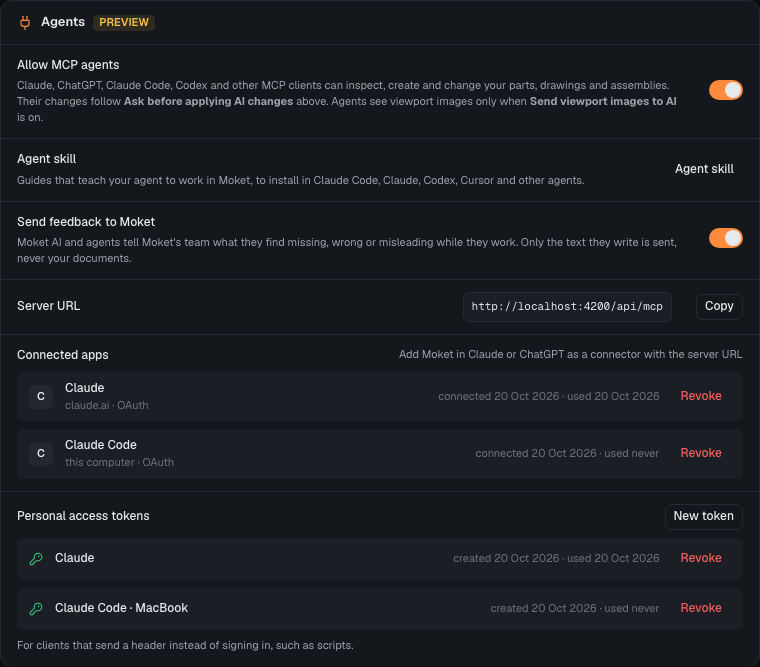
Access: Settings > Agents > Server URL, then your app's connector settings. This is a preview: when Agents is not in your Settings, agents are not available on your Moket server yet.
Add Moket as a connector
- In Moket, open Settings > Agents and click Copy next to Server URL, for example
https://app.moket.io/api/mcp. - In your app, add a custom connector (or a remote MCP server) with that URL. Leave any OAuth client ID and secret fields empty: Moket does not need them.
- Your app opens Moket in the browser. Sign in if Moket asks.
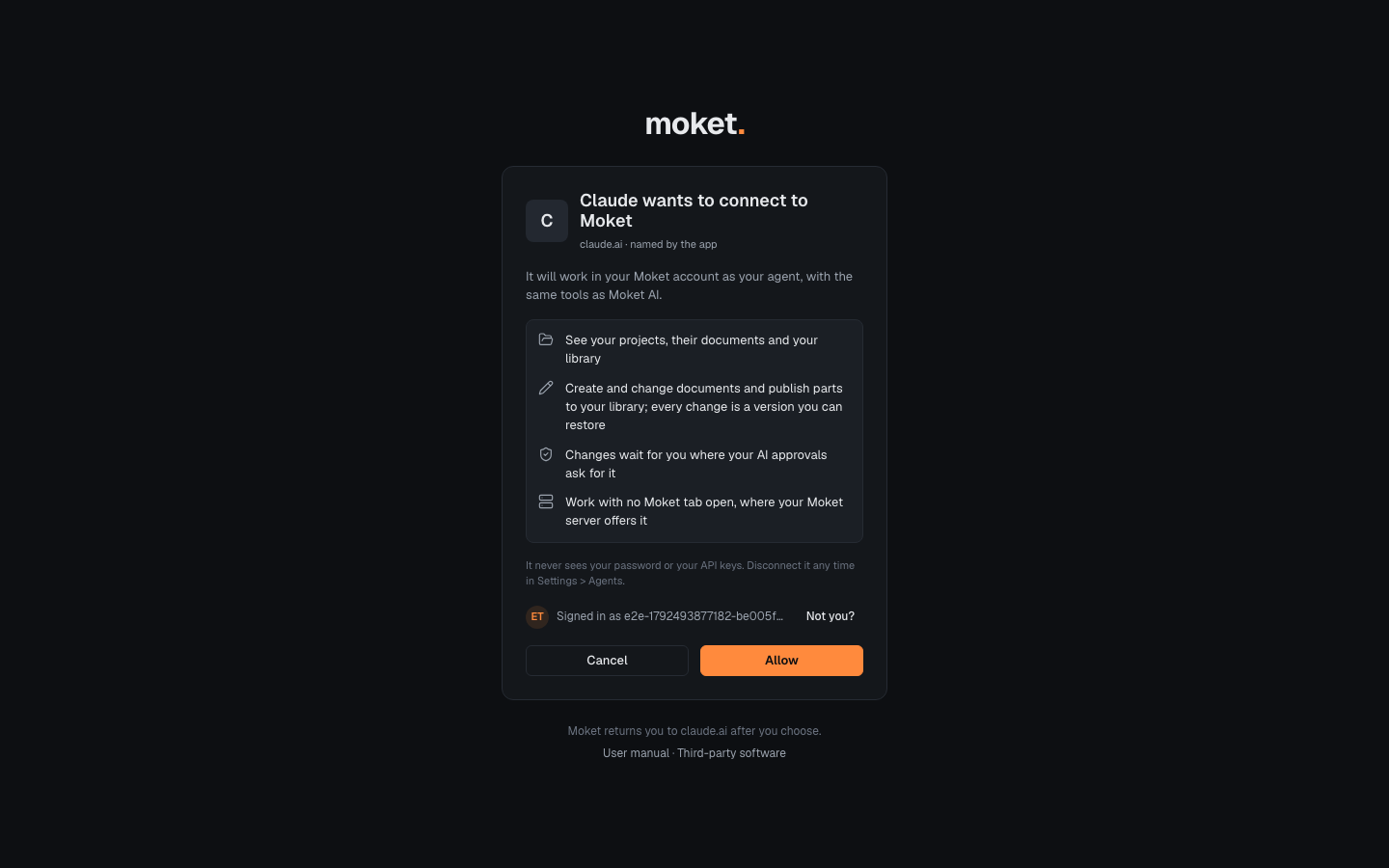
- Check the app's name and site on the consent screen, and click Allow. Moket sends you back to the app.
- Ask the agent for something, for example
List my Moket projects.
| App | Where to add the server URL |
|---|---|
| Claude (claude.ai, Desktop) | Settings > Connectors > Add custom connector |
| ChatGPT | Settings > Apps & Connectors; custom connectors need developer mode on in the advanced settings |
| Claude Code | claude mcp add --transport http Moket <server URL>, then /mcp > Moket > Authenticate |
| Codex | codex mcp add Moket --url <server URL>, then codex mcp login Moket |
Claude Code and Codex can also use a personal access token instead; see Connect an AI agent over MCP.
Then give the app the Moket skill: it teaches the agent Moket's rules and workflow before it starts.
The consent screen
| Shows | What it means |
|---|---|
| claude.ai · verified by its site | The app's description comes from its own site, so the name and the site belong together. |
| ... · named by the app | The app registered itself with this name. Check that you started the connection yourself. |
| An app on this computer | A desktop or command-line app, such as Claude Code; Moket returns to it on this computer. |
| Signed in as | The Moket account the app gets. Click Not you? to sign in to another one. |
Click Allow only for a connection you started. Cancel tells the app that you declined. If Allow MCP agents is off in Settings, allowing turns it on.
The app can do what Moket AI can, in your name: see your projects and your library, create and change documents, publish parts to your library, and work with no Moket tab open where your Moket server offers it. Its changes follow Ask before applying AI changes, and every change is a version you can restore. It never sees your password or your API keys.
Disconnect an app
Click Revoke next to the app in Settings > Agents > Connected apps. The app is refused at once; to use it again, connect it again. Turning off Allow MCP agents refuses all connected apps and tokens until you turn it on again.
Limitations
- An app gets everything a personal access token may do; there is no read-only access yet.
- Apps that return to a custom link of their own, rather than to a website or to this computer, cannot connect yet.
- An app's connection lasts 30 days of disuse; after that, or if it ends for safety (for example, when the same sign-in is used from two places at once), the app asks you to connect again.
Troubleshooting
| Message | What to do |
|---|---|
| This connection request has expired | The consent screen waited more than 15 minutes, or was answered already: connect from the app again. |
| The app says the redirect URI is not allowed | The app returns to an address Moket does not accept; use a personal access token with it. |
| The app asks you to connect again | Its connection was revoked, ended after 30 days without use, or ended for safety: connect again. |