
Insert and arrange components
Components are the parts of the project placed in an assembly. Insert as many of a part as you need, ground the one that holds the others, and move the rest into place.
Access: assembly editor > Insert (I), New Part, Ground (G).
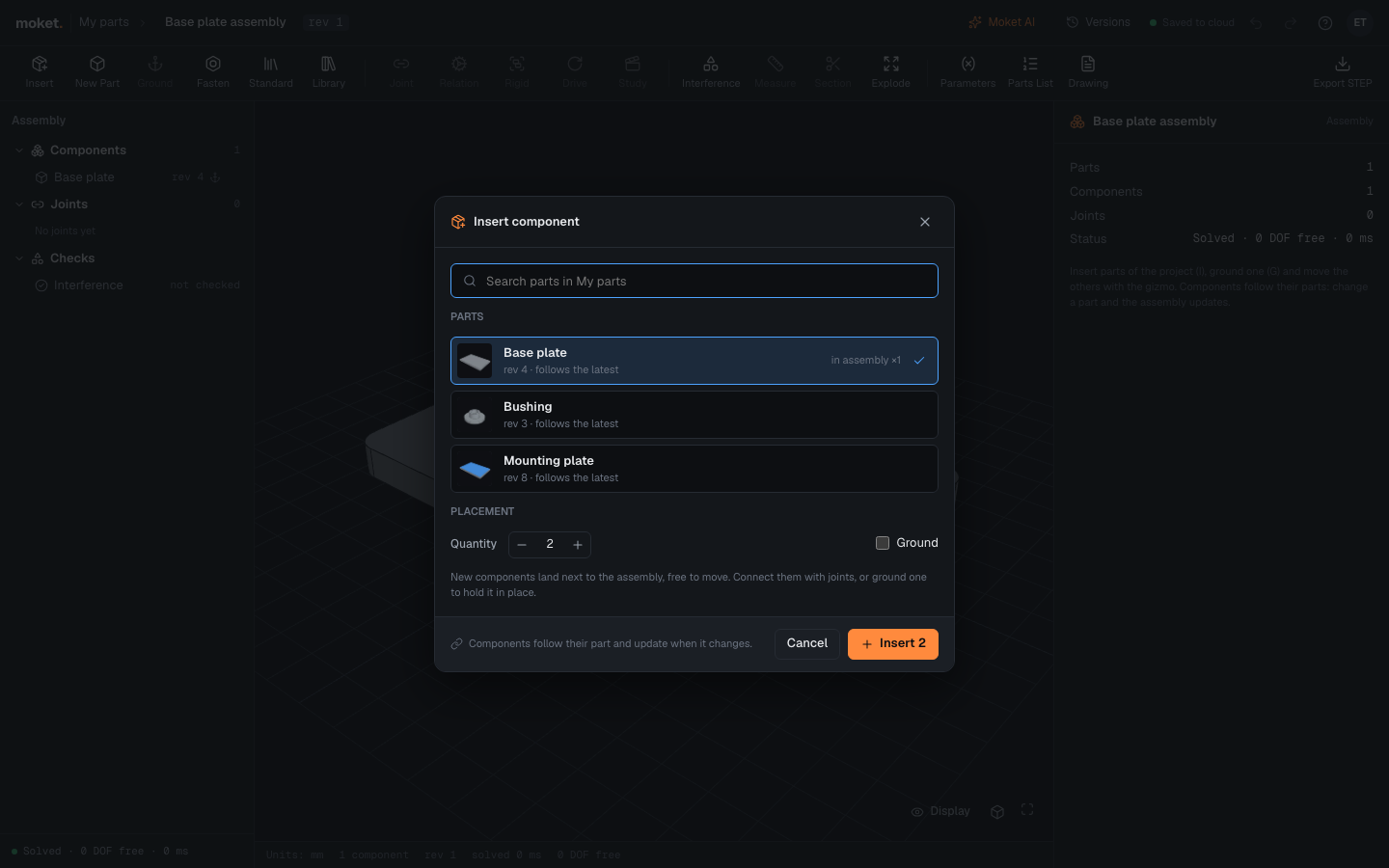
Insert components
- Click Insert, or press
I. - Click one or more parts of the project. Each shows its revision and how many are already in the assembly.
- Set the Quantity for each chosen part.
- Check Ground to fix the new components where they land.
- Click Insert.
New components land next to the assembly, spaced along X, and are free to move. The first component of an empty assembly is grounded at the origin. Components of one part are grouped in the tree, for example Bearing 608 ×2 with Bearing 608:1 and Bearing 608:2. A component built in a configuration of its part has the configuration's name too, for example Bracket Large:1.
Screws, nuts, washers, bearings and O-rings come from the standard parts: see Insert a standard part. Rails, motors and other parts you published go in from your library. Assemblies of the project are listed under Assemblies and go in as subassemblies.
New Part creates an empty part in the project and inserts it. Open it from the component's properties (Open) to model it; the assembly shows it as soon as it has a solid.
Ground a component
Select a component and click Ground, or press G. A grounded component stays where it is and shows an anchor in the tree. Press G again to free it. Ground at least one component: the others are placed relative to it.
Move a free component
Select a free component. The gizmo appears on it in the viewport:
- Drag an arrow or a plane handle to move the component. Under Move with the gizmo, choose Rotate (or press
R) and drag a ring to turn it. - Hold
Ctrlwhile you drag to move in steps of 1 mm and turn in steps of 15 degrees. - Or type X, Y and Z in the properties.
Each move is one step you can undo with Ctrl+Z. Grounded components do not move; unground them first.
Component properties
| Option | What it does |
|---|---|
| Name | The component's own name. Leave it empty to use the part's name and a number. |
| Part | The part and its revision. Open opens the part. |
| Position | Where the component's origin is in the assembly, mm. |
| Grounded | Fixes the component where it is. |
| Configuration | For a part with configurations: the row this component is built as. Part as saved follows the part's active row. |
| Appearance | A finish for this component over the part's own, and its colour. Part's own goes back to the part's finishes. |
| Suppressed | Hides the component and leaves it out of the assembly without deleting it. |
To delete a component, select it and press Delete, or click Delete component.
Troubleshooting
| Message | What to do |
|---|---|
| The part of ... is deleted or cannot be read | Restore the part from its project, or delete the component. |
| ... has no solid | Model a solid in the part; the component appears by itself. |
Views in the corner of the view turns the assembly to a standard view. Display next to it switches between the parts' finishes, plain grey and wireframe, hides joint labels and other aids, and shows only the product in Product view (Shift+V).