
Replace an imported file
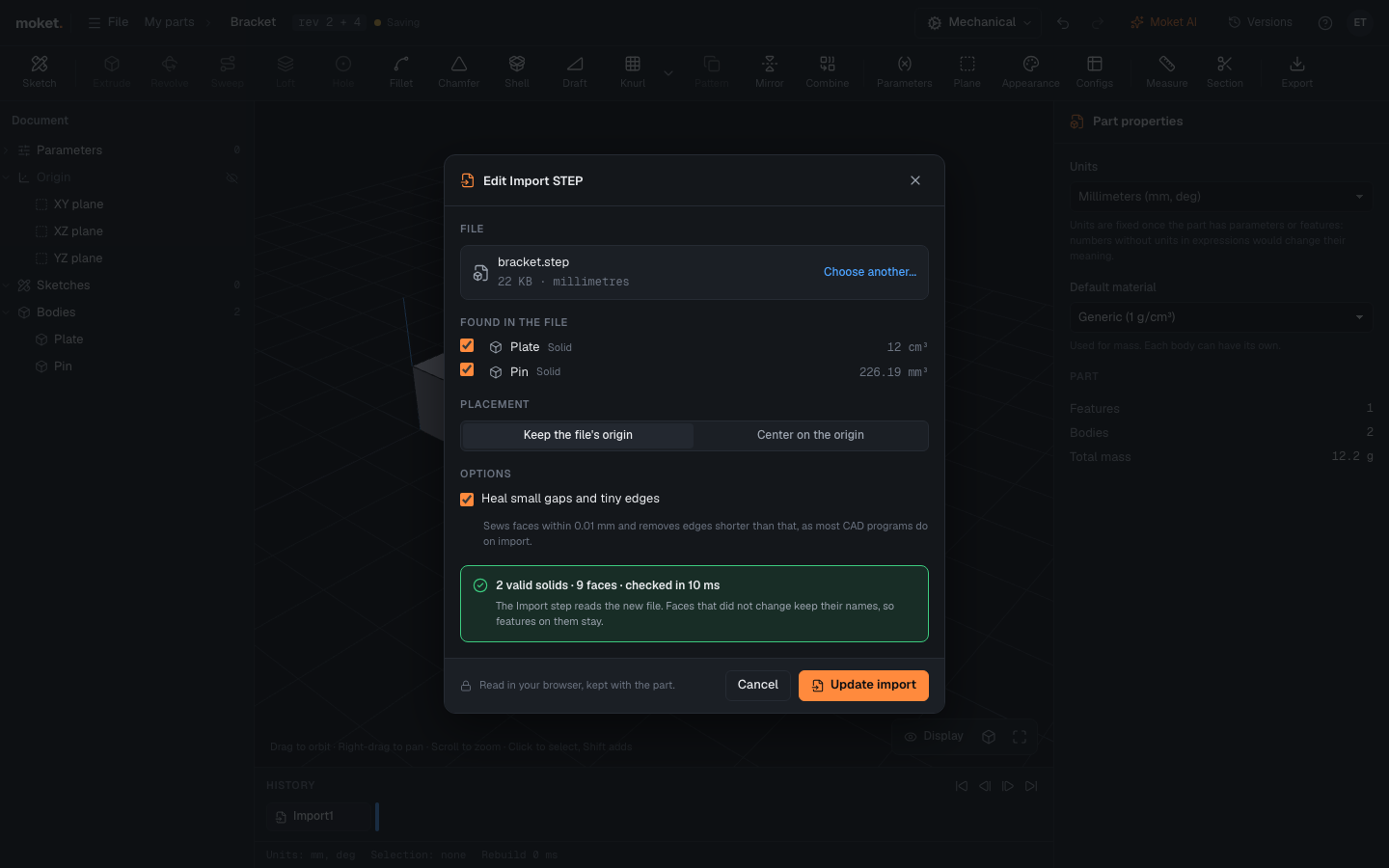
When a supplier sends a new version of a STEP file, replace the file of the Import step. Features on faces that did not change stay where they are.
Access: Double-click the Import step in the history.
Steps
- Double-click the Import step in the history. The Import STEP dialog opens on the current file.
- Click Choose another... and pick the new file.
- Check the solids and options.
- Click Update import.
How faces are matched
An imported face is known by its shape and place in the file: its kind of surface, its middle, its direction and its area. After a replace:
- A face that did not change is the same face, so sketches, cuts, fillets and assembly joints on it stay.
- A face that moved or changed size is a new face. Features that used the old one fail with
REFERENCE_LOST: edit them and pick the face again. - A solid that is no longer in the file is reported as missing; the other solids still come in.
Moket never guesses which new face replaces an old one.