
Check interference
The interference check finds components that overlap: a shaft too thick for its bearing, a bolt in a hole that is too small. It measures the volume they share and shows it in red in the viewport.
Access: assembly editor > Interference, or Checks > Interference in the tree.
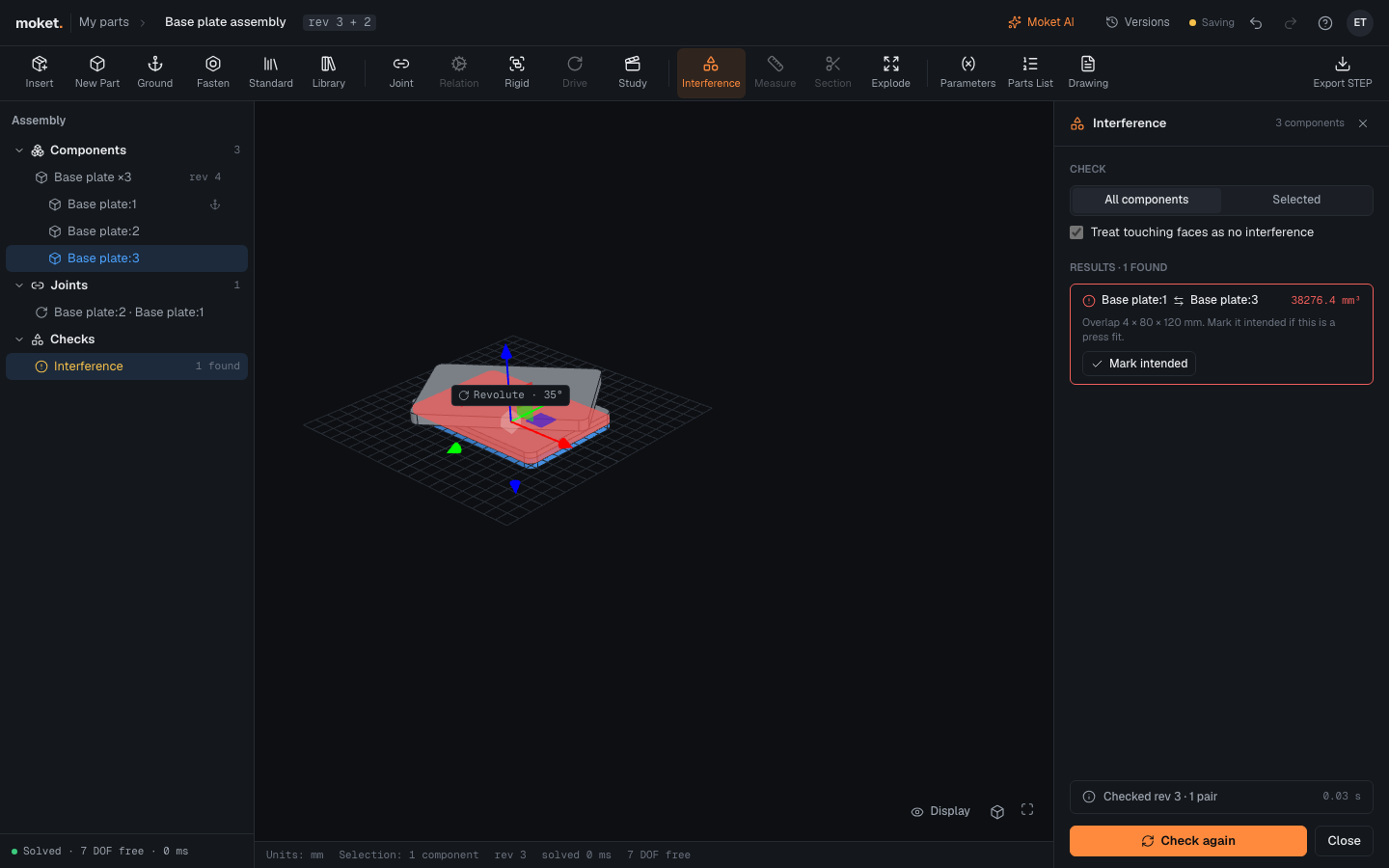
Check an assembly
- Click Interference.
- Choose All components, or Selected to check only the selected component against the others.
- Click Check.
Each overlap shows the two components, the volume they share in mm³ and the size of the overlap, the smallest side first: how deep it goes. Click a result to show only its overlap in the viewport. The tree's Checks line shows the last result: none, or how many were found.
Touching faces never count: a bearing in a bore of its own diameter, or a bolt head on the face it sits on, touch but do not overlap.
A screw in a tapped hole does not count either: its shank is modeled at the full thread diameter, larger than the tap drill, and the threads take up that ring. This works when both have a thread of the same size and pitch on the same axis: a tapped hole and a standard screw, or a thread you add to a stud of your own part. A plain cylinder in a tapped hole counts as an overlap.
Intended overlaps
A press fit overlaps on purpose. Click Mark intended on its result: the pair moves to Intended and is not reported again, also after later checks. Not intended puts it back.
When the assembly changes
The check runs when you ask for it. After a change, the panel says that the assembly changed since the check: click Check again. The status line shows which revision was checked, how many pairs of bodies were intersected and how long it took.