
Follow an agent's work in Agent activity
An agent connected over MCP works on your parts, drawings and assemblies without opening them in a tab: a Moket tab you have open, on any page, serves the agent in the background. Agent activity shows what the agent has open, and the changes that wait for you to apply them.
Access: the agent's status in the top bar of Home, for example Claude Code (MCP) is working · 3 documents.
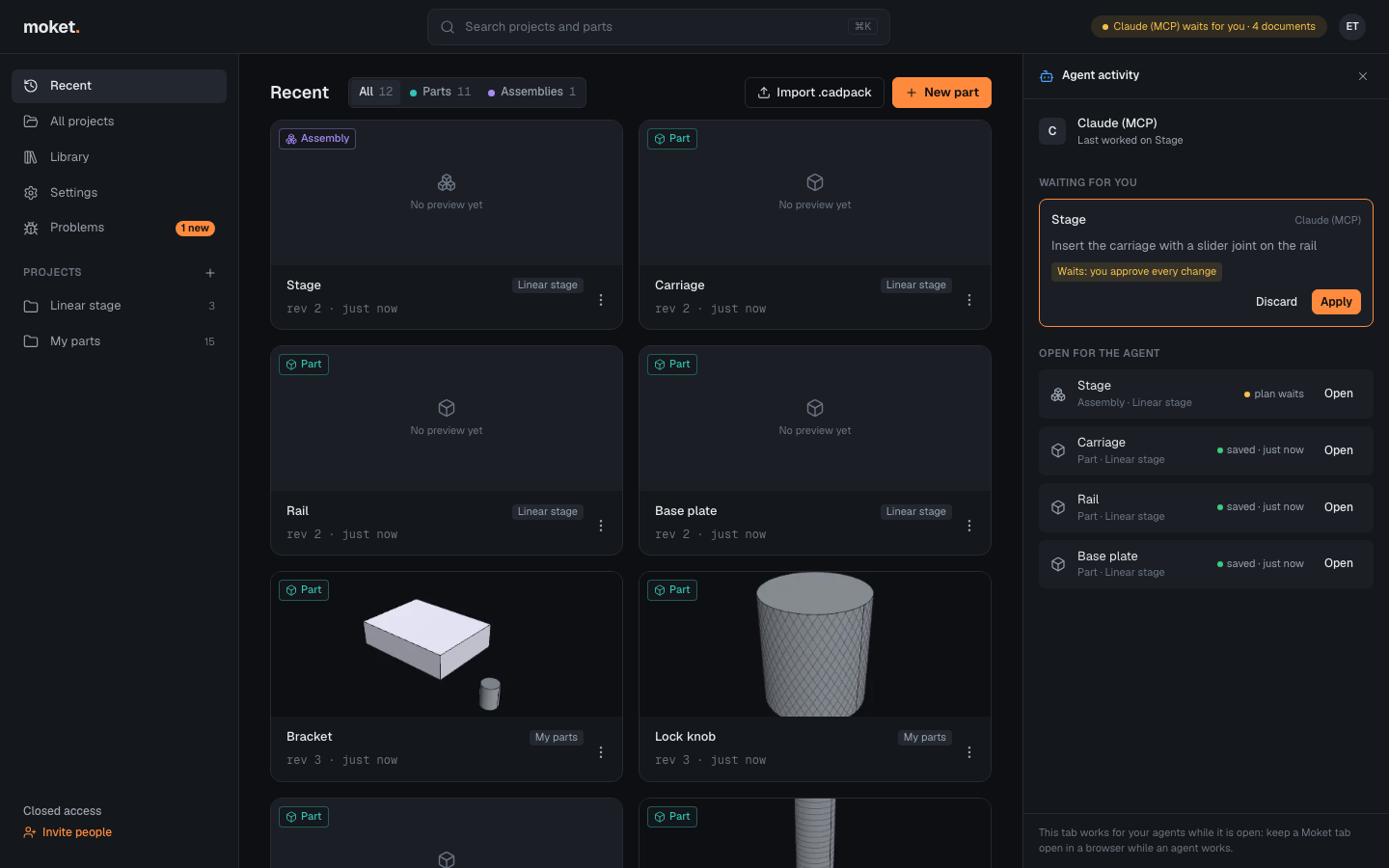
Keep a tab open for the agent
- Connect your agent and ask it to work on your documents, for example
Make a base plate, a rail and a carriage in my Moket project Linear stage and put them together. - Keep Moket Studio open in your browser, on any page. You need not open the documents the agent works on, and the tab does not switch to them.
When Moket is updated while the tab is open, the tab reloads by itself to the new version the next time the agent works, if it is on a page of Home with no dialog open; the agent goes on without noticing. A tab with an editor open keeps the version it loaded until you go back to Home or reload it.
Each change the agent applies is saved at once as a version named after the agent, for example Claude Code (MCP): Insert the carriage, so the document's versions show who changed what. New parts, drawings, assemblies and notes show on Home and in their project as the agent makes them.
Apply or discard a change that waits
A change waits for you when a check fails, or when you ask to approve that kind of change in Settings > Moket AI (see When Moket AI asks before applying). Agent activity opens by itself and shows the change under Waiting for you: the document, what the change does and why it waits.
- Read the change.
- Click Apply to apply and save it, or Discard to drop it. The agent learns your answer and goes on.
A change that waits is kept in your account, not in the tab: it is still there after you reload or close the tab, in every Moket tab and on another computer, until you decide. Applied later, it is applied to the document as it is then; when it no longer fits, for example because the feature it changes was deleted, it says why under the change, and you can ask the agent again.
Decide in the editor
When you open a document that has a change waiting, the editor shows it in the canvas with the banner Claude Code preview · not applied: click Apply or Discard there. Other changes waiting on the document are listed at the top of the Moket AI panel with Preview and Discard.
Open a document the agent works on
Click Open next to the document under Open for the agent. Anything the agent applied is saved first, then the document opens in its editor. From then on the agent works on it in this editor, and you see its steps in the Moket AI panel. You can also open it from its project or a link: the agent lets it go at once.
Options
| Item | What it shows |
|---|---|
| The agent | Who works, and on which document now or last. |
| Waiting for you | Changes that wait for Apply or Discard, of every agent and document of your account. |
| Open for the agent | Documents the agent has open in this tab, with working, plan waits, saving or saved. |
Limitations
- Agents work in a Moket tab open in a browser where you are signed in. With none, they work on Moket's server if your server offers it and Work without an open tab is on in Settings > Agents; otherwise the agent asks you to open Moket.
- One tab of each browser serves agents. When it closes, another Moket tab of that browser takes over; Open for the agent shows in the tab that serves them, Waiting for you in every tab.
- A document closes for the agent after 10 minutes without its calls, and at most 12 stay open; one with a change waiting for you stays open until you decide.
- Pictures of a document (Send viewport images to AI) need the document open in an editor.
- Documents the agent makes have no preview picture on Home until you open them.