
Make configurations of a part
Configurations keep several sizes or variants of one part in one document, for example a bracket in three widths or a screw as M3 x 8, M3 x 10 and M3 x 12. Each configuration is a row of a table: values of parameters, and features built or suppressed.
Access: Toolbar > Configs. Switch the active configuration in Part properties > Configuration.
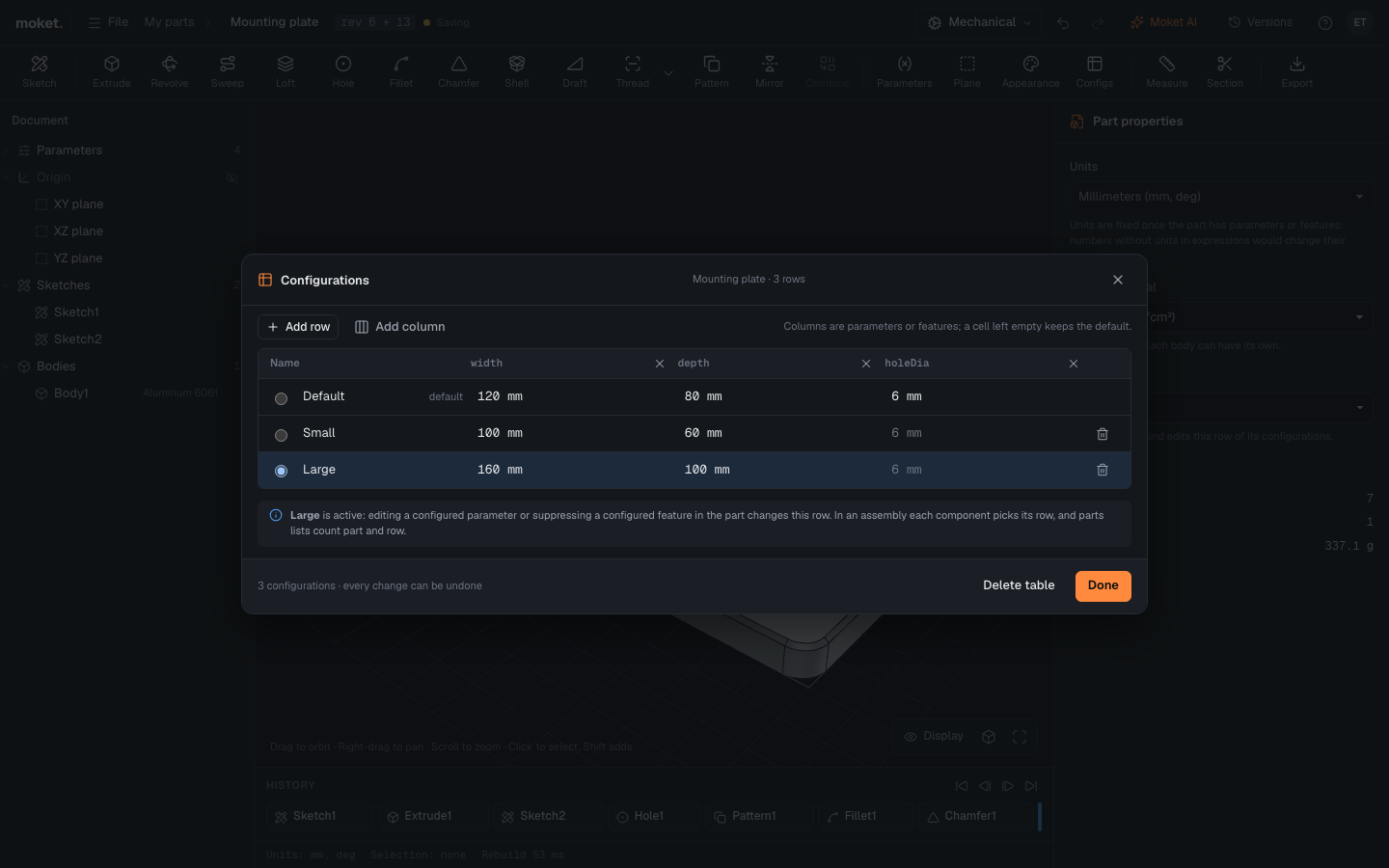
Make the table
- Build the part with parameters for what changes between variants.
- Click Configs, then Make configurations. The first row, Default, holds the part as it is.
- Click Add column and choose a parameter or a feature. Add one column for each value that changes.
- Click Add row for each variant. Rename it in the Name cell.
- Type the variant's values in its cells. A cell left empty takes the Default row's value, shown in grey.
- For a feature column, choose Built or Suppressed.
- Click Done.
The active configuration
The part in the editor is always one row of the table, the active one, marked by the round button and highlighted. Click the round button of another row, or choose it in Part properties > Configuration, and the part rebuilds as that row says.
When you change a configured parameter in the part, in Parameters or in a feature dialog, or suppress a configured feature in the history, the change goes into the active row. The other rows keep their values.
Options
| Button or cell | What it does |
|---|---|
| Add row | A new configuration with every cell empty, so it starts as the default |
| Add column | A parameter (cells are expressions such as 10 mm or length * 2) or a feature (built or suppressed) |
| Cross in a column | Removes the column from the table; the part keeps its current value |
| Bin of a row | Deletes the configuration; the default row cannot be deleted |
| Delete table | Removes all configurations; the part stays as the active row |
Every change is one step you can undo with Ctrl+Z. Deleting a parameter or a feature removes its column.
Tips
- Cells can use other parameters:
diameter * 2.5follows the diameter of the same row. - Renaming a parameter renames it in every cell.
- In an assembly, each component chooses its configuration under Configuration in its properties, and the parts list counts part and configuration: Bracket Large ×2. See Insert and arrange components.
- Export writes the active configuration: switch to each one you need and export it.
- Moket AI can make configurations too, for example "Add rows for 30, 40 and 50 mm long".