
Trim and extend curves
Trim removes the piece of a curve between the curves that cross it, so you can cut notches and openings out of overlapping shapes. Extend lengthens a line or an arc to the next curve it meets.
Access: Sketch mode toolbar > Trim (T), Extend (E).
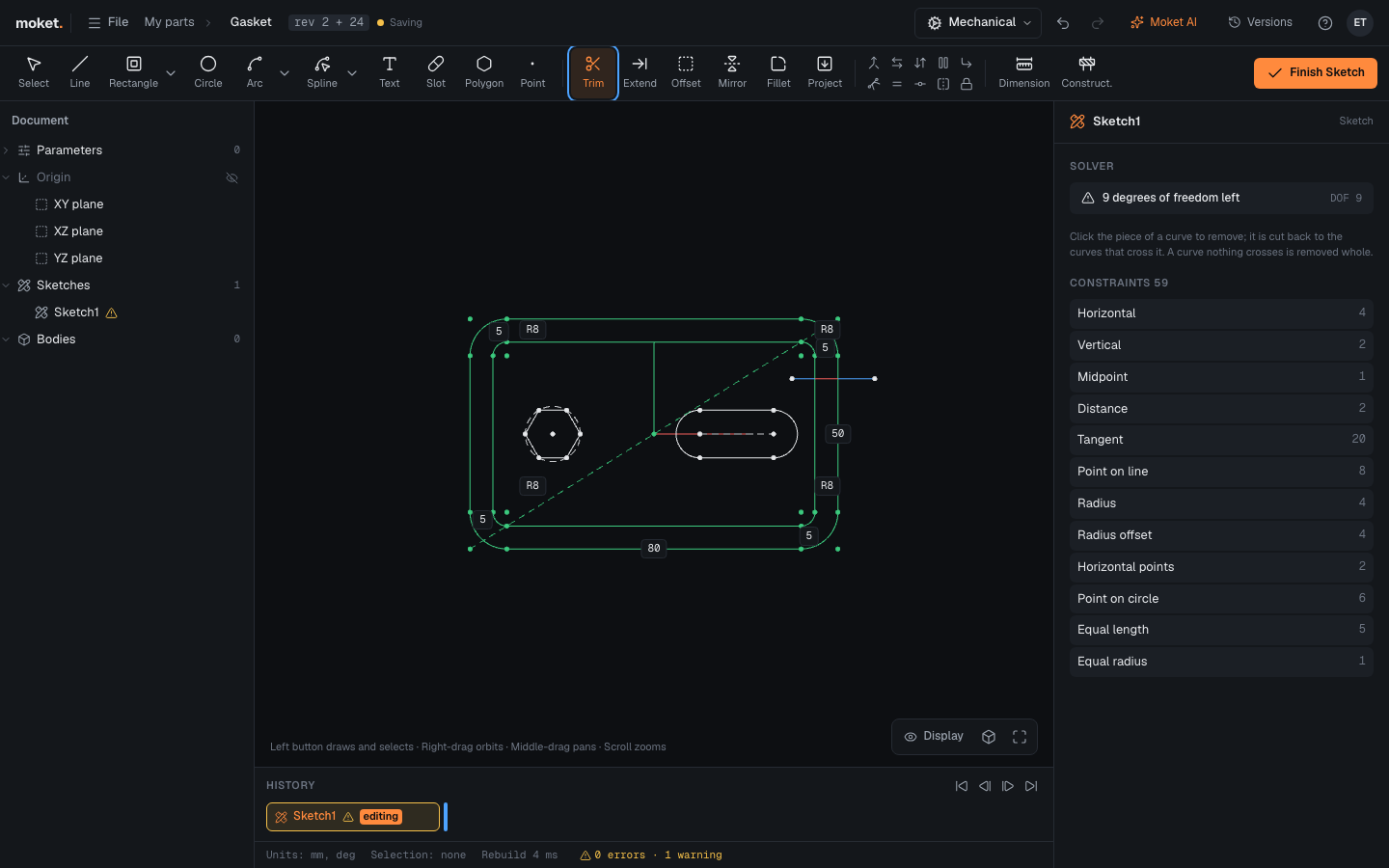
Trim
- Click Trim.
- Move the pointer over a curve. The piece a click removes turns red.
- Click to remove it. Keep clicking to remove more pieces.
A curve that nothing crosses is removed whole. A circle crossed at two or more points becomes an arc.
Extend
- Click Extend.
- Click a line or an arc near the end you want to lengthen.
The end moves to the first curve its extension meets and stays on that curve.
What happens to constraints
- New ends stay on the curves that cut them (Point on line or Point on circle).
- When the middle of a line is removed, the two pieces stay on one line.
- Constraints that no longer make sense are removed, such as a midpoint on a shortened line or a dimension on a moved end. The panel says how many.
Limitations
- Only free ends can be extended: an end joined to another curve or fixed stays where it is.
- Projected geometry cannot be trimmed or extended; it follows the model.