
Install plugins
A plugin adds features to the part editor: tools for a craft, such as leather goods, or shapes you make often. A plugin can bring a workbench, its own toolbar in the part editor. Plugins you install are yours: they are on for your account only. Moket's own Leather Workbench is on for everyone; you can turn it off here.
Access: Settings > Plugins.
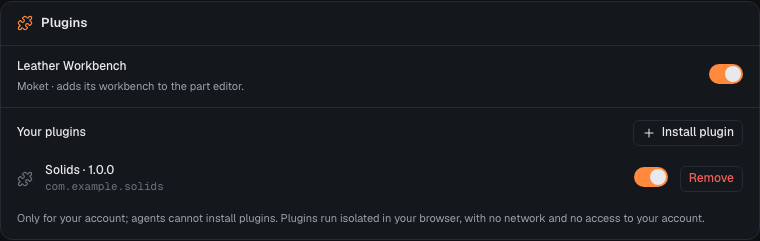
Install a plugin
- Open Settings and find Plugins.
- Click Install plugin.
- Paste the https address of the plugin's
moket-plugin.jsonor of its package, or click or choose a package file (.zip) and pick the file. - Check what the plugin adds: its name, version and author, its features, its workbench.
- Click Install.
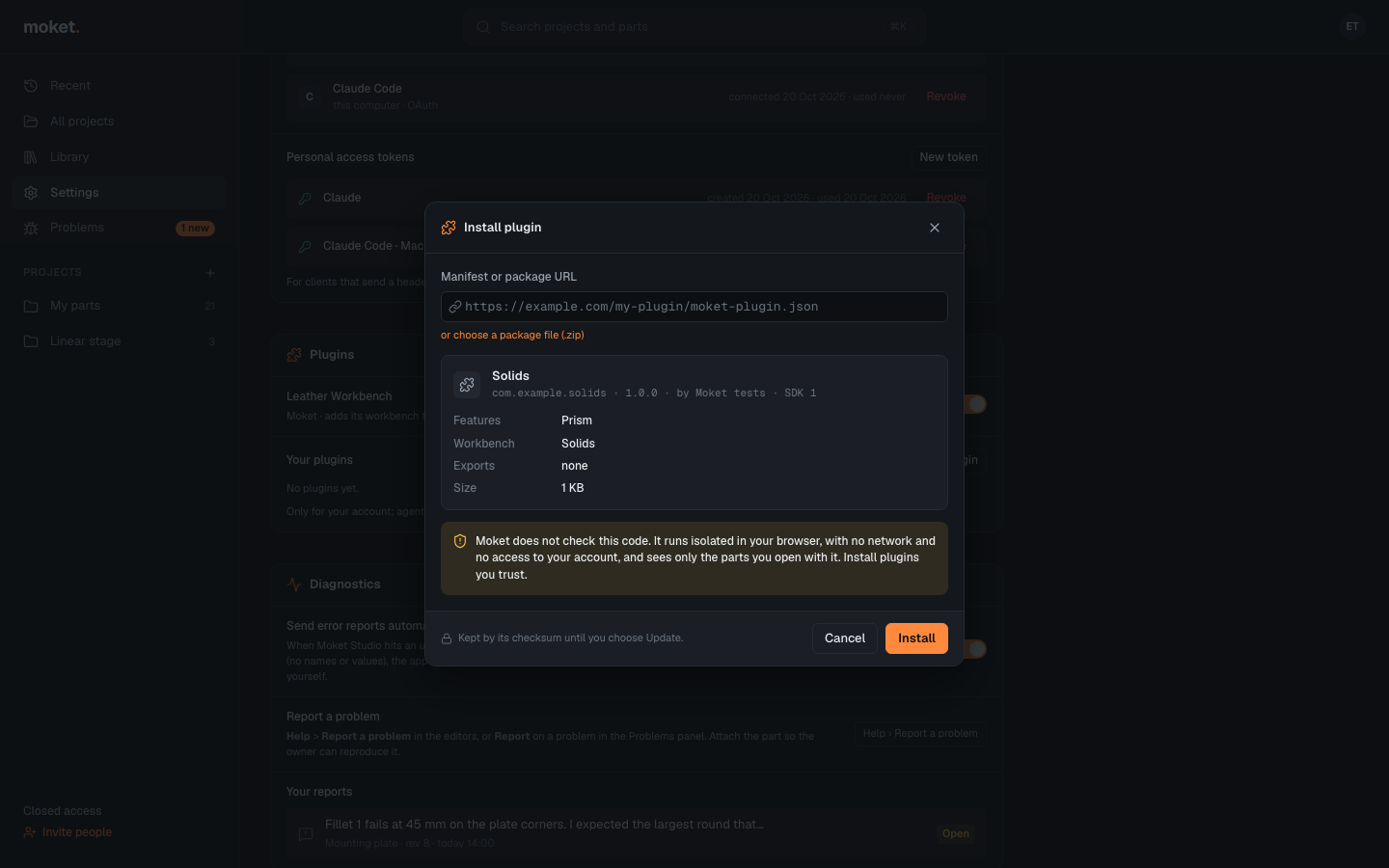
Moket does not check a plugin's code. It runs isolated in your browser: it has no network, no access to your account or to other parts, and sees only the part you use it in. Install plugins you trust.
The plugin is kept as it was when you installed it, by its checksum. If its address serves a new version later, nothing changes until you click Update next to it.
To try one, install Rounded box, the example of Write a plugin, from https://app.moket.io/help/plugins/rounded-box/moket-plugin.json. To make your own, start from that article.
| Option | What it does |
|---|---|
| Switch | Turns the plugin on or off for your account. Parts that use a plugin that is off keep their shape |
| Update | Reads the plugin's address again and installs what it serves now, if it changed |
| Remove | Takes the plugin out of your account. Parts that use it keep their shape |
Use a plugin's features
- Open a part.
- Click the workbench at the right of the top bar, Mechanical by default, and choose the plugin's workbench.
- Click one of its tools. Its dialog opens on the right, like the dialogs of Extrude or Fillet.
- Fill in the fields. For a field that picks something in the view, click Pick, click the faces, edges, bodies or sketch areas, then Done.
- Click OK.
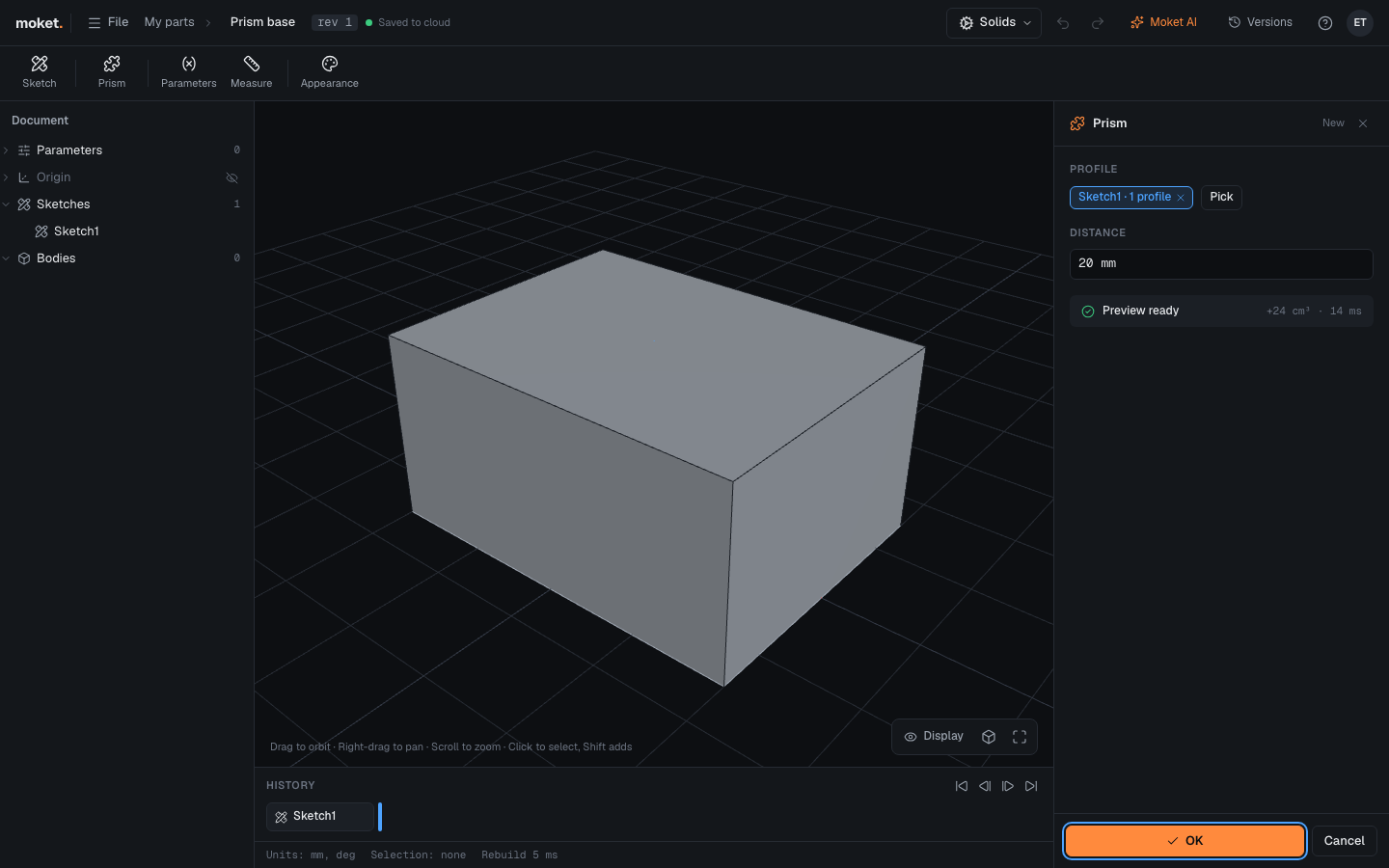
Each part remembers its workbench in this browser. Sketch, Parameters, Measure and Appearance are in every workbench; choose Mechanical for the other tools.
Open a part without its plugin
A part keeps the last result of each plugin feature with its versions. When you open it with that plugin off, or without it, the part still opens:
- a banner names the plugin, with Turn on when you have it or Install when you do not;
- the plugin's features show their last result, with a snowflake in the history, and cannot be changed;
- the features after them build on that result, and the rest of the part can be edited as usual;
- the plugin features keep their settings as they were.
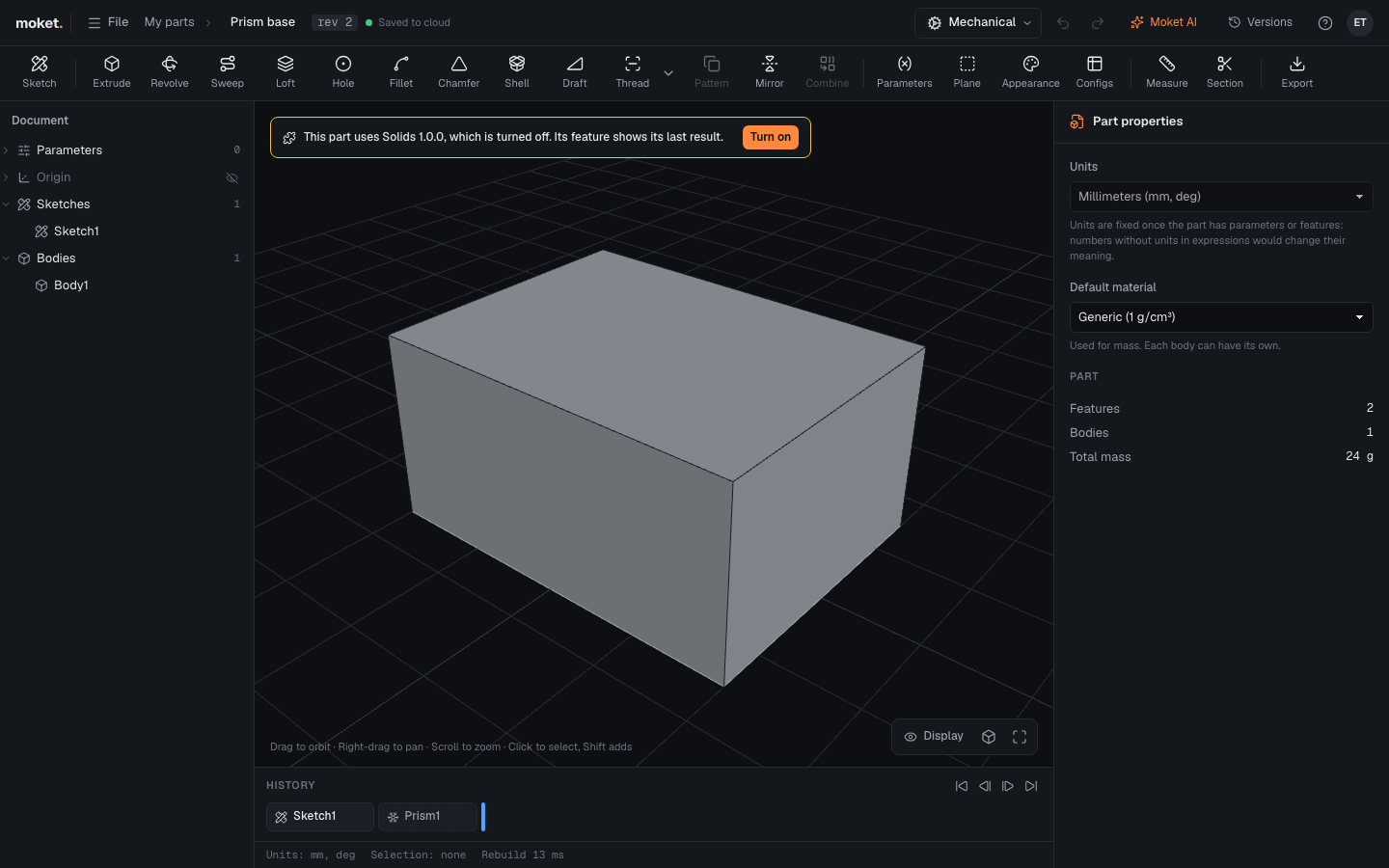
If you change something a frozen feature uses, for example a parameter or the sketch it was built from, the feature is marked stale: it still shows the result it had. Turn the plugin on, or open the part where someone has it, to build it again.
Plugins and agents
Moket AI and agents connected over MCP use the features of the plugins you have on, like Moket's own. Your own plugins run only in your browser: an agent working on Moket's server with no tab open asks you to open Moket, then goes on there. The Leather Workbench runs on Moket's server too. Agents cannot install, update or turn off plugins.
Troubleshooting
| Message | What to do |
|---|---|
| Could not read the plugin... (CORS) | The plugin's server does not let Moket fetch it. Download its package file and install it from the file |
| Plugins install from https URLs... | Use the plugin's https address. Only a plugin you write may come from http://localhost |
| The plugin took over 30 s and was stopped | The feature took too long. Try smaller values, or ask the plugin's author |
| The plugin made over 20000 shapes in one build | The feature made too much geometry at once |
| The plugin did not load | The plugin's code has an error. Update it, or ask its author |
| Another message on a plugin feature | It comes from the plugin: it says what to change in the feature's fields |
| An agent says your plugin runs only in a browser | Open Moket in a tab, on any page, and ask the agent to go on |