
Import a STEP file
Import STEP brings the solids of a STEP file into your part as bodies: a motor, a board or a bracket from a supplier. You can measure them, sketch on their faces, cut, fillet and join them, and use them in assemblies.
Access: File > Import STEP... in a part. On a project page: Import STEP makes a new part from the file, or the parts and assemblies of an assembly file.
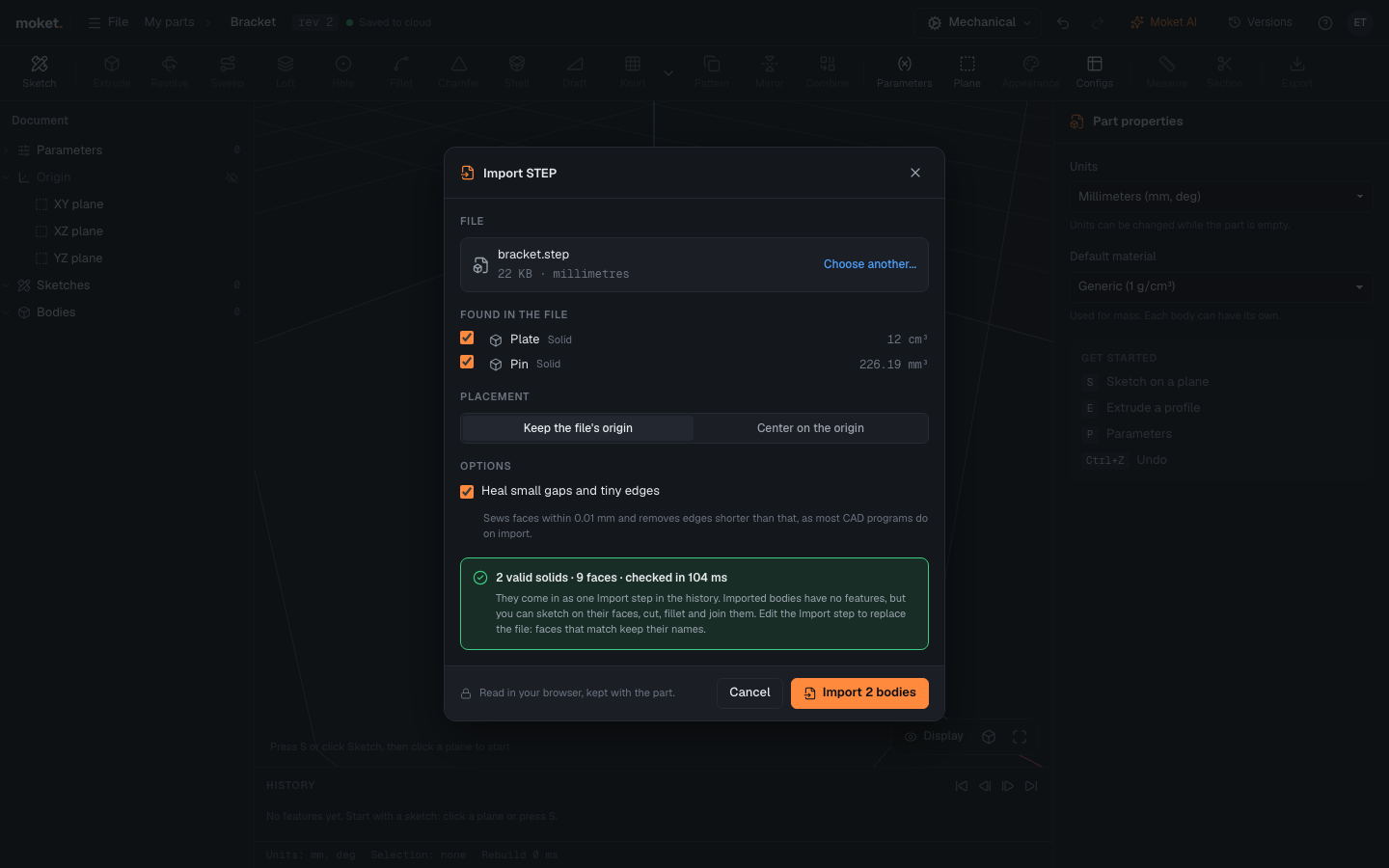
Import into a part
- Click File > Import STEP....
- Click Choose a STEP file... and pick a
.stepor.stpfile. Moket reads it and lists what it found. - Under Found in the file, clear the solids you do not want.
- Choose the Placement and whether to Heal the file.
- Check the summary, then click Import.
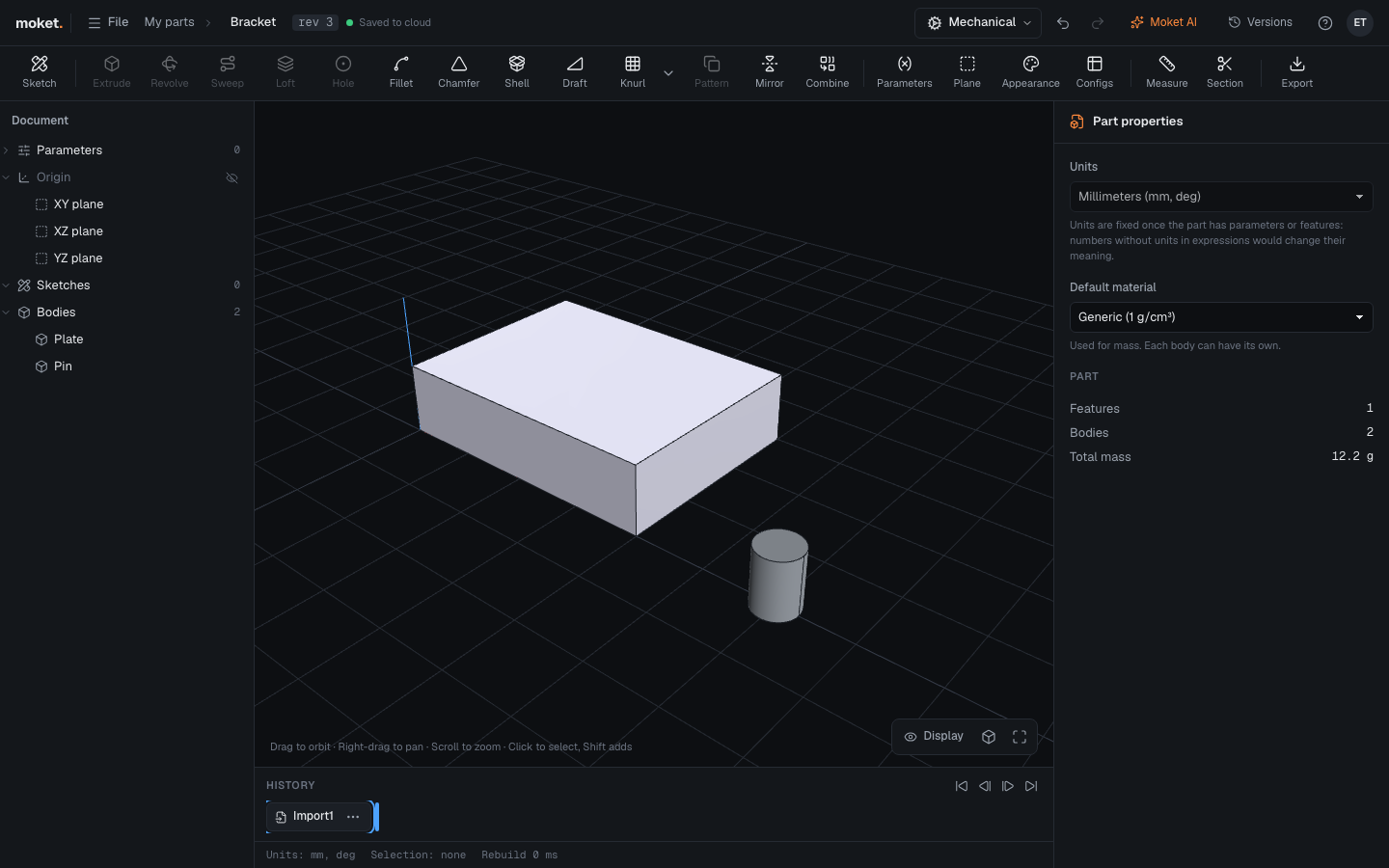
The solids come in as one Import step in the history, one body each, named as in the file.
Make a new part from a file
- Open a project and click Import STEP.
- Pick the file. Moket makes a part named after the file and opens the Import STEP dialog on it.
- Choose the solids and options and click Import.
Import an assembly
When the file holds an assembly of several parts, Import STEP on a project page asks what to make. One part imports it as above, every solid a body of one part. Parts and assemblies makes the assembly again in the project:
- a part for each part of the file, named after it, with its solids in its own coordinates and the file's colours;
- an assembly for each assembly of the file, its components named as in the file and grounded where the file places them; assemblies inside it become subassemblies.
The top assembly opens when it is done. Joints are not in STEP files: add them to make the parts move.
Options
| Option | Description |
|---|---|
| Found in the file | The solids to import, with their volumes. Open surfaces are listed but cannot be imported |
| Keep the file's origin | The solids stay where the file puts them |
| Center on the origin | The solids together are moved so the middle of their bounding box is on the part's origin |
| Heal small gaps and tiny edges | Sews faces that are within 0.01 mm and fixes small defects, as most CAD programs do on import. On by default |
Tips
- Files are read in millimeters; files in inches or meters are converted.
- An assembly in a STEP file comes in as several bodies of one part. To use them as separate parts, import the file into a part per component and clear the others.
- Colours in the file come in as appearances of the new bodies and their faces, in one step you can undo. Change them like any other finish. Replacing the file later keeps the colours you have.
- Imported bodies have no features. To change one, build on it: cut, fillet, shell, or sketch on its faces.
- When the supplier sends a new version of the file, replace the file instead of importing it again: features on faces that did not change stay.
Limitations
- Files up to 50 MB.
- Only closed solids are imported. Surface models that do not close are left out, even with healing on.
- The assembly structure and the history of the original part are not imported.
Where the file is kept
The file is read in your browser and stored with the part in its project, so the part opens with it on any computer. Your browser also keeps a copy so the part opens without downloading it again. A Moket file (.cadpack) of the part includes the STEP files it imports.
Troubleshooting
| Problem | What to do |
|---|---|
| No closed solids in this file | Turn on Heal small gaps and tiny edges. If the file still has none, ask for a STEP file with solids |
| cannot be read as STEP | The file is not a STEP file or is damaged. Export it again from the program it came from |
| The Import step shows is not available yet | The file is still loading, or it cannot be downloaded. Check your connection, or choose the file again |