
Connect components with joints
A joint holds two components together at points you pick on them, and says how they may still move: not at all, turning, sliding, or both. The component that is grounded, or nearer a grounded one, stays; the other one snaps to it.
Access: assembly editor > Joint. Shortcut: J.
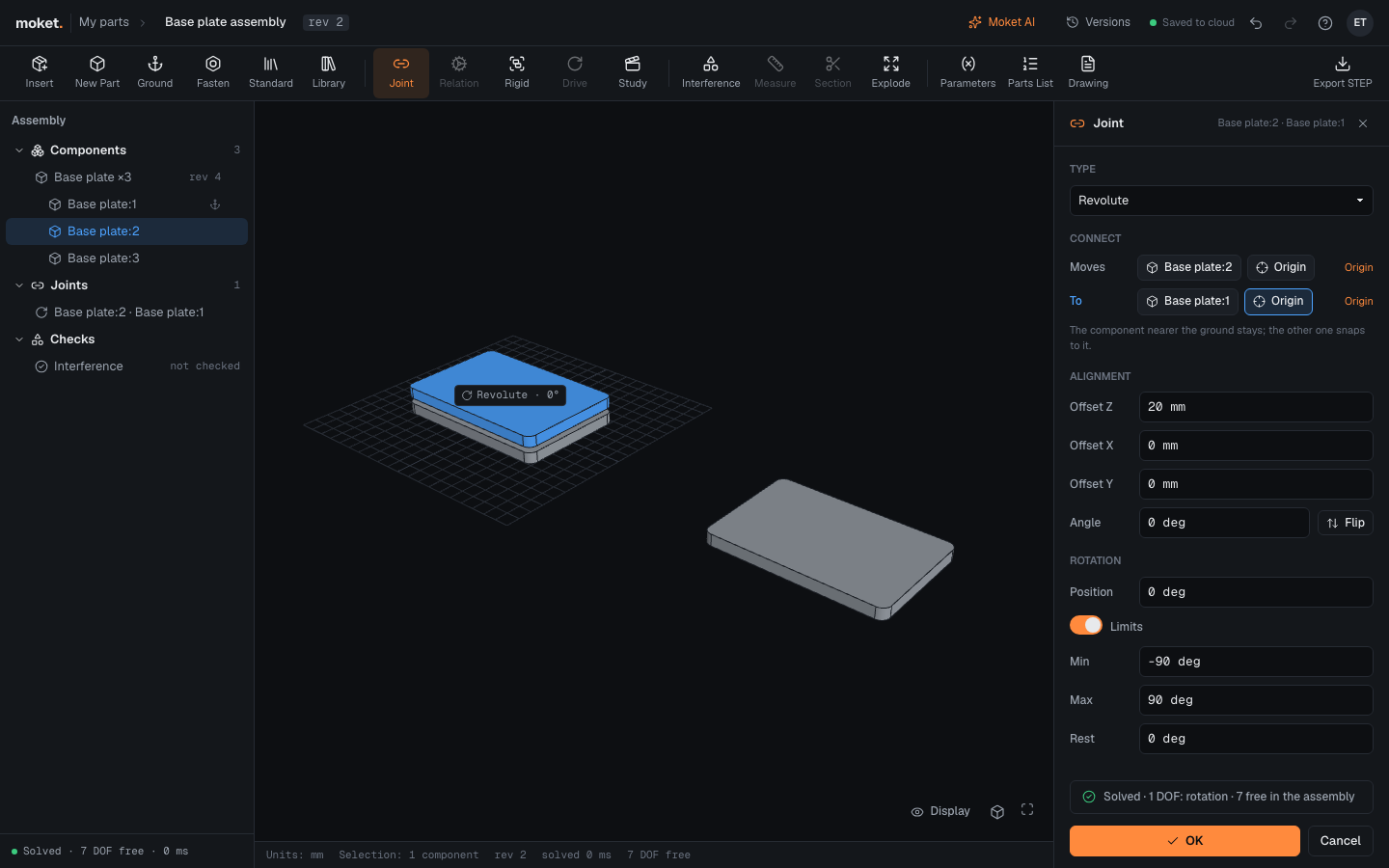
Make a joint
- Click Joint, or press
J. If a component is selected, it is the one that moves. - Click a face or an edge on the component that moves.
- Click a face or an edge on the component it connects to. The moving component snaps at once.
- Choose the Type: Fixed, Revolute, Slider or Cylindrical.
- Adjust Offset Z, Offset X, Offset Y, Angle and Flip until it sits right, and set the motion if it has one.
- Click OK, or press
Enter.Esccancels.
Instead of a face or an edge, a side can use its component's own origin: pick the component in the tree, then click Origin on its row. On a subassembly, click a face or an edge of a part inside it: the joint holds the subassembly there, and the panel names the part, for example Clamp:1 / Clamp plate:1.
What a pick gives
| You click | The joint uses |
|---|---|
| A flat face | Its center, pointing out of the face |
| A round face (cylinder, cone, sphere, torus) | Its axis, at the middle of the face |
| A round edge | Its center and axis |
| A straight edge | Its middle, along the edge |
| Origin | The component's origin and Z axis |
By default the two picks face each other, like a part resting on a face. Flip turns the moving side over so the two point the same way, for example to keep a bearing flush with the end of its bore.
Joint types
| Type | Moves | Use it for |
|---|---|---|
| Fixed | Nothing | Bolts, bearings pressed into a bore |
| Revolute | Turns about Z | Shafts, hinges, wheels |
| Slider | Slides along Z | Carriages on a rail, pistons |
| Cylindrical | Turns and slides along Z | A shaft that can also move in its bore |
| Ball | Turns about Z and tilts about X and Y | Ball joints, rod ends, a spherical bearing |
| Planar | Slides along X and Y and turns about Z | A part resting on a table, a puck on a plate |
| Pin-slot | Turns about Z and slides along X | A pin in a slot, a cam follower in its groove |
Z is the axis of the second pick: the axis of a round face or edge, the normal of a flat face, or the direction of a straight edge. X and Y lie across it: X is the part's own X axis laid flat across Z (the part's Y axis when Z runs along X), so a pin-slot or planar joint on a face that points up slides along the part's X. With Origin, X, Y and Z are the component's own axes.
Choose the type in the Type list. Each free direction gets its own Position and Limits: Rotation and Translation about and along Z, Rotation X, Rotation Y, Translation X and Translation Y across it.
Options
| Option | What it does |
|---|---|
| Offset Z | Moves the component along Z, for example 20 mm. |
| Offset X | Moves the joint's zero along X of the second pick, for example -150 mm. |
| Offset Y | Moves the joint's zero along Y of the second pick. |
| Angle | Turns the component about Z, for example 90 deg. |
| Flip | Turns the moving side over. |
| Position | Where a turning or sliding joint is now. See Drive joints and set limits. |
| Limits | How far it may turn or slide: Min, Max and Rest. |
Every value can be an expression with the assembly's parameters, like the values of a part.
Offset X and Offset Y move the point the joint starts from, not only the component: positions and limits count from there, and the joint turns about it. For example, to have a carriage's travel start at the end of a 300 mm rail rather than at its middle, put the carriage on the rail with a pin-slot joint and set Offset X to -150 mm: Translation X then runs from 0 at that end.
Degrees of freedom
The panel's status line and the bottom of the Assembly column show what is still free. A revolute joint between a free component and a grounded one leaves 1 DOF: the rotation, a ball joint 3. A direction whose limits have the same Min and Max is locked and does not count.
A joint between two components that other joints already place closes a loop: a shaft held by two bearings, or a linkage. Moket solves the loop: the free directions of the joints around it move until it closes, and what the loop takes from them no longer counts as free. A four-bar linkage of four revolute joints has 1 DOF. A loop that cannot close, such as links too short to reach, is ignored where it fails and shown as a problem (JOINT_CONFLICT); the rest stays where it is. See Drive a linkage.
To make components move as one without picking faces, use a rigid group.
Edit a joint
Select the joint in the tree or click its label in the viewport, then click Edit joint. Suppressed turns a joint off without deleting it; Delete joint or Delete removes it.