
Export
Export saves the bodies of your part as STEP for other CAD and CAM programs, or as STL for 3D printing.
Access: Toolbar > Export, or File > Export....
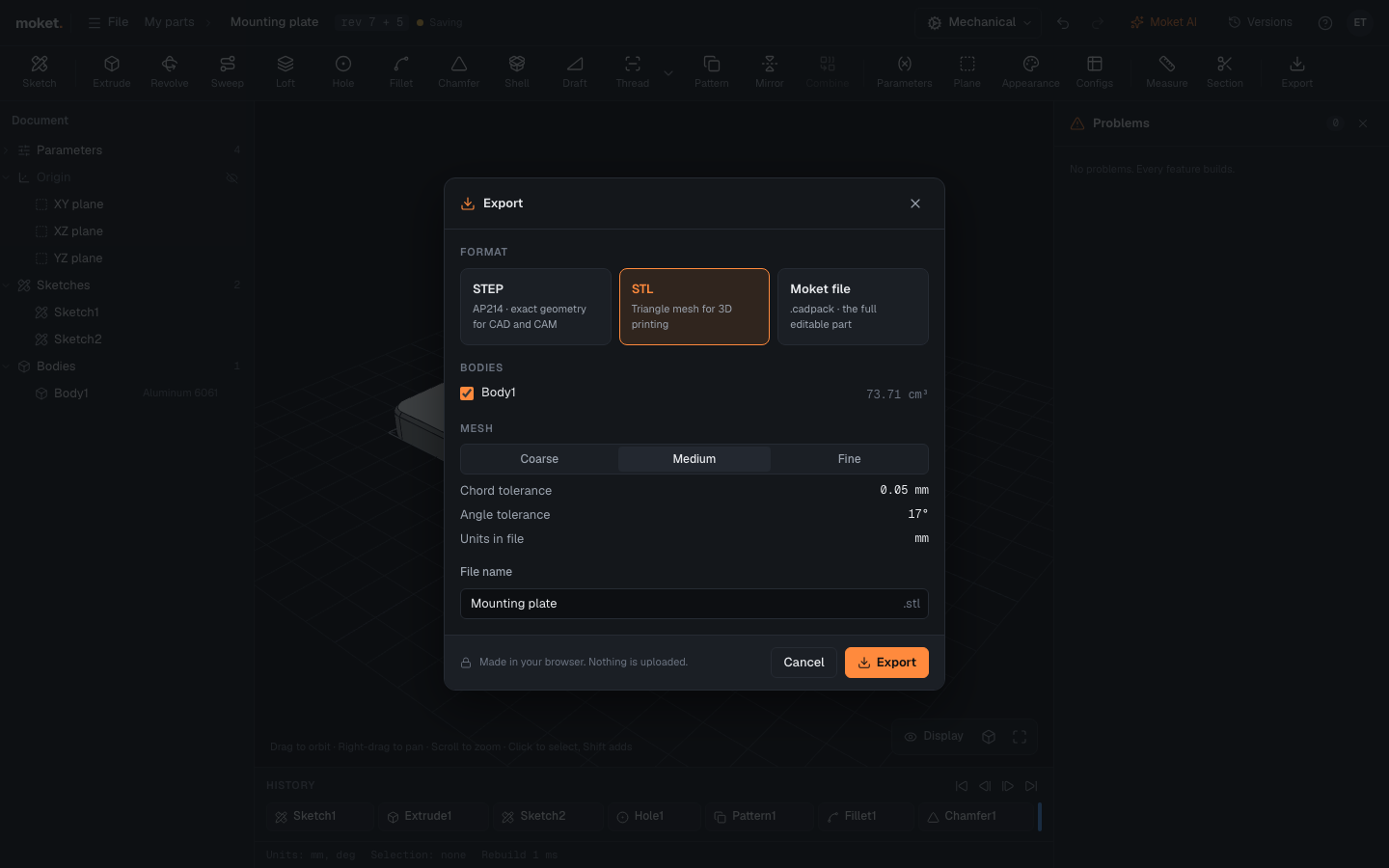
Steps
- Click Export.
- Choose the Format.
- Choose the Bodies to include and edit the File name.
- Click Export. The file is made in your browser and downloaded; nothing is uploaded.
Formats
| Format | Contents | Use it for |
|---|---|---|
| STEP | Exact geometry (AP214), with the part's name and colours | Other CAD programs, CAM, manufacturers |
| STL | A triangle mesh | 3D printing slicers |
| Moket file | The full editable part (.cadpack) | Opening it again in Moket |
STL options
| Option | Description |
|---|---|
| Refinement | Coarse, Medium or Fine: finer meshes follow curves more closely and make larger files |
Files are written in millimeters. STEP carries the colours of the bodies' and faces' finishes; the default grey writes no colour, and finishes other than their colour, such as gloss or metal, are not in STEP.
Export each configuration
STEP and STL hold the part as its active configuration builds it. To export another one:
- In Part properties > Configuration, choose the configuration. The part rebuilds.
- Click Export and export it, with the configuration's name in the File name.
- Repeat for each configuration you need.
A Moket file holds every configuration.