
Versions of a part
Every saved change is a revision of the part, and Moket keeps all of them. Give the important ones a name, look at any older one, and bring it back when you need it.
Access: Versions in the top bar of the part editor. Shortcut: Ctrl+S names the current version.
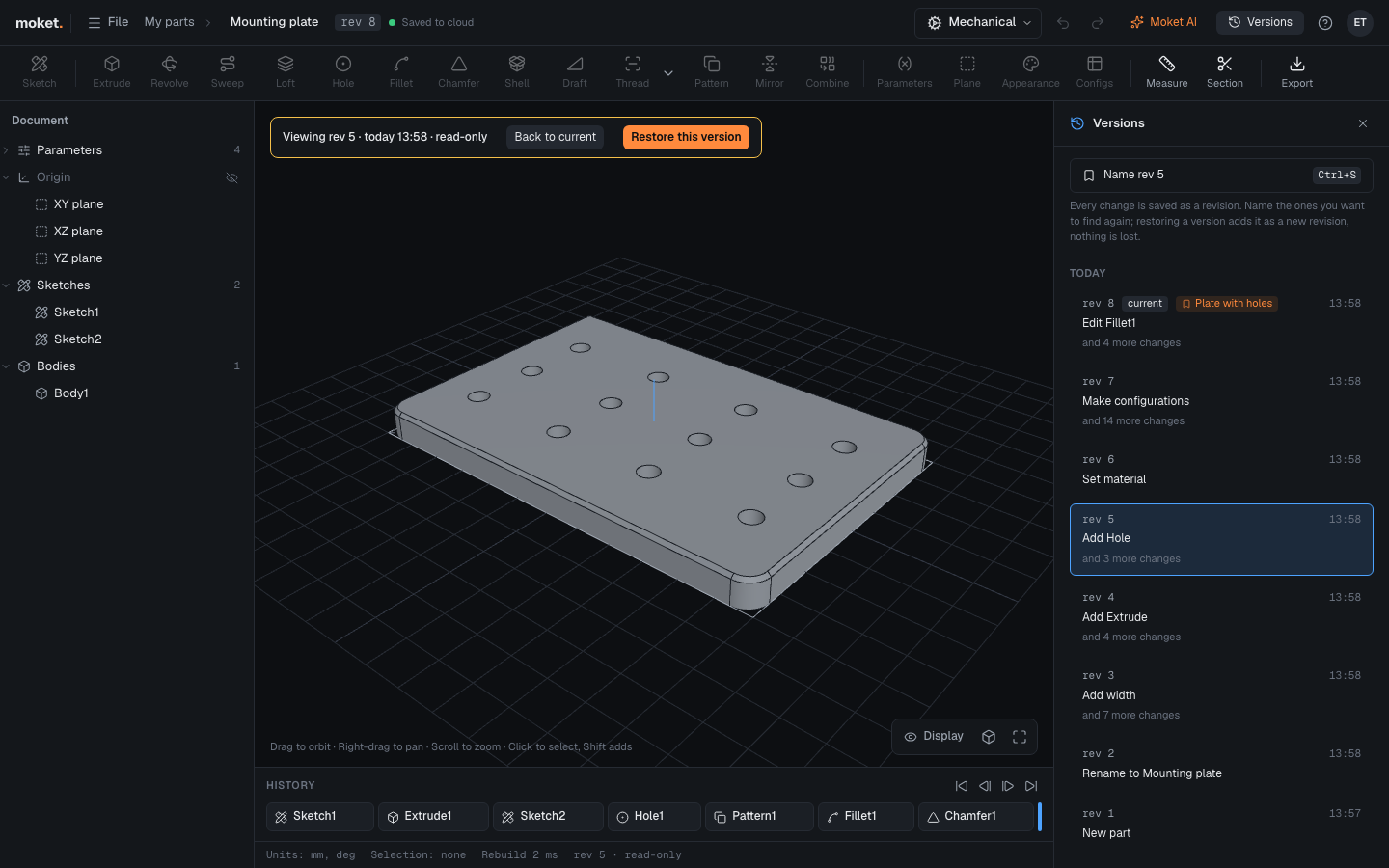
Name a version
- Press
Ctrl+S, or click Versions and then Name this version. - Type a name, for example
Printed prototype, and click Save.
Moket sends the changes it has not saved yet first, so the name goes to the part exactly as you see it. Named versions are marked in the list. To rename one, view it and name it again.
Look at an older version
- Click Versions.
- Click a revision in the list. Revisions are grouped by day; each shows its number, its time and what changed, for example
Add Fillet1 and 2 more changes.
The canvas shows the part as it was, and the banner says Viewing rev 44 · read-only. You can orbit, measure, use a section and export it, but not change it. Close the panel if you need the properties panel; the version stays on view.
Click Back to current in the banner to return to the part as it is now.
Restore a version
- View the version.
- Click Restore this version in the banner.
The version becomes the current part as a new revision, Restored "Printed prototype" (rev 44). The revisions after it stay in the list, so nothing is lost: restore one of them to go back.