
Section views
A section view shows a part as if it were cut along a line: the material between you and the cut is taken away, the faces the cut leaves are hatched, and the hidden insides of bores, pockets and tapped holes become visible edges you can dimension. The cutting line with its letter and arrows stays on the view it was drawn on, and the section follows the part like any other view.
Access: select a front, top or side view, then Section in the toolbar.
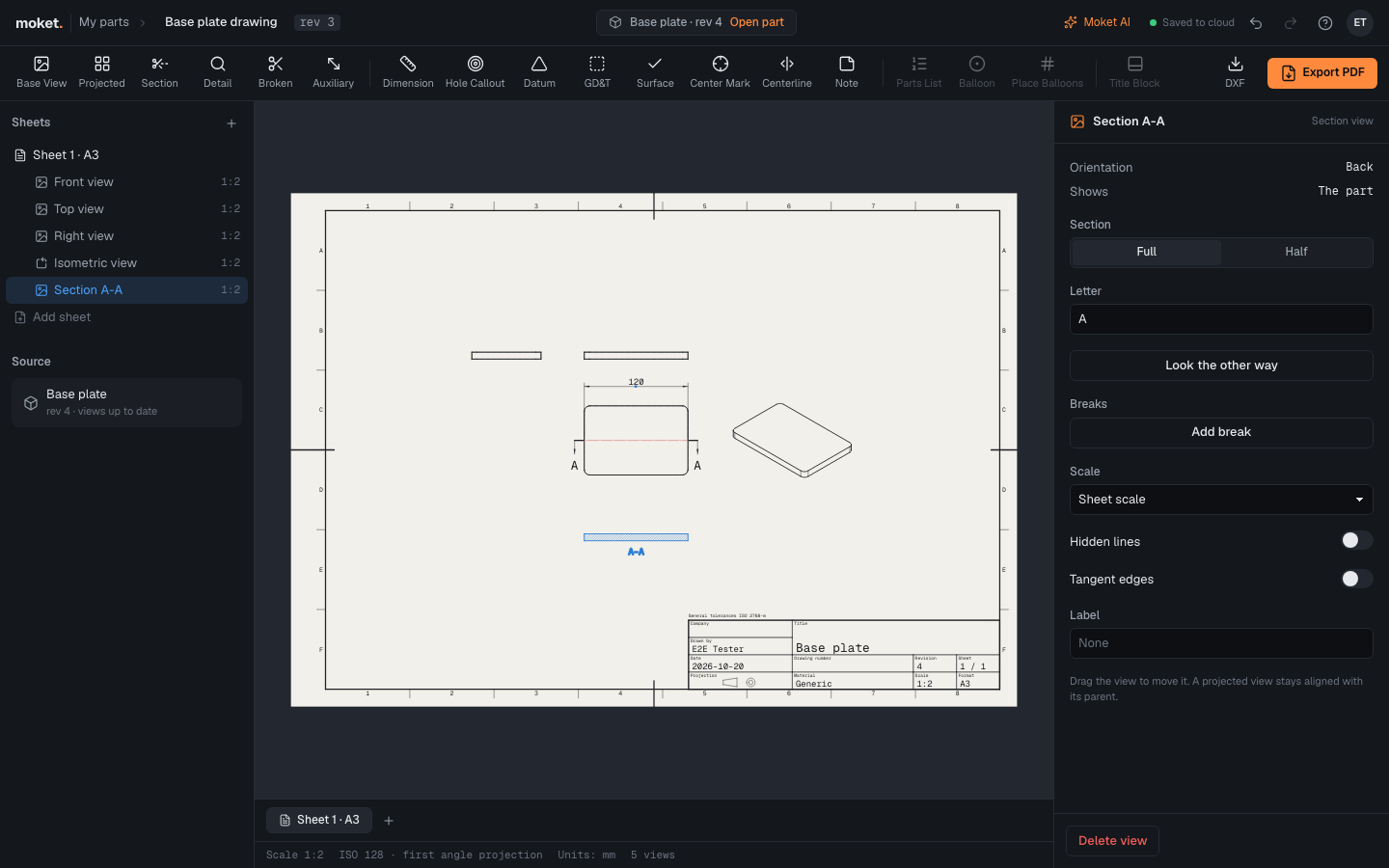
Cut a view
- Select the view to cut (in the tree or on the sheet), then click Section.
- Click where the cutting line starts, beside the view, and click again where it ends on the other side. The line runs along the view's axes, horizontally or vertically, and its ends go past the part on their own.
- Click on the side of the line where the section goes. It is placed there, looking across the line the way the sheet's projection method says; the arrows on the cutting line point that way. A section of the front view stays aligned with it; a section of the top or a side view cut across to the side shows the part standing up, so it lines up with nothing and goes where you click.
For an offset section through features that do not lie in one line, Shift-click at every corner of the cutting line: each stretch runs along the view's axes, and the section shows the cuts side by side, with no line where the cut steps from one plane to the next.
Press Esc to drop the line you are drawing.
Section properties
| Option | What it does |
|---|---|
| Full / Half | Half stops the cutting line in the middle of the view: half the part is cut, the other half shown whole. |
| Letter | The letter of the section, A for A-A. Sections, details and auxiliary views each have their own; I, O and Q are left out. |
| Look the other way | Turns the section round: it shows the other side of the cut, and the arrows turn with it. |
| Hidden lines | Off for sections: what the cut leaves is shown as it is. |
The caption under the view reads A-A on ISO drawings and SECTION A-A on ASME drawings. Moving the view it comes from moves the cutting line with it; a section that lines up with that view stays aligned with it, like a projected view, and one that does not moves freely.
Hatching
Cut faces are hatched with thin lines at 45 degrees (ISO 128-50 general hatching). Their spacing follows the size of the cut: thin walls get closer lines. In a drawing of an assembly, neighbouring components are hatched at 135 degrees and then with wider spacing, so they stay apart, and screws, nuts, washers, pins and bearings from the standard parts library are not cut (ISO 128-44). In DXF files the hatching is on the layer HATCH.
Dimensions on a section
Dimension a section like any view: the edges the cut makes are edges of the part, named after the face they cross and the section, so a dimension on them follows the part when it changes and loses its edge only when that face goes. See Dimension a drawing.
Troubleshooting
| Message | What to do |
|---|---|
| A section is cut from a front, top or side view | Select a view other than the isometric one before Section. |
| The cutting line runs along the view axes, in steps at right angles | Draw each stretch horizontally or vertically; Moket snaps it to the nearer axis. |
| The letter A is taken: use another one | Type a letter no other section, detail or auxiliary view of the drawing uses. |