
Dimension a drawing
Dimensions on a drawing measure the part itself, not the lines on the sheet: their values come from the 3D edges they point to, at true size whatever the scale. When the part changes, they show the new values.
Access: Dimension on the drawing toolbar. Shortcut: D.
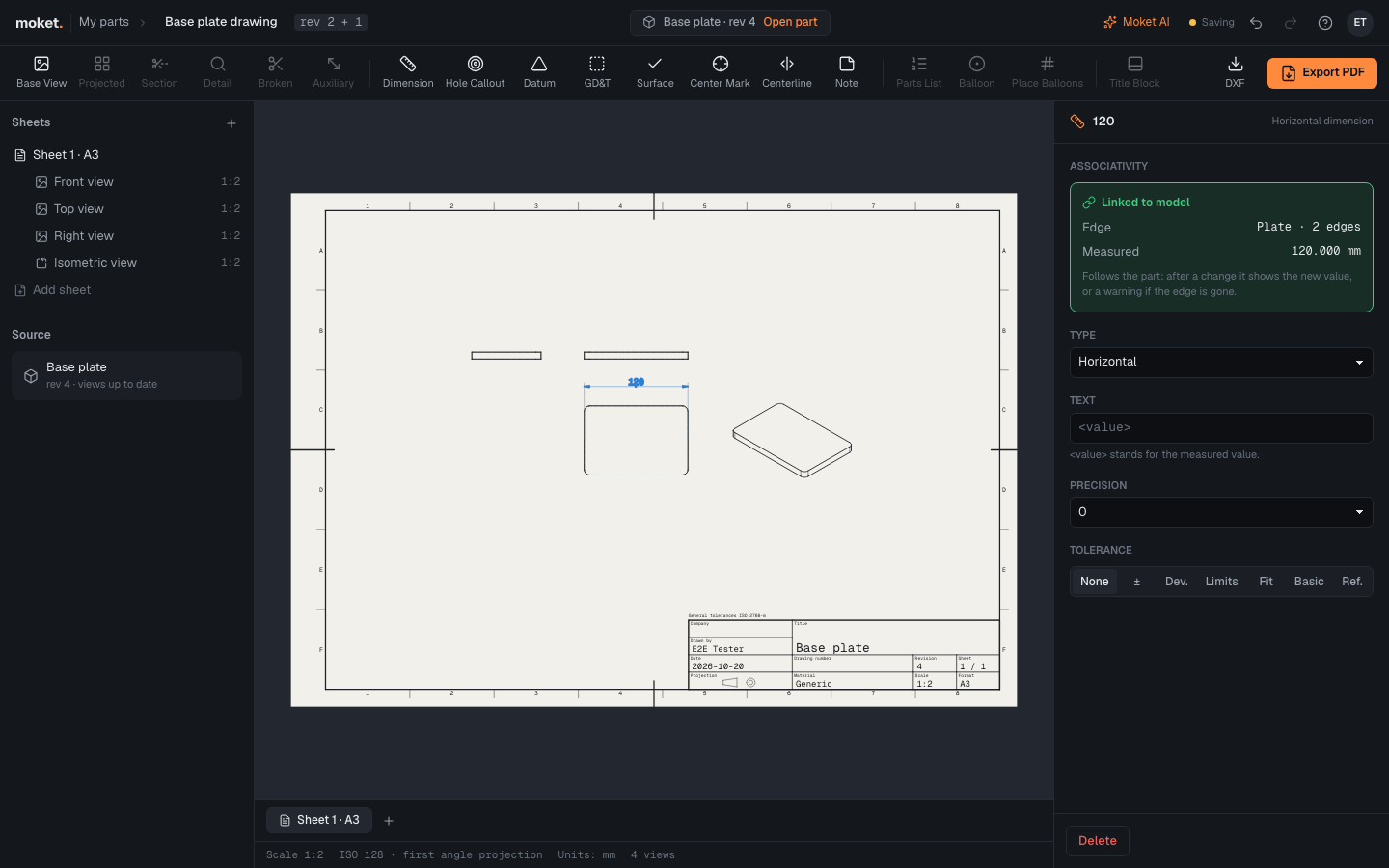
Add a dimension
- Click Dimension, or press
D. - Click an edge in a view:
- a circle seen face on gives its diameter;
- a straight edge alone gives its length: click where the dimension line goes;
- click a second edge in the same view for the distance between them.
- Click where the dimension line goes.
The tool stays on for the next dimension; press Esc to put it away. The chip next to the toolbar sets the type: Auto picks a diameter for a circle and a horizontal or vertical dimension along the edges you picked; choose another type to set it yourself:
| Type | Pick | Shows |
|---|---|---|
| Horizontal, Vertical | One straight edge, or two edges | The distance along the view's x or y. |
| Aligned | One straight edge, or two edges | The distance straight across; between two lines parallel in the view, straight across them. |
| Diameter, Radius | A circle seen face on | Ø20, R10. |
| Angle | Two straight edges | The angle between them on the side where you click: 30°. |
| Chamfer | The sloped edge of a chamfer seen in profile | Its leg and angle on a leader: 1 x 45° (ASME 1 X 45°). |
| Ordinate | A datum edge, then the edge to measure | The distance from the datum along x or y, on a line pulled out across that axis; the datum alone reads 0. |
| Arc length | An arc seen face on | Its length on an arc beside it: ⌒31.4. |
For a hole, a hole callout writes its size, depth, counterbore and thread at once.
Edit a dimension
Click a dimension to select it. The properties show what it is linked to and the measured value.
| Option | What it does |
|---|---|
| Type | Horizontal, vertical, aligned, radius or diameter. |
| Text | Text around the value: <value> stands for it, for example 4x <value>. Empty shows the value alone. |
| Precision | Decimals: 0, 0.0, 0.00 or 0.000. |
| Measure to | For a length from a circle: its Center, or its Left, Right, Top or Bottom side as the view shows it. The sides give the overall size of a rounded part. |
Values are written in the drawing's units and standard (see Sheet and title block): on ISO drawings with the precision's decimals along the dimension line; on ASME drawings horizontally in a break of the line, inches without the leading zero (.250) and millimeters without trailing zeros (12.5).
Drag a selected dimension to move its line. Delete deletes it.
Values keep clear of their lines, as ISO 129-1 and ASME Y14.5 ask:
- A diameter or radius dragged outside its circle bends onto a short horizontal line that carries the value; inside the circle the value runs along the line.
- When the value of a length does not fit between its extension lines, it goes outside, past one end of the dimension line; between lines closer than two arrowheads the arrows go outside too. Drag the dimension along its line toward the end where the value should go.
Center marks, centerlines and notes
- Center Mark: click a circle seen face on. A cross of center lines marks its center.
- Centerline: click two lines that are parallel in the view for the axis between them, or two circles for the line through their centers.
- Note: click on the sheet, then type the text in the properties. Drag a selected note to move it.
Limitations
- A radius or diameter needs a circle seen face on: in a view where the circle is seen edge on, pick its straight ends instead.
- Silhouettes of round faces (the sides of a hole seen from the front) are not edges of the part and cannot be dimensioned: measure to a side of the circle instead (Measure to).
- Leaders on notes are not available yet. For tolerances, see Tolerances and fits.