
Design a part in context
Design a part where it goes: in its assembly, with the components around it on screen. You can sketch on their faces, bring their edges into your sketches and extrude up to their faces. A housing then fits its bearing and a cover fits its plate, without copying sizes by hand.
Access: assembly editor > select a component > Edit in context in its properties.
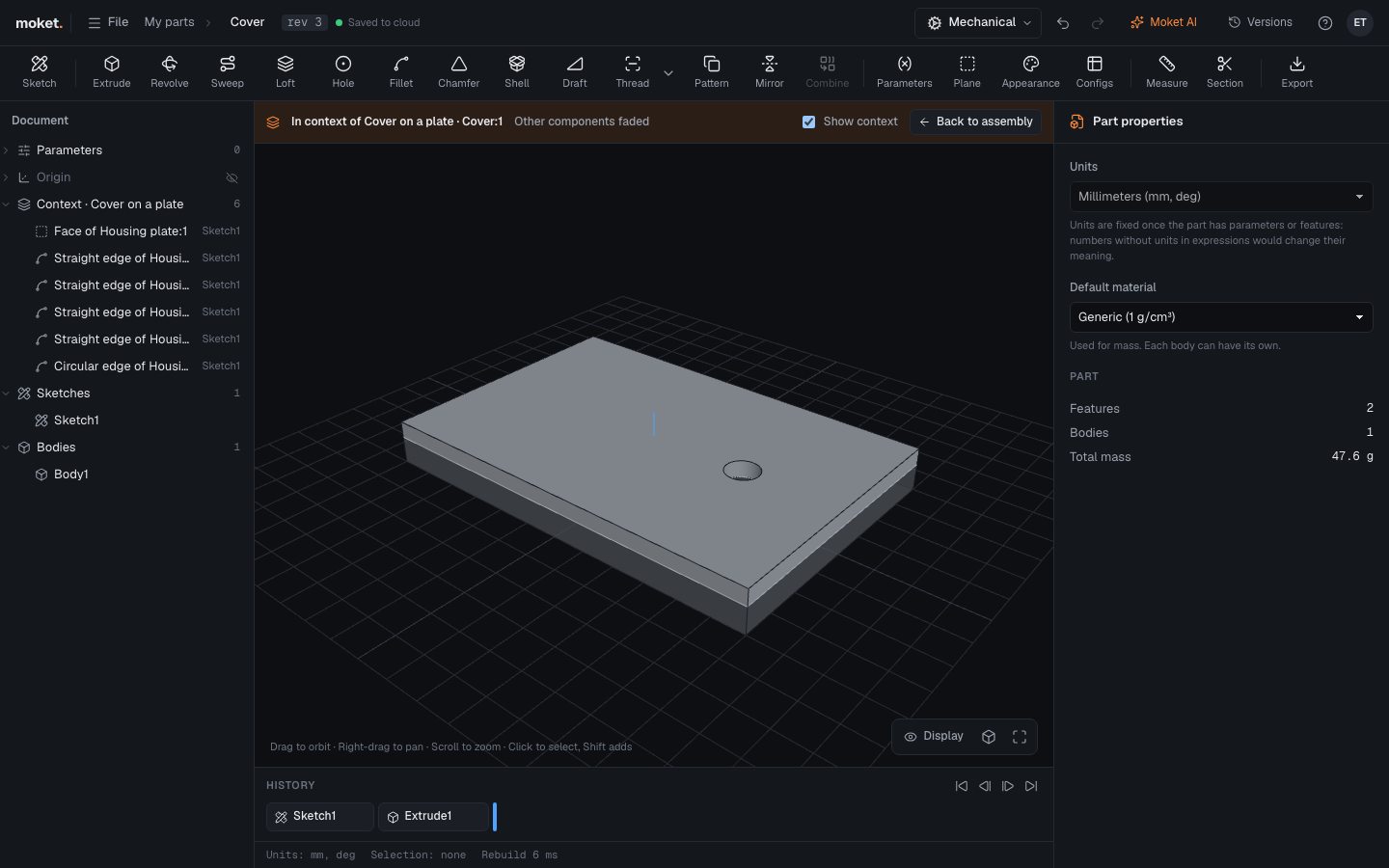
Edit a part in context
- In the assembly, select the component of the part you want to design. To start a new part there, click New Part first.
- In its properties, under Context, click Edit in context.
- The part opens in the part editor. The other components of the assembly are shown faded, where the assembly puts them, and the strip above the view says which assembly and component you are in.
- Work on the part as usual. You can also click the faded components:
- Sketch: click a flat face of another component to sketch on it.
- Project in a sketch: click an edge of another component, or one of its faces for all its edges.
- Plane: click a flat face of another component to put a construction plane on it or offset from it.
- Extrude with To face: pick a flat face of another component to end on.
- Click Back to assembly. Your changes are saved already.
Show context hides and shows the other components. They cannot be changed from here; open the assembly to move them.
When the other components change
The part keeps its own copy of every face and edge it uses from other components. It builds on its own everywhere: in drawings, in other assemblies and in your library, even when its assembly is not open.
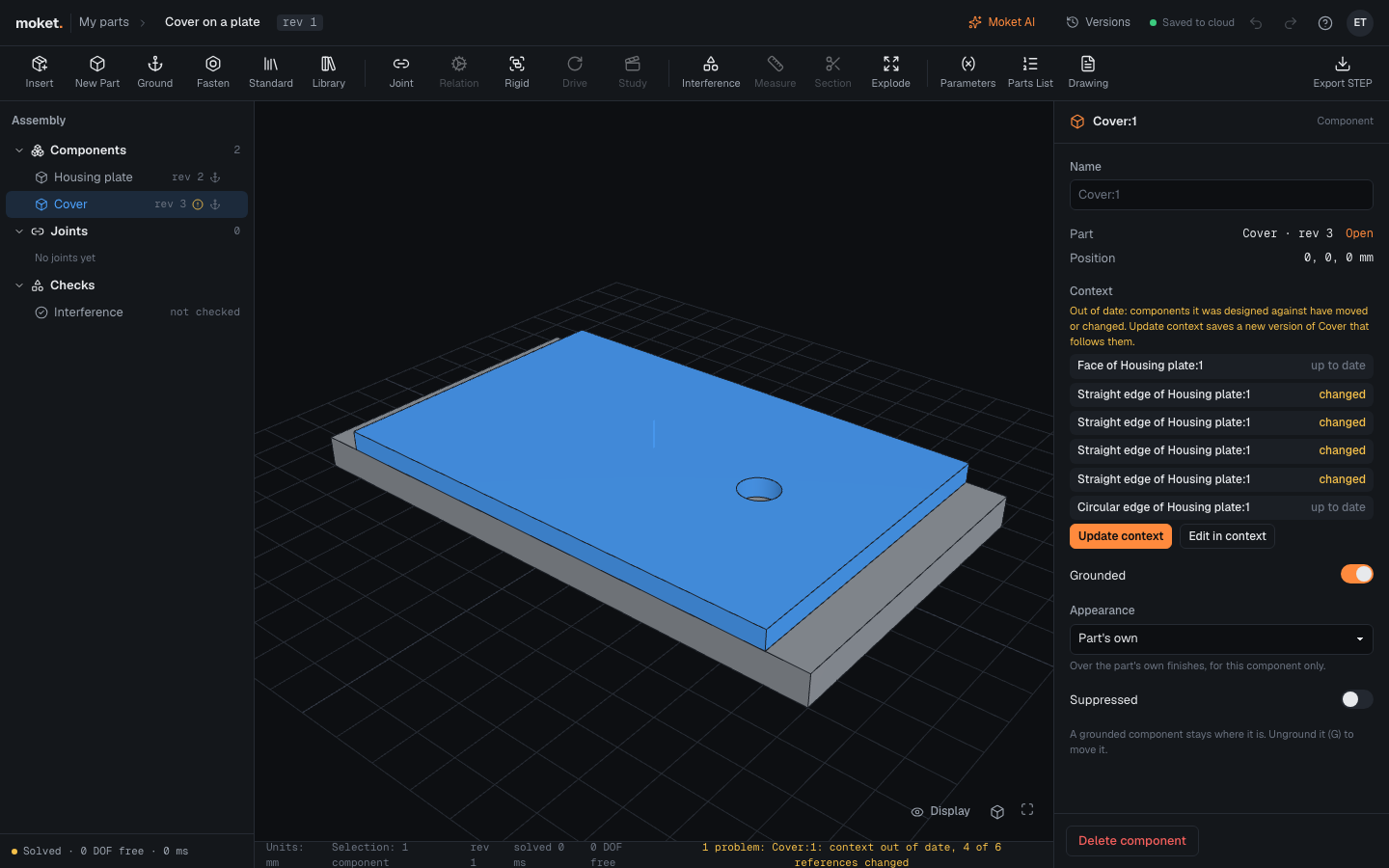
Because it keeps copies, a part does not change by itself when the components around it move or change. The assembly notices instead:
- The component gets a warning sign in the tree, and the problem CONTEXT_STALE appears in the status bar.
- Its properties say Out of date under Context and list each reference as changed or up to date.
Click Update context. Moket saves a new version of the part with the faces and edges as they are now, and the part follows them. The version is named Update context from and the assembly's name, so the part's history says why it changed. If someone has the part open, update it from there: open it in context, and click Update context in the strip.
When a referenced face is gone
If a component the part references is deleted, or the face or edge it used no longer exists, the assembly shows CONTEXT_LOST. The part still builds from its copies. Edit it in context to pick another face, then delete the features that used the old one; a reference that a feature still uses cannot be removed.
Tips
- Use in-context design for fits that follow other parts: a seat on a bearing, a cover over a plate, a bracket on a rail's holes. Use project parameters for sizes you choose yourself, such as a center height.
- A part remembers the one assembly and component it was designed as. In other assemblies it is an ordinary part, and nothing is checked there.
- The part's document tree lists its references under Context, with the features that use each one.
Limitations
- Only flat faces can be sketched on or extruded to, and only straight and circular edges can be projected.
- The part must be a top-level component of the assembly, not one inside a subassembly.
- Library and standard parts cannot be edited in context.