
Make an exploded view
An exploded view moves components apart step by step to show how an assembly goes together: the cover off, then the screws, then the pulleys. Show it all the way or part of the way, and play it. Showing an exploded view changes nothing in the assembly.
Access: select a component, then assembly editor > Explode. Open a view again under Exploded views in the tree.
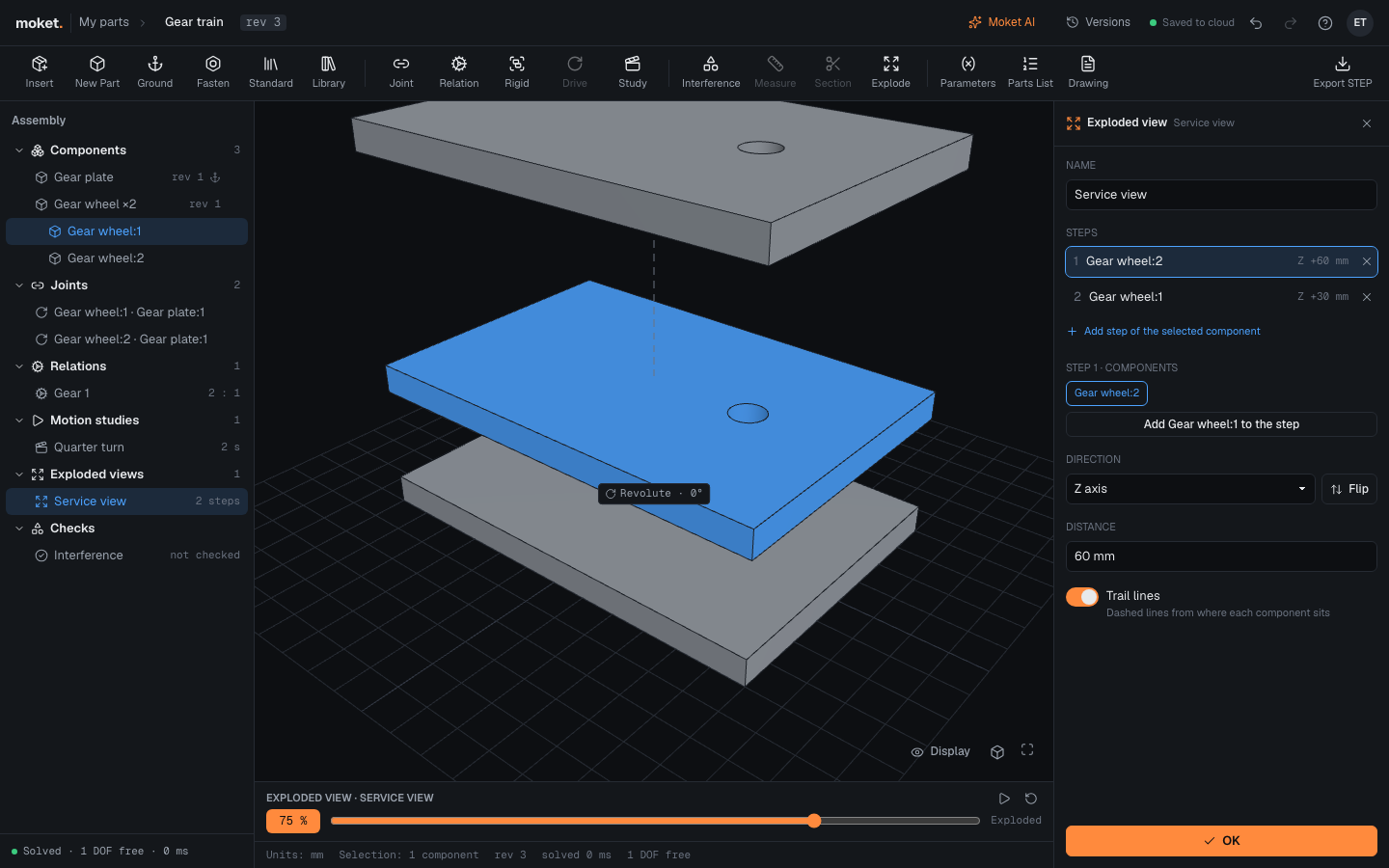
Make a view
- Select the component that comes off first.
- Click Explode. The view starts with one step: that component 30 mm up.
- Set the step's Direction, Flip and Distance (below).
- Select the next component in the tree and click Add step of the selected component. Repeat for each step.
- Click OK.
The bar under the viewport shows the view from together (0 %) to exploded (100 %); drag it, or click the play button to explode it from together.
Steps
Click a step to edit it.
| Option | What it does |
|---|---|
| Components | What the step moves. Select a component in the tree and click Add ... to the step, or Take ... out. |
| Direction | X axis, Y axis or Z axis of the assembly, or Along a joint: its axis where it is now, such as a column or a shaft. |
| Flip | The other way along the direction. |
| Distance | How far, for example 40 mm or a parameter. |
The steps play one after another: with two steps, the first moves in the first half and the second in the second half. A component in two steps moves by both. A subassembly moves whole.
Trail lines draws a dashed line from where each moved component sits to where it is shown.