
Ask Moket AI to change a part
Moket AI reads the part you have open, answers questions about it and changes it for you. It builds real features, sketches and parameters, the same ones you make by hand, so you keep editing the part afterwards. Every change is checked on a preview first, and you choose which changes wait for you.
Access: Moket AI in the top bar of the part editor. Shortcut: Ctrl+I.
Turn on Moket AI
The first time you open the panel, Moket asks whether it may send parts of your work to the AI provider. Read what is sent and what is never sent, and click Turn on Moket AI. You agree once for your account; see Data, keys and usage.
Ask a question
- Click Moket AI, or press
Ctrl+I. - Type a question, for example
What drives the size of this part?, and pressEnter.Shift+Enterstarts a new line.
Moket AI looks at the part before it answers. Each step shows as a line under your message, such as Read the part or Searched the geometry · 4 edges. Select faces, edges or features first to ask about them: the selection goes with your message.
Let Moket AI see the part
Moket AI works from the part's features, parameters and measurements. To compare the part with a photo or a sketch, or to ask how it looks, turn on Send viewport images to AI in Settings: Moket AI can then ask for a picture of the viewport (or the drawing's sheet) and shows it in the panel under Looked at the view. See Viewport images.
Change the part
- Describe the change, with the limits that matter:
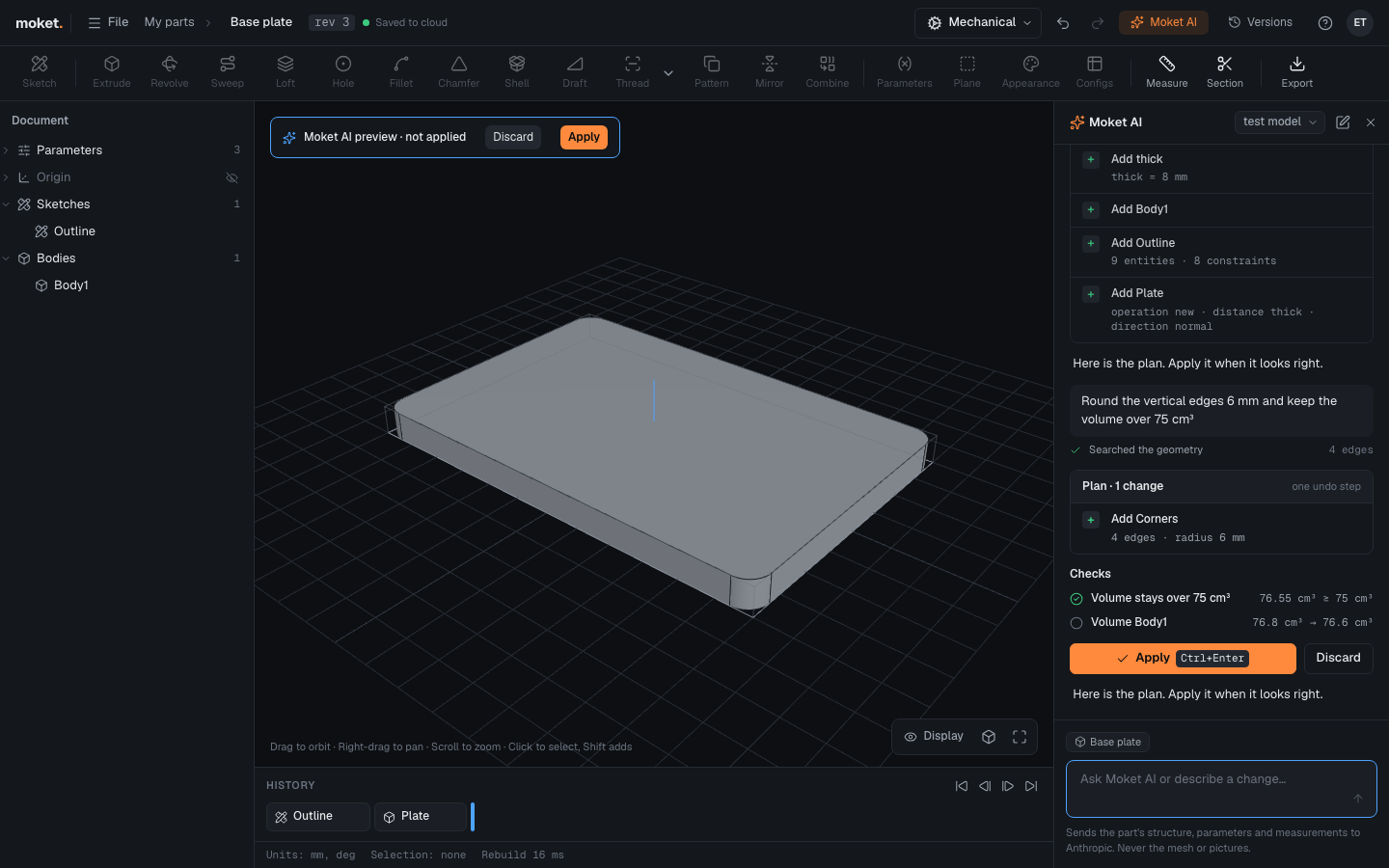
Round the vertical edges 6 mm and keep the volume over 75 cm³. - Moket AI prepares a plan and shows it as a card in the panel. While a plan waits for you, the canvas also shows its preview with the banner Moket AI preview · not applied.
- Check the plan:
- The changes it makes: added, changed and removed parameters and features; on an assembly, components, joints, relations, rigid groups, motion studies and exploded views.
- Checks: the limits you asked for, measured by Moket on the previewed part, with a green or red mark. Moket AI cannot claim a measurement: Moket takes it.
- The volume of each body before and after.
- A plan that passes every check applies at once and its card says Applied automatically. A plan with a failed check or a lost face or edge waits: click Apply (
Ctrl+Enter), or Discard to drop it. To approve other plans yourself, see When Moket AI asks before applying.
While a plan waits, the modeling tools are off; you can still orbit, measure and use a section. An applied plan is one step in the history: click Undo on its card, or press Ctrl+Z, to take it back. It is saved like any other change, and the version list shows it as Moket AI: <what it did>.
If the part cannot be changed the way you asked, Moket AI changes nothing and tells you why, with the numbers it measured and options to choose from. It does not quietly pick another value.
Moket AI also sets finishes and colours of the part, a body or faces, for example Make the top face anodized blue, and in an assembly of a single component.
Moket AI on drawings
In the drawing editor, Moket AI (Ctrl+I) works on the drawing: it reads its sheets, views and dimensions and the part's edges, places views (section, detail, broken and auxiliary ones too), adds dimensions, hole callouts, tolerances and fits, datums, feature control frames, surface texture, center marks, centerlines and notes, picks the template, types the title block and the revisions, switches the drawing between ISO and ASME and between millimeters and inches, for example Dimension the overall size in the top view or Which dimensions lost their edges?. Its changes are plans like on parts: a plan that leaves no dimension without its edge applies at once unless you approve changes; one that would leave a dimension without its edge waits for Apply. Unless you ask for less, Moket AI dimensions a drawing fully: the overall size in all three directions, a callout and the position of every hole, fillets, chamfers and patterns, a fit on every size that mates with another part, with a datum and a geometric tolerance tying it and surface texture on the fitted faces, so that the part can be made from the drawing. Before it answers, it checks the drawing for sizes no dimension shows yet, holes and threads without a callout, bores that a joint of an assembly in the project uses without a fit, and feature control frames that break the standard's rules, and texts of dimensions and symbols that a line or another text runs through, which it moves clear. Values on the drawing always come from the part, never from Moket AI. See Dimension a drawing.
Moket AI on assemblies
In the assembly editor, Moket AI (Ctrl+I) works on the assembly: it reads its components, joints, degrees of freedom, parts list and problems, looks up faces and edges of a component's part for joints, checks interference, and inserts components, grounds them and connects them with joints as plans, for example Which components can still move? or Join the shaft to the bearing so it turns. A plan can check that nothing overlaps and how many degrees of freedom are left; it applies at once when its checks pass unless you approve changes, and waits for Apply when a joint would lose its face or disagree with the others. Positions always come from the joints and the parts, never from Moket AI. See Connect components with joints.
Moket AI makes motion studies and checks them for collisions along the motion, for example Turn the crank a full turn and tell me if anything hits. On a long travel it checks fewer poses first and then looks closer where something hits. It also checks a single pose, such as a slide at the end of its travel, without changing the assembly, and tells you the assembly's mass and center of mass. It also inserts other assemblies of the project as subassemblies, makes them rigid or flexible, and joins the parts inside them, for example Put two clamps on the fixture plate.
Moket AI knows the standard parts library: it looks up screws, nuts, washers, bearings and O-rings by standard and size and inserts them, for example Put an M4 x 12 socket head screw in each hole of the clamp or Which ISO bearing fits a 22 mm bore?.
Bought parts and your library
Moket AI searches your library before it models a bought part such as a linear rail, a carriage, a motor or a coupling, and inserts the version it finds, for example Put a NEMA 17 motor on the bracket. It can also update a component to the item's newest version.
When the part is not in your library, Moket AI models it as a part of the project from the maker's datasheet, with the sizes the datasheet lists as configurations. It asks you for the datasheet or its link when it does not have one. Afterwards it offers to publish the part to your library, with its maker, part number and datasheet; it publishes only when you agree. Versions it publishes show by Moket AI on the Library page.
Sizes the project shares
Moket AI reads the project's parameters in parts and assemblies (project.axisZ) and uses them instead of repeating a number another document owns. It sets a part's parameters on a component, such as the length of a rail from your library, as described in Set a part's parameters in an assembly.
Leather goods and plugins
In the Leather Workbench, Moket AI makes pieces, stitch lines, holes and folds, for example Stitch the pocket to the liner at a 3.85 mm pitch, and tells you how many holes each stitch line has. It uses the features of your other plugins too.
Feedback to Moket
When Moket AI finds that a tool behaves differently from what it expects, or that something it needs is missing, it tells Moket's team so that it gets fixed, and goes on with your request. Turn this off with Send feedback to Moket in Settings > Agents; see Data, keys and usage.
Conversations and models
- Each part keeps its own conversations. Conversations (the pen icon) starts a new one or opens an earlier one.
- The model chip in the panel header picks the AI model for your next message. Models of a provider you have no key for are grayed out.
- Moket AI works from Moket's own guides for the kind of document you have open (parts and sketches, assemblies and mechanisms, or drawings) and reads the others when a request needs them, the same guides agents read.
- Stop ends an answer that takes too long. Moket AI also stops by itself after 24 steps in one answer; ask it to go on if needed.
Requirements
- The part must be open in this tab and editable: in a tab that only views the part, Moket AI can answer but not change it.
- Moket AI cannot import files: import a STEP file yourself. It can build on the imported bodies and their faces.
- At least one model must be available: Moket's own, or one of your keys. See Data, keys and usage.