
Draw an assembly
A drawing of an assembly shows all its components together, hiding each other where they overlap, with a parts list above the title block and balloons that number the components by their item.
Access: assembly editor > Drawing. In the drawing editor: Parts List, Balloon (B), Place Balloons.
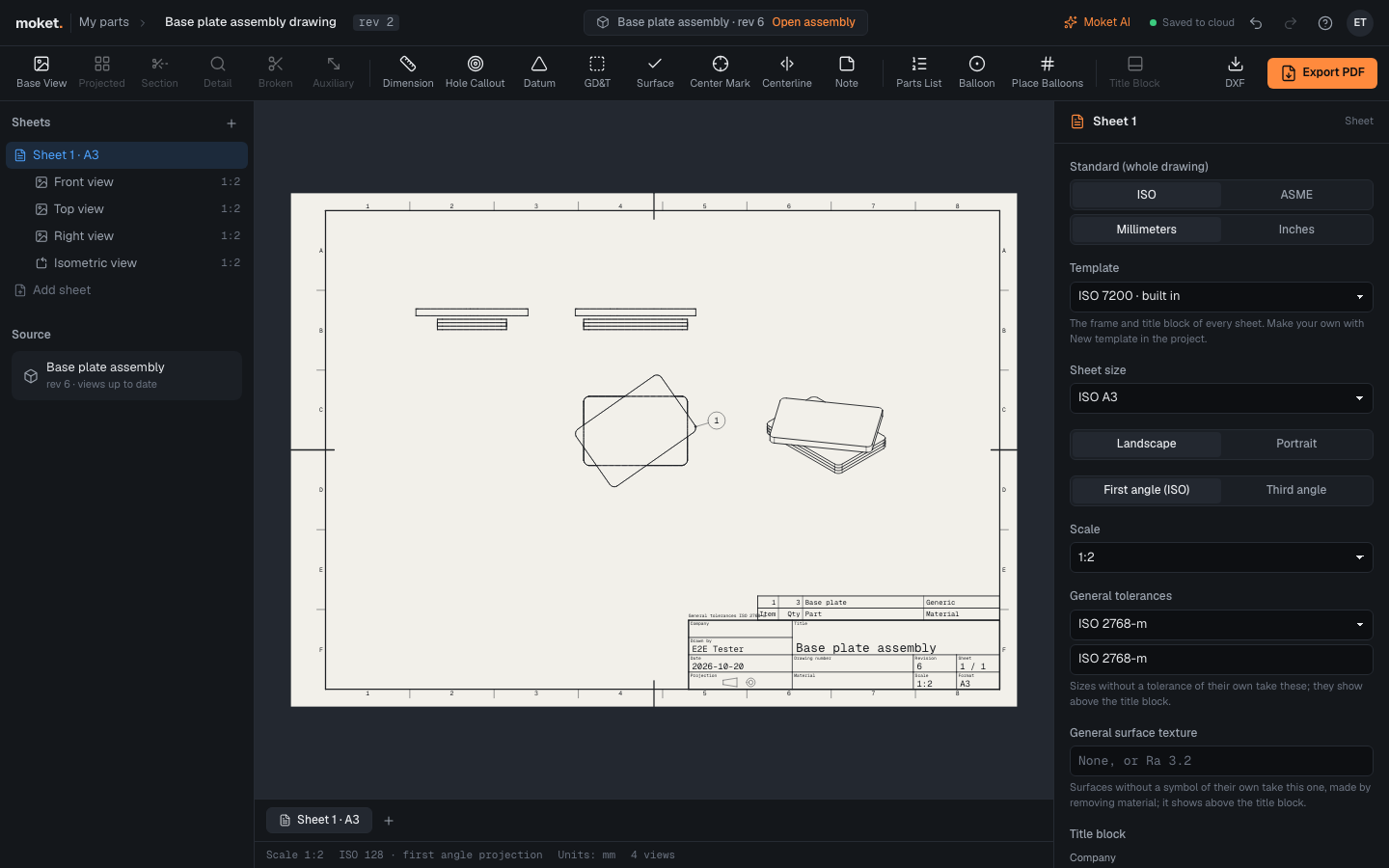
Make a drawing of an assembly
- Open the assembly and click Drawing.
- The drawing opens with the front, top, right and isometric views, scaled to fit next to the parts list, and a balloon for every item.
The drawing is a document of its own in the project and follows the assembly: when a part or the assembly changes, the views, the parts list and the balloons change with it. Everything else works as in drawings of parts: views, dimensions, notes, PDF and DXF. Dimensions can measure edges of any component.
Parts list
The parts list (ISO 7200) shows item, quantity, part and material by default, with item 1 at the bottom right above the title block. Select it to choose its columns (Item, Qty, Part, Material, Mass, g, Rev) and its order; drag it to move it. Parts List in the toolbar adds one to a sheet that has none. The rows come from the assembly's parts list, so reorder items there.
Balloons
- Place Balloons adds a balloon for every item that has none, beside the view where its component is drawn largest.
- Balloon (
B): click a line of a component in a view, then click where the balloon goes.
A balloon shows its item's number in a 10 mm circle; its leader ends on the nearest line of its component and follows when you drag the balloon. A balloon whose component is deleted from the assembly shows ? and a warning; delete it.