
Detail views
A detail view shows a small part of a view larger: a groove, a thread run-out, a small hole. A circle with a letter marks it on the view it comes from, and the detail is drawn at its own scale, cut off at the circle. Edges in a detail keep their names, so dimensions there follow the part.
Access: select a view, then Detail in the toolbar.
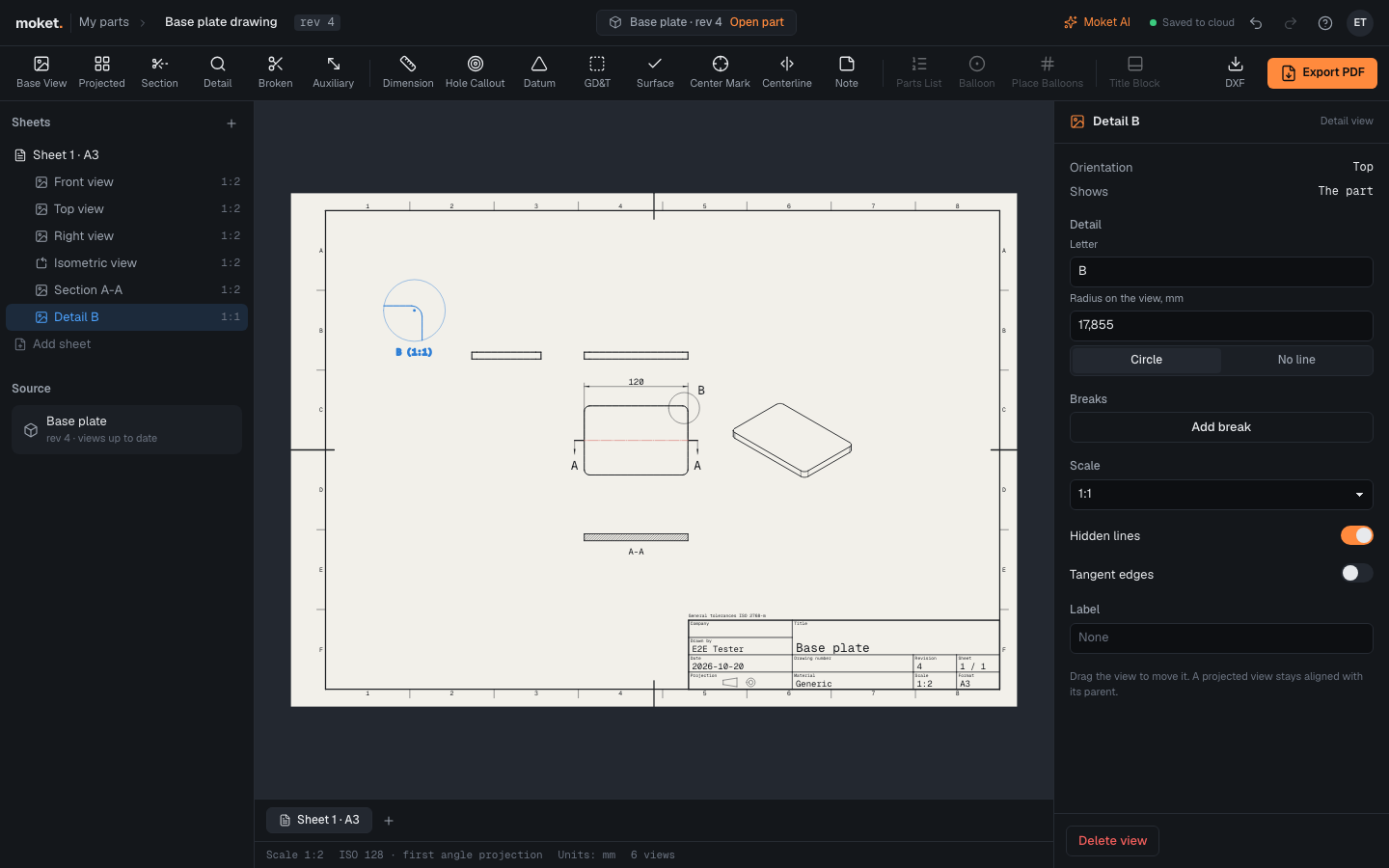
Make a detail
- Select the view, then click Detail.
- Click the center of what the detail should show, then click again to set the circle's radius.
- Click where the detail goes. Moket draws it at the next larger scale of the drawing's standard, at least twice the view's: 2:1, 5:1, 10:1 for ISO, also 4:1 and 8:1 for ASME.
Press Esc to drop the circle you are drawing.
Detail properties
| Option | What it does |
|---|---|
| Letter | The detail's letter; sections, details and auxiliary views each use their own. |
| Radius on the view, mm | The circle's size, in the part's millimeters. |
| Boundary | Circle draws the circle around the detail; No line ends it freely. |
| Scale | The detail's own scale. |
The caption reads A (5:1) on ISO drawings and DETAIL A SCALE 5:1 on ASME drawings. A detail of a section view is hatched like its section.