
Create a sketch
A sketch is a 2D drawing on a plane or a flat face. Closed areas of a sketch are the profiles you extrude or revolve, and sketch points are where holes go.
Access: Toolbar > Sketch. Shortcut: S.
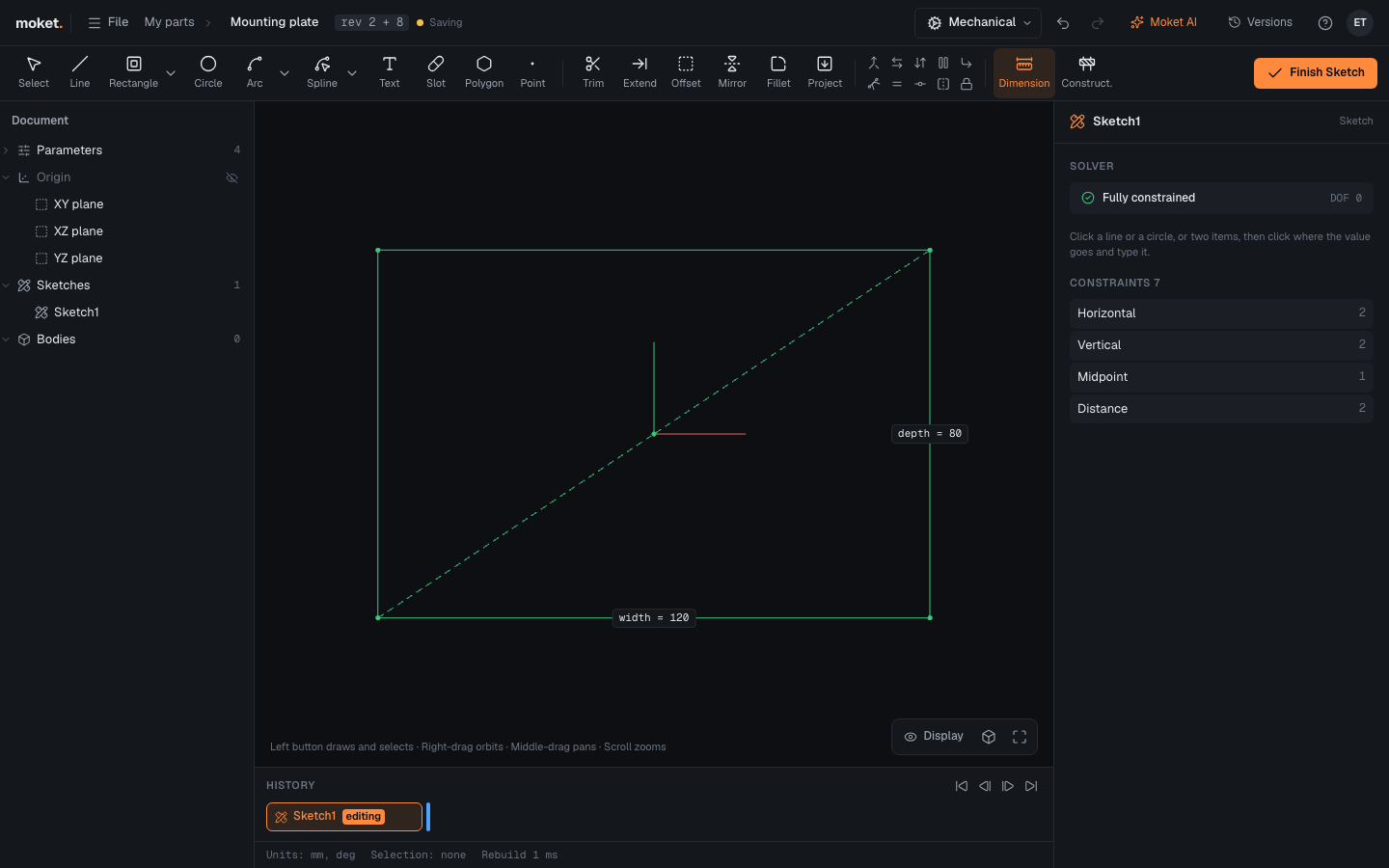
Start a sketch
- Select a plane in the browser (Origin > XY plane, XZ plane, YZ plane, or a construction plane), or click a flat face of a body.
- Click Sketch.
If nothing suitable is selected, Moket asks you to click a plane or a flat face.
The view turns to face the sketch plane, and the rest of the history is paused until you finish. Every new sketch has a fixed point at the origin to snap and dimension from.
Finish a sketch
Click Finish Sketch. The model rebuilds with the new sketch. To leave without finishing a shape in progress, press Esc first.
Edit a sketch later
Double-click the sketch in the browser or in the history.
The sketch panel
| Item | Shows |
|---|---|
| Solver | Fully constrained, or how many degrees of freedom are left |
| Selection | Actions for what you selected, or the value of a selected dimension |
| Constraints | The constraints by kind; click a kind to select them |
Geometry that cannot move any more is green; geometry that can still move is white. Conflicting geometry is red.
Tips
- A sketch builds even when it is not fully defined, but free geometry can move when other values change. Fully define sketches you plan to change.
- Sketches on a face follow the face when earlier features change.
- On a face, the sketch's horizontal axis runs along the model's X axis, or along Y on a face that faces along X. A drafted or slightly tilted wall keeps the orientation of the straight wall.