
Create your first part
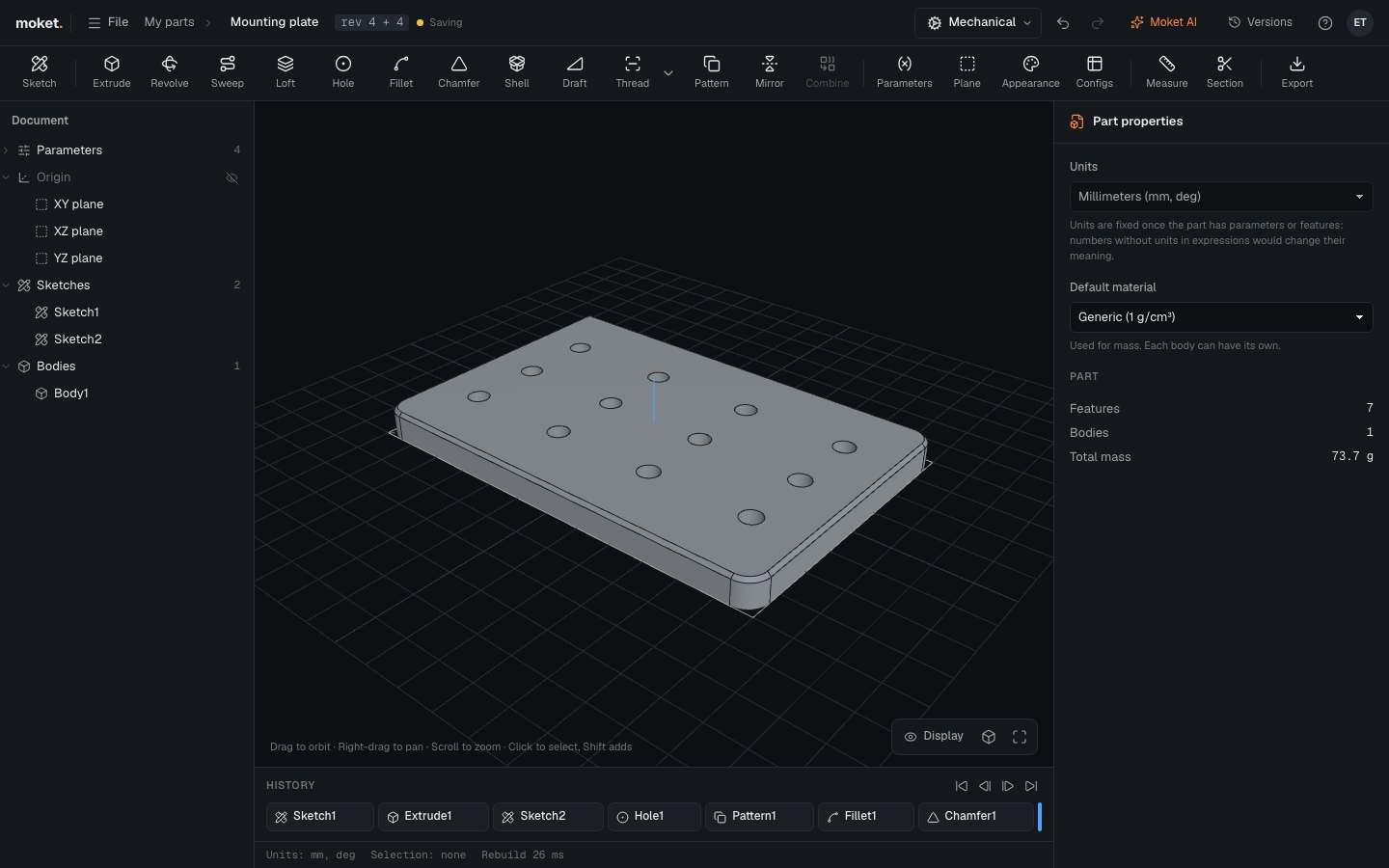
This tutorial builds a mounting plate 120 x 80 x 8 mm with a grid of twelve holes, then changes its size. It takes about ten minutes and uses the main tools: parameters, a sketch with dimensions, Extrude, Hole and Pattern.
Start the part
- On Home, click New part. Moket creates
Untitled partand opens it in the editor. - Click the name in the top bar, type
Mounting plateand pressEnter.
Moket saves every step by itself; the top bar shows Saved to cloud.
1. Add parameters
Parameters are named values you can reuse and change later.
- Click Parameters in the toolbar, or press
P. - In the empty row at the bottom, type
widthand120 mm, then click +. - Add
depth=80 mm,thick=8 mmandholeDia=6 mmthe same way. - Click Close.
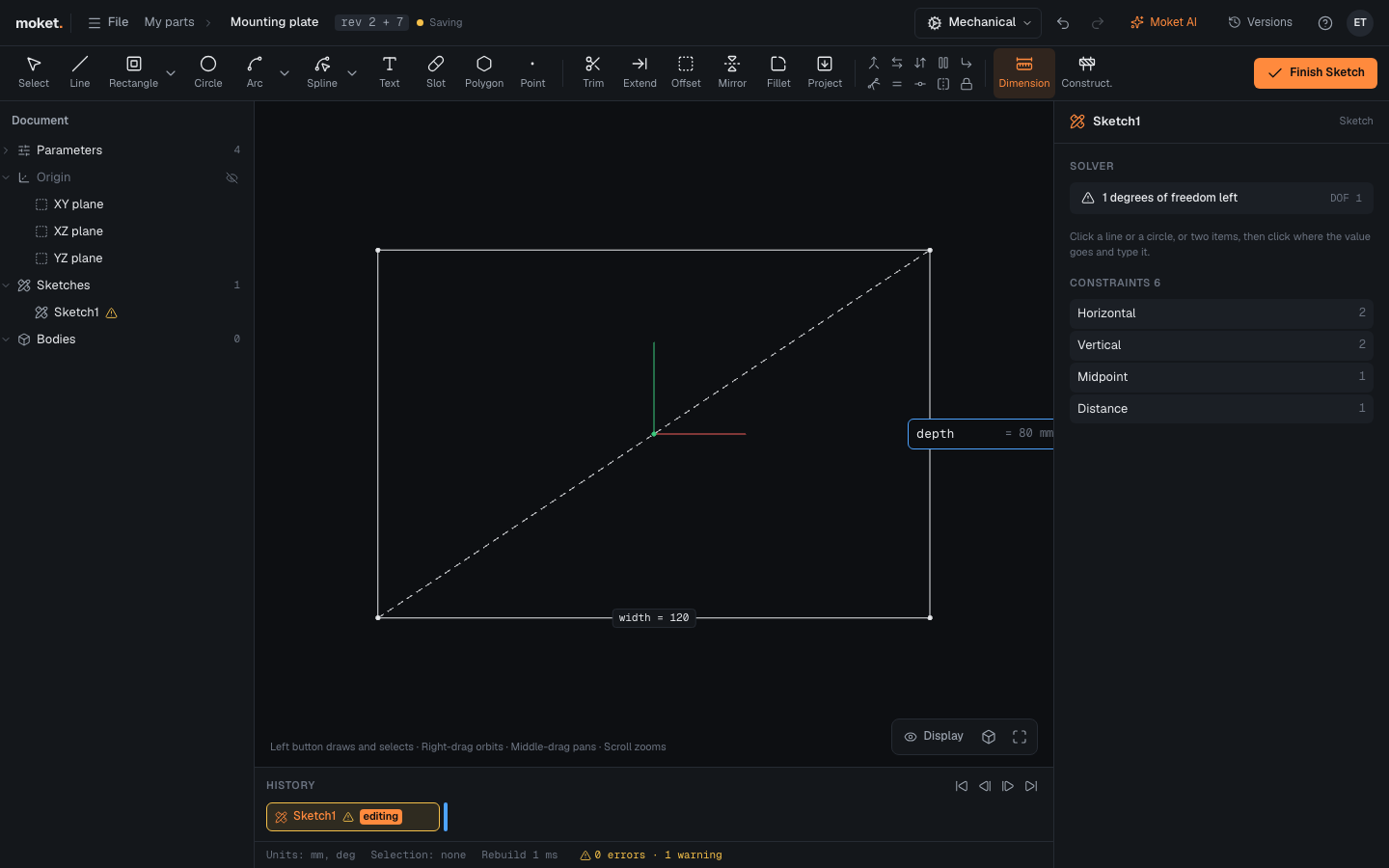
2. Sketch the outline
- In the browser, expand Origin and click XY plane.
- Click Sketch, or press
S. The view turns to face the plane. - Click the arrow next to Rectangle and choose Center rectangle. Click the origin (the green point in the middle), then click a corner.
- Press
Escto put the tool away. - Click Dimension (
D), click the bottom line, click below it where the value should go, typewidthand pressEnter. - Dimension the right line the same way with
depth. The panel shows Fully constrained. - Click Finish Sketch.
3. Extrude the plate
- Click Extrude (
E). The sketch's profile is already selected. - In Distance, type
thick. - Check the preview and click OK.
4. Add a hole and repeat it
- Click the top face of the plate, then Sketch.
- Click Point and click near the lower left corner.
- With Dimension, click the origin and the point and place a horizontal distance of
45 mm, then a vertical distance of20 mm. - Click Finish Sketch, then Hole. Type
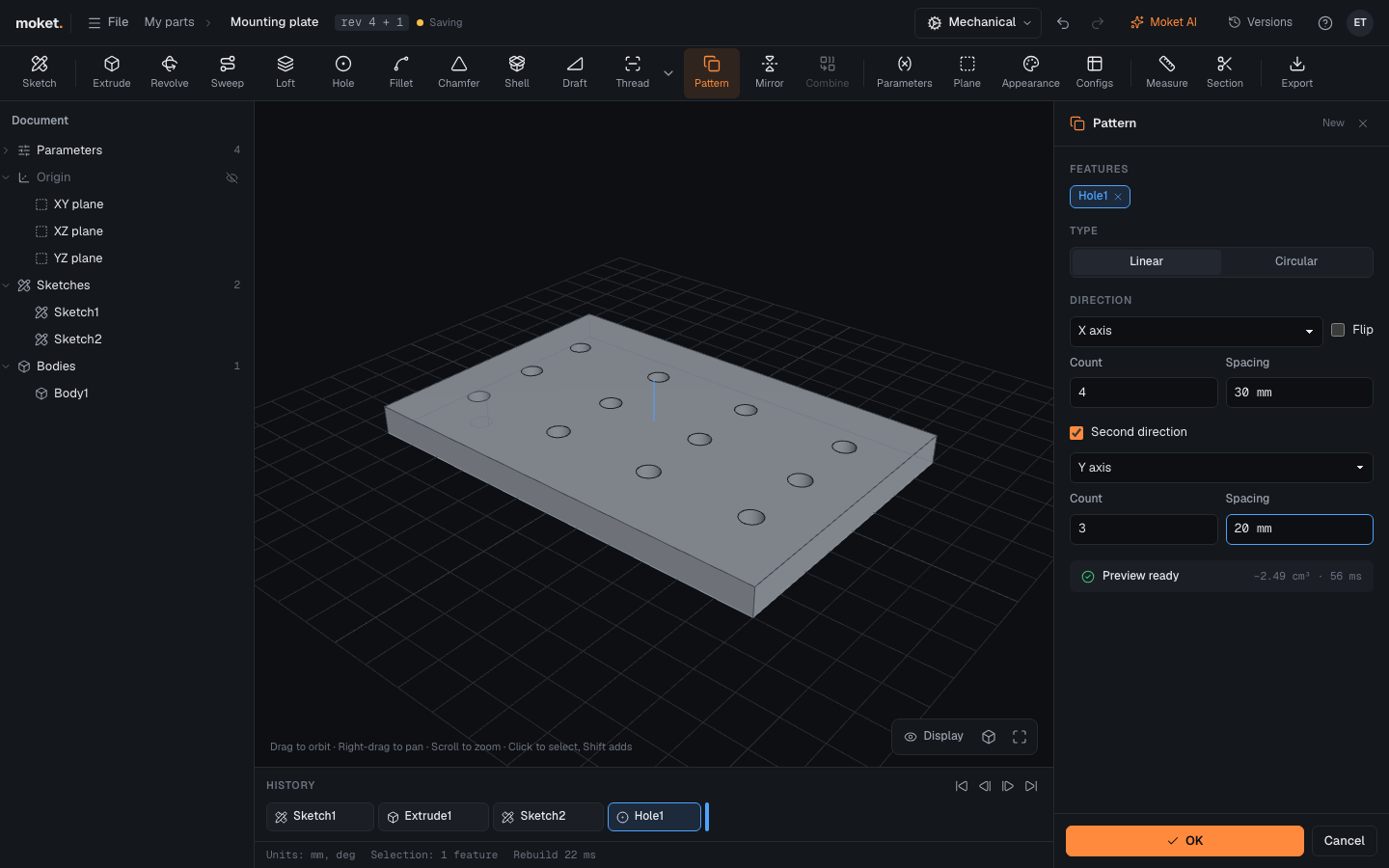
holeDiain Diameter and click OK. - Click Pattern. The hole is selected. Set Count
4and Spacing30 mm, check Second direction, set3and20 mm, and click OK.
5. Change the design
- Open Parameters and change
widthto150 mmandholeDiato8 mm. - The plate rebuilds: wider, with bigger holes, and the holes stay on their grid.
Every step can be undone with Ctrl+Z (Cmd+Z on a Mac).