
Dimensions
Dimensions set sizes: lengths, distances, radii, diameters and angles. Their values are expressions, so they can use parameters.
Access: Sketch mode toolbar > Dimension. Shortcut: D.
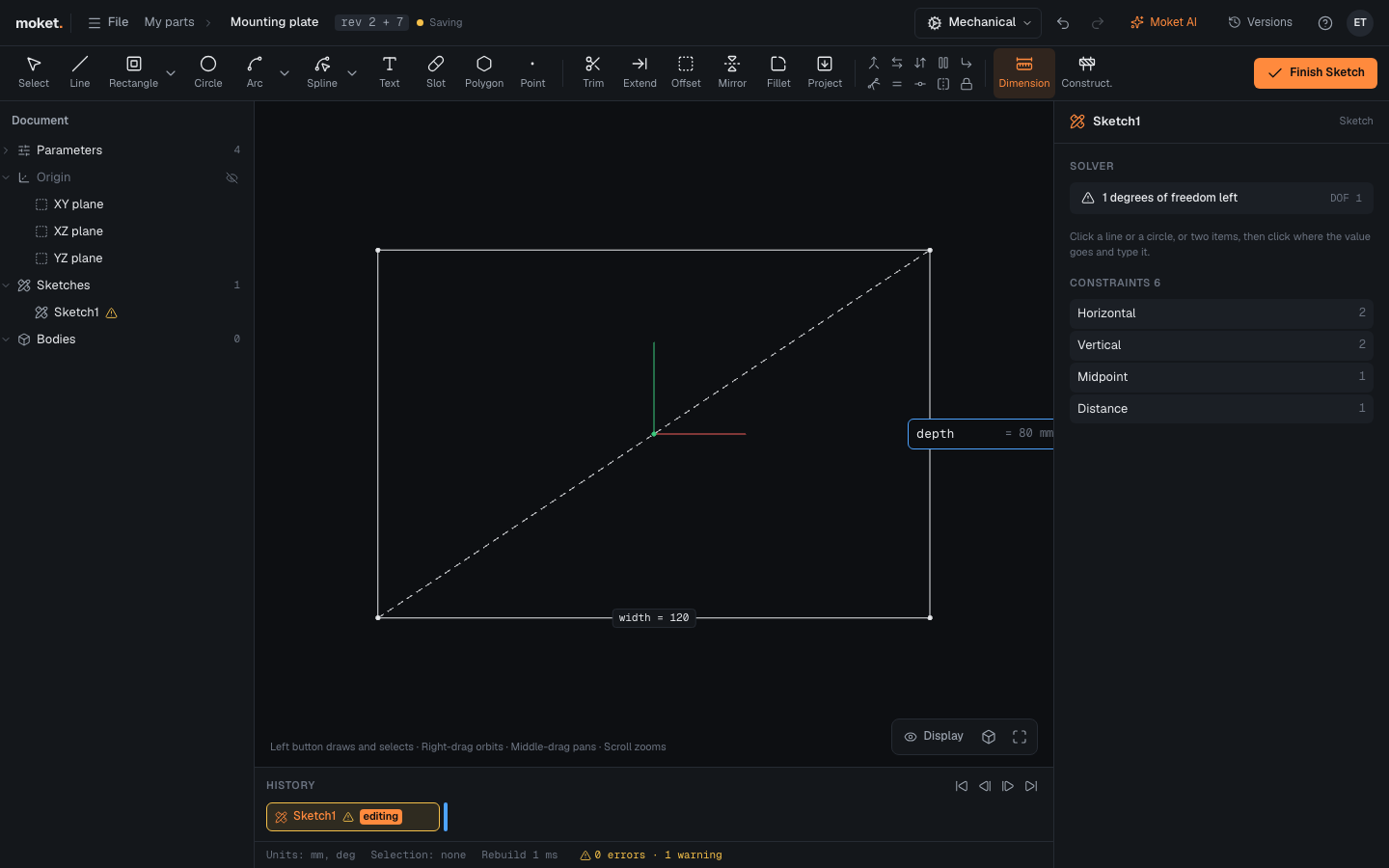
Add a dimension
- Click Dimension.
- Click what to measure:
- a line: its length;
- a circle: its diameter; an arc: its radius;
- two points: the distance between them;
- a point and a line: the distance from the point to the line;
- two lines: the angle between them, or the distance if they are parallel.
- Move the pointer to place the value and click. For two points or a slanted line, placing the value above or below measures horizontally, to the side measures vertically, and close to the line measures along it.
- Type the value and press
Enter. PressEnterright away to keep the measured value.
Change a dimension
Double-click its value in the canvas, or select it and edit Selected dimension in the panel. You can also change it in Parameters under Feature values.
Values
Type a number (40), a number with a unit (1.5 in), a parameter (width) or an expression (width / 2 - 5). A number without a unit uses the part's units. See Units and expressions.