
Give a part its finish
Appearance gives the part, a body or single faces a finish, such as anodized, brushed or brass, and a colour. It changes how the part looks, not its shape or mass.
Access: Toolbar > Appearance. In body properties: Appearance > Change.
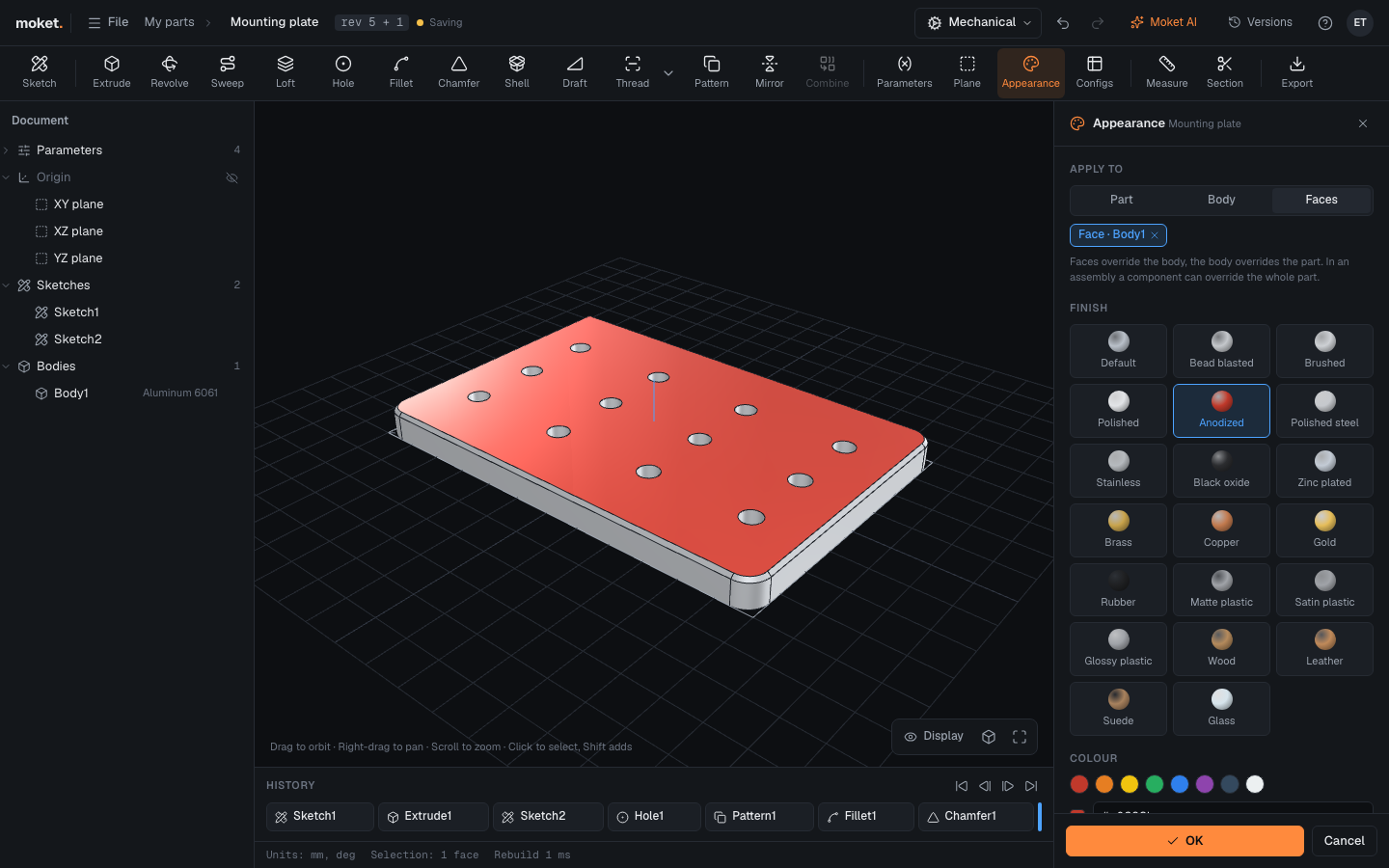
Steps
- Click Appearance.
- Under Apply to, choose Part, Body or Faces.
- For Body or Faces, click faces in the view. With Body, a click on any face picks its body. Picks show as chips; remove one with its cross.
- Click a Finish. The view shows it at once.
- To change the colour, click a swatch under Colour or type a colour such as
#2f6fb5and pressEnter. - Click OK. Cancel or
Escleaves the part as it was.
Faces override their body, a body overrides the part, and the part overrides each material's default. Reset removes the appearance at the level you chose, so it shows what the next level gives.
Finishes
| Finish | Looks like |
|---|---|
| Default | The plain grey of the theme |
| Bead blasted, Brushed, Polished | Aluminium, matte to mirror |
| Anodized | Coloured aluminium, red unless you choose one |
| Polished steel, Stainless | Steel |
| Black oxide | Dark blued steel |
| Zinc plated | Bright bluish steel |
| Brass, Copper, Gold | The metal |
| Rubber | Black, matte |
| Matte, Satin and Glossy plastic | Plastic, grey unless you choose a colour |
| Wood | Light oiled wood |
| Glass | See-through, light blue |
Material defaults
Without an appearance, each body shows its material's default:
| Material | Default finish |
|---|---|
| Generic | Default |
| Aluminum 6061 | Bead blasted |
| Steel | Polished steel |
| Stainless steel | Stainless |
| Brass, Copper | Brass, Copper |
| Bronze (CuSn8) | Brass, darker |
| Titanium | Brushed, darker |
| Grey cast iron | Bead blasted, dark grey |
| Cast aluminum | Bead blasted, light grey |
| Epoxy granite | Matte, near black |
| ABS | Matte plastic, dark grey |
| PLA | Matte plastic, grey |
| PETG | Satin plastic, blue |
| Nylon | Matte plastic, off-white |
| Acetal (POM) | Satin plastic, white |
| Oak | Wood |
| NBR rubber | Rubber |
Material default in the panel shows the default of the picked body.
Faces that are gone
A face keeps its finish when the part changes, as long as the face is there. When a change removes the face, its finish is not moved to another face: Appearance says how many faces of a body are gone. Click Clear to forget their finishes, or undo the change that removed them; a face that comes back gets its finish again.
Realistic and flat shading
Bodies show their finishes lit by a room, so metals reflect. To see every body in the plain grey, click Display in the corner of the view and choose Flat; Realistic turns the finishes back on. The choice is remembered for each part and assembly in this browser. See Change the display.
Tips
- Appearance does not rebuild the part and does not change mass. Set the material for mass.
- STEP export writes the colours of bodies and faces, and STEP import reads them. Gloss and metal stay in Moket.
- In an assembly, a component can have an appearance of its own over the whole part: select it and choose Appearance in its properties. See Insert components.
- Moket AI can set finishes too, for example "make the knob black rubber".