
Keep parts in your library
Publish a part you bought and modeled once, such as a linear rail, a carriage, a motor or a coupling, to your library, and insert it into the assemblies of any of your projects. Each publication is a version that never changes: an assembly keeps the version it uses until you update it.
Access: part editor > File > Publish to library; assembly editor > Library; Home > Library.
Publish a part
- Open the part and choose File > Publish to library.
- Fill in what someone looking for the part would search for: Name, Category, Maker, Series, Part number, the Datasheet link the sizes come from, and Tags, separated by commas.
- In What changed, say what this version is, for example
Sizes from the HIWIN catalog, page 135. - Click Publish.
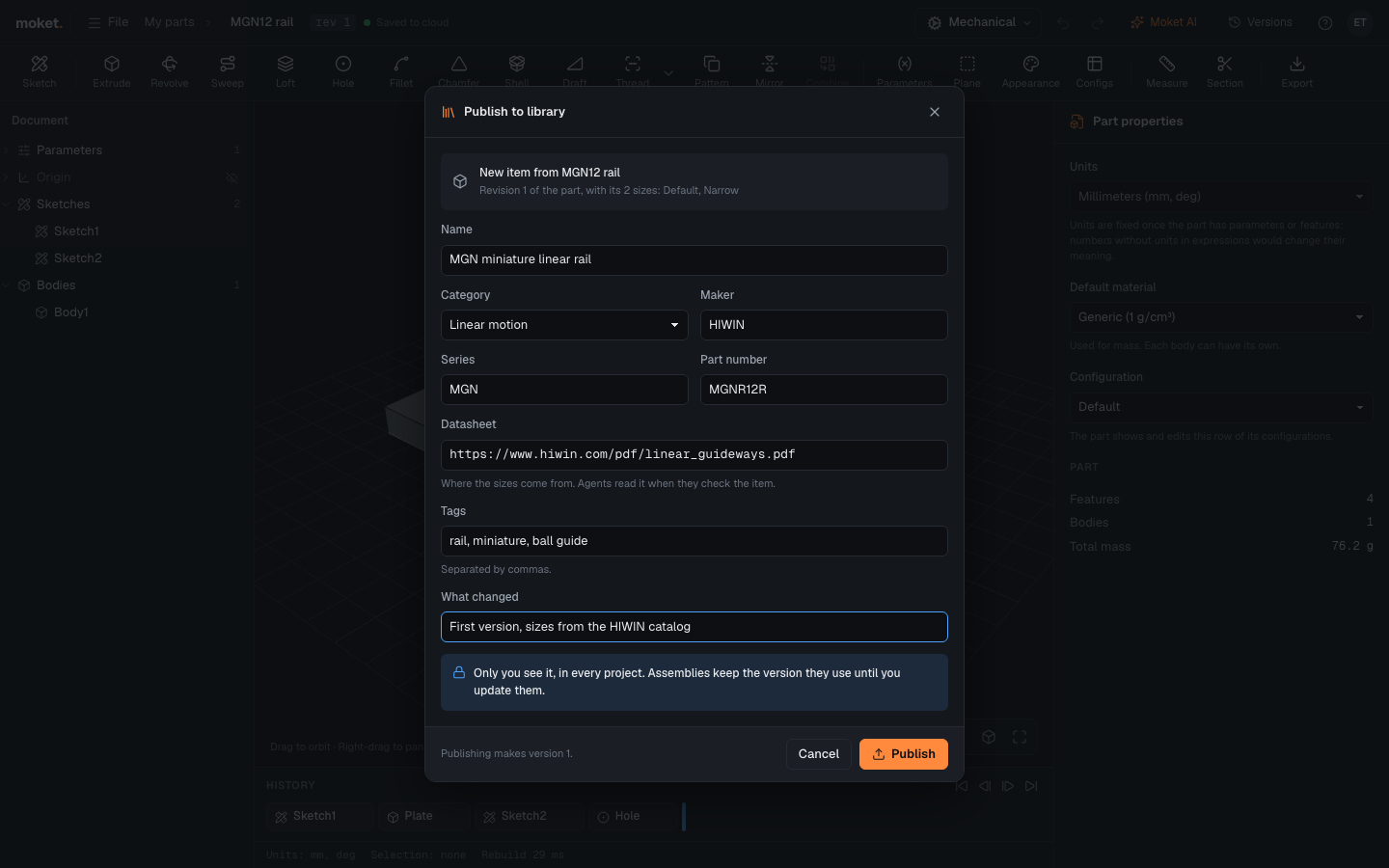
Moket publishes the part as it was last saved. If the part has configurations, each row becomes a size of the item, for example MGN9, MGN12 and MGN15.
To publish a new version, change the part and choose File > Publish to library again: the dialog says New version of the item and fills in its fields. Assemblies that use the item are not changed.
Insert a part from your library
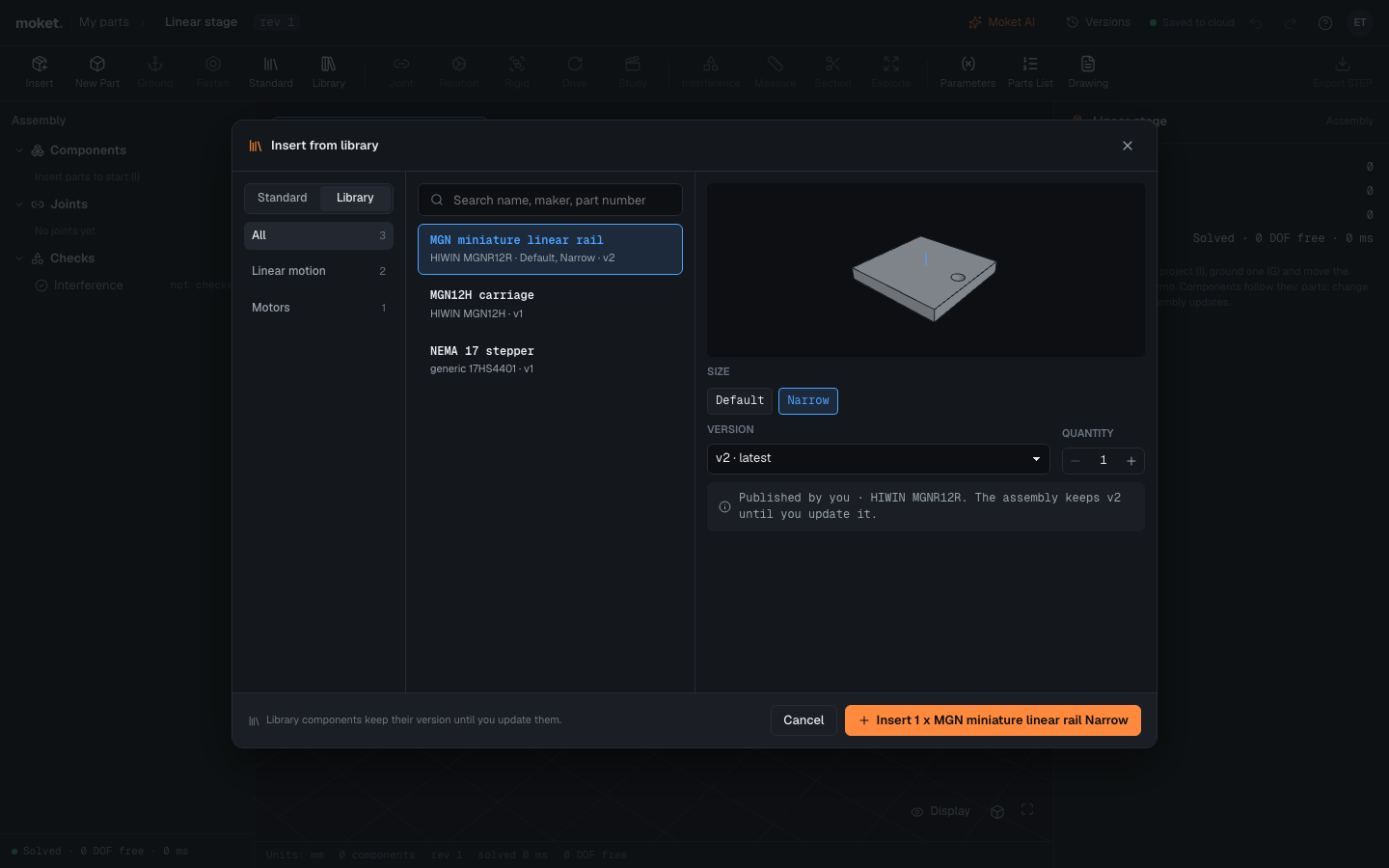
- In an assembly, click Library, or click Standard and then Library at the top of the dialog.
- Choose a category, or type a name, maker, part number or size in the search box.
- Click the item, then its Size. Version starts at the latest one.
- Set the Quantity and click Insert.
The components work like any other: connect them with joints. The parts list shows the item's maker and part number next to its name, and the version, for example v2, in Revision.
Update a component to a new version
When a newer version of the item exists, the component's properties say Update available.
- Select the component.
- Click Update to vn.
Every component of that version in the assembly moves to the new one. The joints keep their faces as long as the new version names them the same way; check lost joint references if one is lost. Undo takes the update back.
Edit a copy
To change a library part for this project only, select a component of it and click Edit a copy. Moket makes a part of the project from the version and moves every component of that version in the assembly to it. Edit the copy like any part of the project; the library item stays as it is.
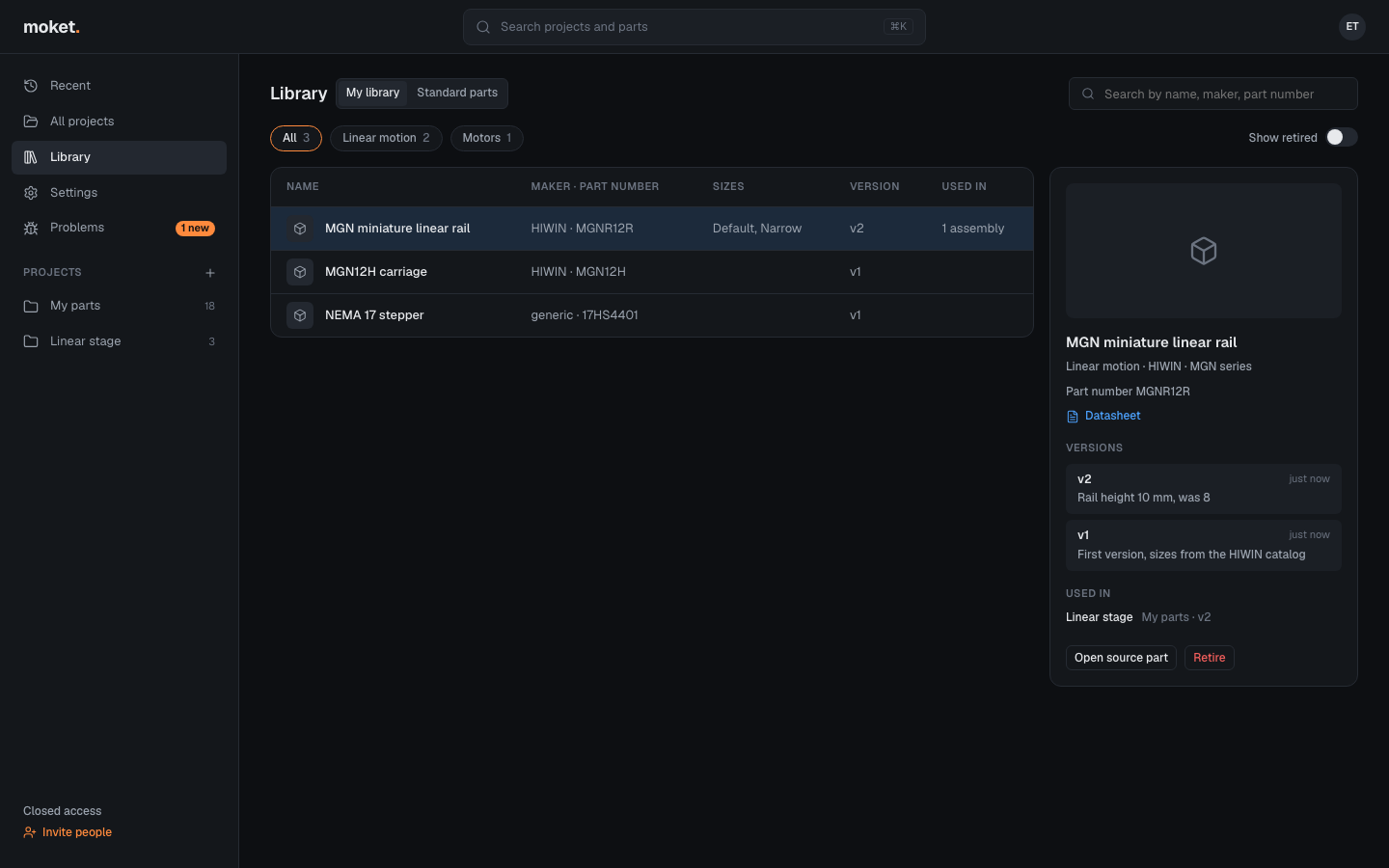
The Library page
Home > Library lists your items with their maker and part number, sizes, latest version and how many assemblies use them. Click an item to see its datasheet, its versions with what changed, and the assemblies that use it, with the version each one uses.
| Action | What it does |
|---|---|
| Open source part | Opens the part the item was last published from. |
| Retire | Hides the item from the list and from Insert from library. Assemblies that use it keep working. |
| Show retired | Lists retired items too; Restore brings one back. |
| Standard parts | Lists the standard parts built into Moket: screws, nuts, washers, bearings and O-rings. |
Only you see your library, in every one of your projects.
Let Moket AI or an agent use your library
Moket AI and agents connected over MCP search your library before they model a bought part, insert the version they find and update components to a newer one. A part they modeled from a datasheet goes to your library when you agree; its versions show who published them, for example by Moket AI.
Limitations
- Only parts can be published yet, not assemblies.
- A version cannot be deleted, so assemblies that use it always open.
- A library item has no thumbnail yet.