
Connect an AI agent over MCP
Claude Code, Codex and other clients of the Model Context Protocol (MCP) can work on the parts, drawings, assemblies and notes of your projects and create new ones, while you keep a Moket Studio tab open, or with no tab open where your Moket server offers it (see Let agents work without an open tab). They use the same tools as Moket AI, and their changes follow Ask before applying AI changes in Settings, as Moket AI's do.
Access: Settings > Agents. This is a preview: when the section is not in your Settings, agents are not available on your Moket server yet.
Apps that sign in, such as Claude, ChatGPT, Claude Code and Codex, connect without a token: see Connect Moket to Claude or ChatGPT. This article covers personal access tokens, for apps and scripts that send a header, and how agents work in Moket whichever way they connect.
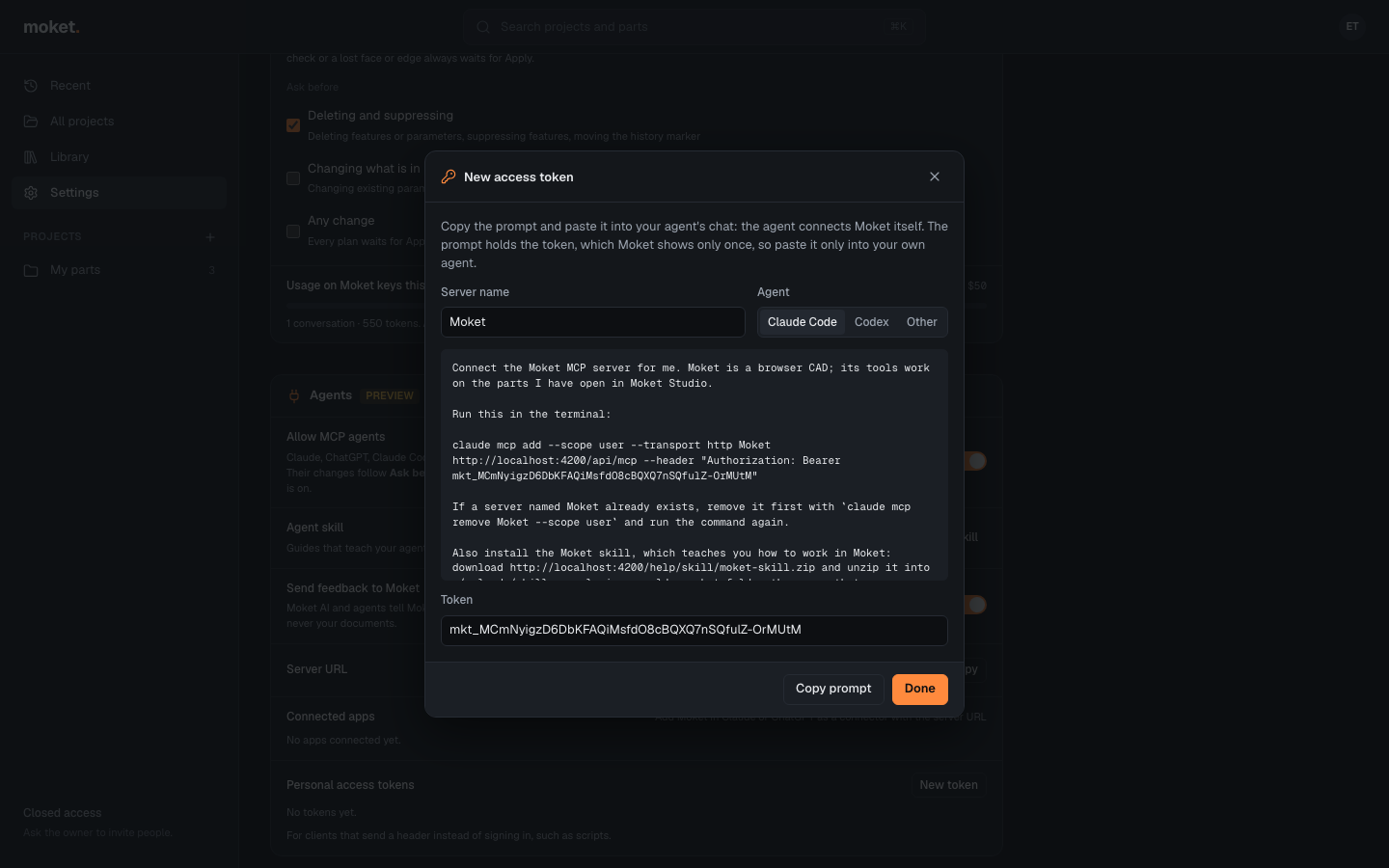
Connect your agent with a token
- Open Settings and turn on Allow MCP agents.
- Click New token, name it after the client and the computer, for example
Claude Code · MacBook, and click Create token. - Under Agent, choose Claude Code, Codex or Other. Change Server name if you want the server to have another name in your agent; it is
Moketby default. - Click Copy prompt, paste the prompt into your agent's chat and send it. The agent adds Moket to its settings itself, installs the Moket skill (Claude Code and Codex), and tells you what to restart.
- Restart the agent as it says, then click Done in Moket. The token is shown only once; create a new one if you lose it.
The prompt contains the token: paste it only into your own agent. To connect by hand, use what the prompt says:
| Agent | Setup |
|---|---|
| Claude Code | claude mcp add --scope user --transport http Moket https://app.moket.io/api/mcp --header "Authorization: Bearer <token>" |
| Codex | A [mcp_servers.Moket] table in ~/.codex/config.toml with url = "https://app.moket.io/api/mcp" and the header in http_headers |
| Other | Streamable HTTP, the Server URL from Settings and the header Authorization: Bearer <token> |
Work with an agent
- Keep Moket Studio open in your browser, on any page. The agent's tools run in that tab, so keep it open while the agent works.
- Ask your agent, for example
Add four M4 holes on a 60 mm square in the Bracket of my Moket project Fixtures.
The agent can work on any document of your projects. A document you have open in an editor is worked on there; any other opens for the agent in the background of your tab, which does not switch to it. See Follow an agent's work in Agent activity.
Agents can also ask for a picture of a document open in an editor when Send viewport images to AI is on in Settings; see Viewport images. A document the agent works on in the background has no picture: the agent says so and goes on from its sizes and faces.
While the agent works on a document open in an editor, its name shows in the editor's top bar, and its steps appear in the Moket AI panel as a conversation of its own. A change that passes every check applies at once. A change that waits for you, because a check failed or you asked to approve that kind of change, shows in the canvas with the banner Claude Code preview · not applied: click Apply or Discard, as for Moket AI's own plans. On a document the agent works on in the background, the change waits in Agent activity instead. A change that waits is kept in your account until you decide, even if you close the tab. The agent learns your answer and goes on. See When Moket AI asks before applying.
Guides for your agent
Moket gives every agent its guides: how to plan a change, build parts and sketches, put assemblies and mechanisms together, dimension a drawing completely, keep shared sizes in the project, use the library and design leather goods, each with examples. The agent reads the one it needs with the tool read_guide before that kind of work, and Moket reminds it once when it changes a document without having read its guide.
For agents that use skills, the same guides come as the Moket skill, to download and install; Agent skill in Settings > Agents opens it.
The guides are also MCP resources, moket://guides/<name> and the skill's moket://skill/SKILL.md: in Claude Code, type @ and pick one from Moket to put it in the conversation yourself.
Let the agent create a part
- Keep Moket Studio open in your browser, on any page.
- Ask your agent, for example
Make a new part "Bracket" in my Moket project Fixtures: a 60 x 40 x 5 mm plate with four 4 mm holes.
The agent creates the part in the project and builds it in the background of your tab; the part shows on Home and in Agent activity, and you open it when you want to look. The agent makes as many parts as it needs without any click from you.
Let the agent make a drawing
Ask your agent, for example Make a drawing of the Bracket with the standard views and its overall dimensions, while Moket Studio is open. The agent creates the drawing next to the part, on one of the project's templates if you ask for it, and the agent places the views and dimensions as plans, as it does on parts, and moves any dimension or symbol whose text a line runs through. See Create a drawing.
Let the agent build an assembly
Ask your agent, for example Put the housing, two bearings, the shaft and four bolts together in a new assembly (bearings and bolts can come from the standard parts library), while Moket Studio is open. The agent creates the assembly in the project, and the agent inserts the parts, grounds the housing and adds the joints as plans, checking interference and the degrees of freedom. Other assemblies of the project can go in as subassemblies. It can also make a drawing of the assembly. See Create an assembly.
Let the agent use your library
Agents search your library before they model a bought part, such as a linear rail, a carriage, a motor or a coupling, and insert the version they find into the assembly. When the part is not there, the agent models it from the maker's datasheet, with its sizes as configurations, and offers to publish it to your library so that the next project inserts it. Versions an agent publishes show its name, for example by Claude Code (MCP), on the Library page. An agent also finds the documents of a project by itself, so you never need to open one for it, and makes a new project when you ask it to or the work belongs in none of yours.
Let the agent keep shared sizes in the project
Agents put sizes several documents must agree on, such as a spindle's height or the spacing of two rails, in the project's parameters and read them in parts and assemblies as project.<name>. When an agent changes one, it first sees which documents the change reaches, rebuilt with the new value, and tells you when one would fail. The change is a version of the project's parameters in the agent's name, and the parts follow it without versions of their own. Agents also set a part's parameters on a component, for example a rail's length in this machine; see Set a part's parameters in an assembly. Renaming a project parameter that documents use is not possible yet: agents add one with the new name instead.
Let the agent design leather goods
Agents use the Leather Workbench and the other plugins you have on, for example Make a bifold wallet in my Moket project Leather: closed 115 x 90 mm, two stacks of three card pockets, stitched at 3.85 mm. They report how many holes each stitch line has. Leather works with or without a Moket tab open; your own plugins need a tab, and the agent asks you to open one.
Let agents work without an open tab
Where your Moket server offers it, Settings > Agents has Work without an open tab, on by default. With it, an agent goes on when no Moket tab is open in your browser: Moket opens the documents for it on its server, and everything else works as in a tab. Changes follow your approvals and are saved as versions in the agent's name; a change that waits for you is in Agent activity the next time you open Moket. When a Moket tab is open, the agent works there instead, and a document you open in an editor is yours at once.
Turn the switch off to keep agents to your browser: with no tab open, the agent then asks you to open Moket.
Feedback from agents
When an agent runs into a tool that behaves differently from its description, or needs something Moket cannot do, it tells Moket's team once and goes on with your task. Settings > Agents lists what your agents sent, under Sent by your agents; turn off Send feedback to Moket to stop it. See Data, keys and usage.
Revoke a token
Click Revoke next to the token under Personal access tokens in Settings > Agents. Clients using it are refused from then on. Apps connected without a token are under Connected apps; see Disconnect an app. Turning off Allow MCP agents refuses all your tokens until you turn it on again.
Troubleshooting
| Message | What to do |
|---|---|
| Moket needs a valid access token | Connect the app again, or create a token; check that Allow MCP agents is on. |
| The agent does not see the Moket tools | Restart the agent after it adds Moket; in Claude Code, check /mcp. |
| No Moket Studio tab is open in a browser | Open Moket Studio, on any page, and ask the agent to go on, or turn on Work without an open tab. |
| Moket's server ... as many documents open as it can | The server is busy with agents; open Moket Studio in a browser, or try again in a few minutes. |
| Pictures ... need it open in a Moket editor | Open the document in Moket Studio if the agent needs to see it. |
| ... is open in an editor | The document is open in a tab that is not connected yet; wait a moment and ask again. |
| ... the user's own plugin, which runs only in a browser | Open Moket Studio, on any page, and ask the agent to go on: your plugins run in your browser. |
| The agent says the user has not decided yet | Click Apply or Discard in the banner or in Agent activity; the agent keeps asking. |