
Make a drawing template
A template is your company's frame and title block: the lines, texts and fields every sheet of a drawing is drawn on. Moket comes with ISO 7200 and ASME Y14.1 templates; make your own in a project and every drawing that uses it follows its latest version.
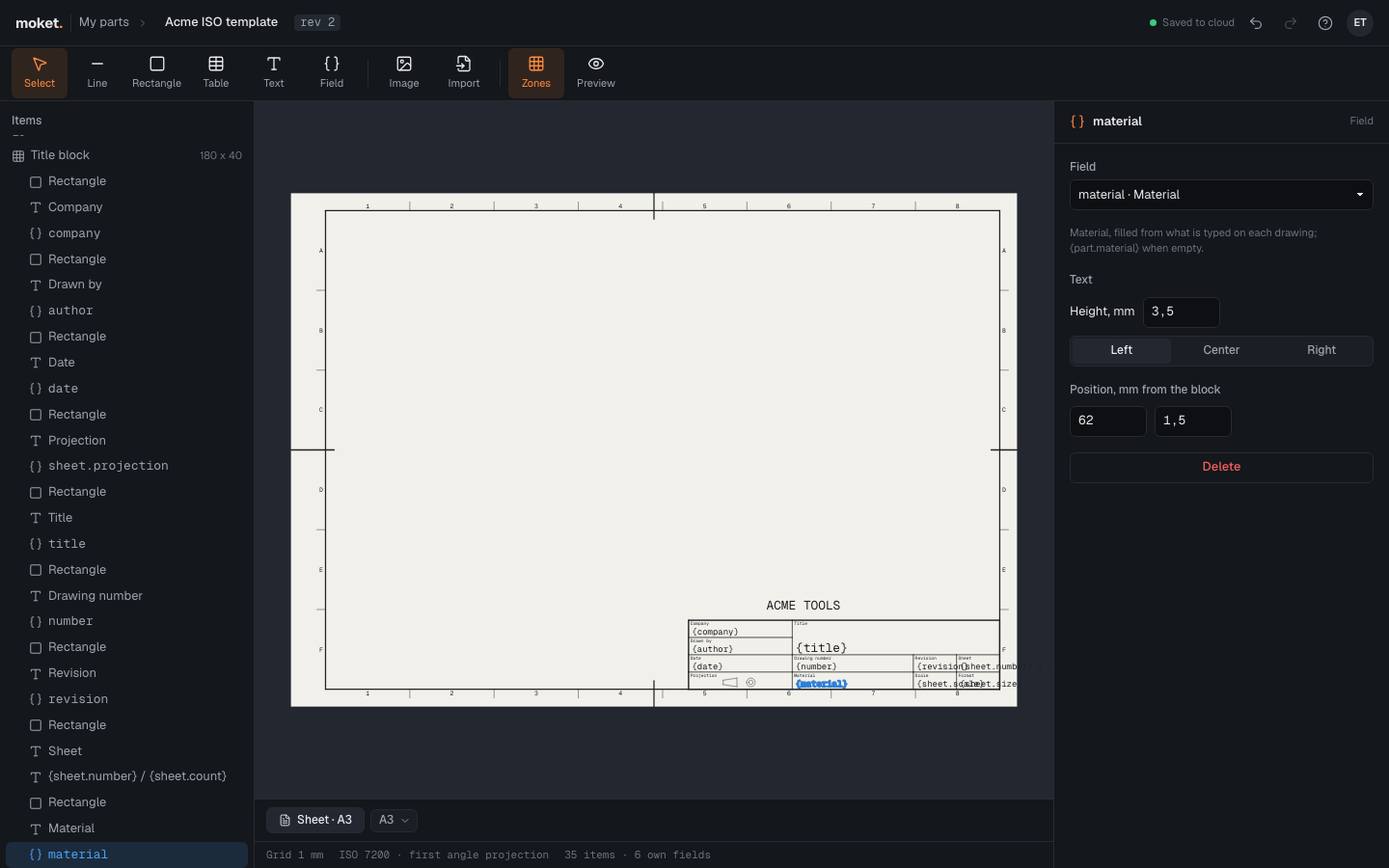
Access: in a project, New > Template. To use a template, select it under Template in a drawing's sheet properties.
Make a template
- In a project, click New > Template. The new template is a copy of the ISO 7200 one, with its zones and title block.
- Click its name in the top bar to rename it.
- Change the title block with the tools, and the template's settings with nothing selected.
Changes are saved to the cloud as you work, like a part's.
Tools
| Tool | What it adds |
|---|---|
| Select | Selects an item; drag a selected item to move it. Delete removes it |
| Line | A line: click both ends |
| Rectangle | A rectangle: click two corners |
| Table | A grid of cells: click two corners, then set the column widths and row heights in its properties |
| Text | Fixed text, such as a cell's label or your company's name |
| Field | A value the drawing fills in, such as the part's material or the scale |
| Image | A logo: a PNG or JPEG up to 500 KB, placed 30 mm wide at the block's top left; drag it into place |
| Import | A title block from a DXF or SVG file, in place of the block's items |
| Zones | Turns the zones around the frame on or off |
| Preview | Fills the fields with sample values to see the template as a drawing will show it |
Points snap to a 1 mm grid and to the ends of lines and rectangles. Item positions are in millimeters from the title block's lower left corner; the block stands in the frame's lower right corner.
Fields
A field shows a value the drawing knows. Select a field and pick it under Field:
| Comes from | Fields |
|---|---|
| The part | part.name, part.material, part.mass |
| The drawing | drawing.name, drawing.revision (the latest revision), drawing.standard |
| The sheet | sheet.scale, sheet.number, sheet.count, sheet.size, sheet.generalTolerance, sheet.projection (draws the projection symbol) |
| Your account | author, date, company |
| Typed | title, number, revision, material, checker, approver and the template's own fields: typed in each drawing's sheet properties, with a default when left empty |
Add your own field with nothing selected: type a key such as heatTreatment and a label, then Add field. Drawings show it in their sheet properties to type in. In a text, write a field in braces, such as Material: {part.material}, to fill it inside the text.
Import a title block
If your company's title block is drawn already, import it:
- Click Import and pick the
.dxfor.svgfile. - Moket puts its drawing in the frame's lower right corner and makes the title block as large as the drawing. Every text written as a field in braces, such as
{part.name}or{drawing.number}, becomes that field at that place and height; a text like{heatTreatment}that is no field yet becomes a field of the template, typed in each drawing. - Check it with Preview.
The imported lines, arcs, circles, polylines and texts are kept in the template; the file itself is not. With nothing selected, Imported drawing shows the file's name, hides it with Show, or removes it. Undo takes an import back.
DXF files are read in their units ($INSUNITS, millimeters when unset), with blocks inserted where the drawing places them. SVG files are read in the units of their width (millimeters, centimeters, inches, points or pixels at 96 per inch).
Template settings
With nothing selected, the properties show the template:
| Option | What it does |
|---|---|
| Standard | ISO or ASME: the sheet sizes it offers, the zone numbering and projection symbol |
| Sizes | The sheet sizes the template is made for |
| Zones, Centring marks | The reference grid and the marks at the middle of each side |
| Revision table | The table of the drawing's revisions at the frame's top right |
| Notes above the title block | The general tolerances, and the units on ASME sheets |
| Title block | Its width and height |
Limitations
- DXF: splines, hatches, dimensions, images and other entities are left out; the message after the import lists them. Draw them as lines or polylines in your CAD program, or add them in the template editor.
- SVG: fills, colors, line widths and images are left out; curves become short lines.
- Logos are in the PDF of a drawing, not in its DXF.
Use a template on a drawing
Open the drawing, click an empty part of the sheet so nothing is selected, and pick the template under Template. Every sheet of the drawing changes. A change to the template shows on its drawings when they open, and on open drawings within 15 seconds.
Troubleshooting
| Message | What to do |
|---|---|
| The drawing's template is gone or does not load: the sheets show the built-in one | The template was deleted or you cannot open it. Pick another template in the sheet properties |