
Create an assembly
An assembly puts parts together: each part of the project can appear in it as one or more components, placed where you want them. It is a document of its own in the project and follows its parts: when a part changes, the assembly changes with it.
Access: in the part editor, File > New assembly. In a project, New > Assembly.
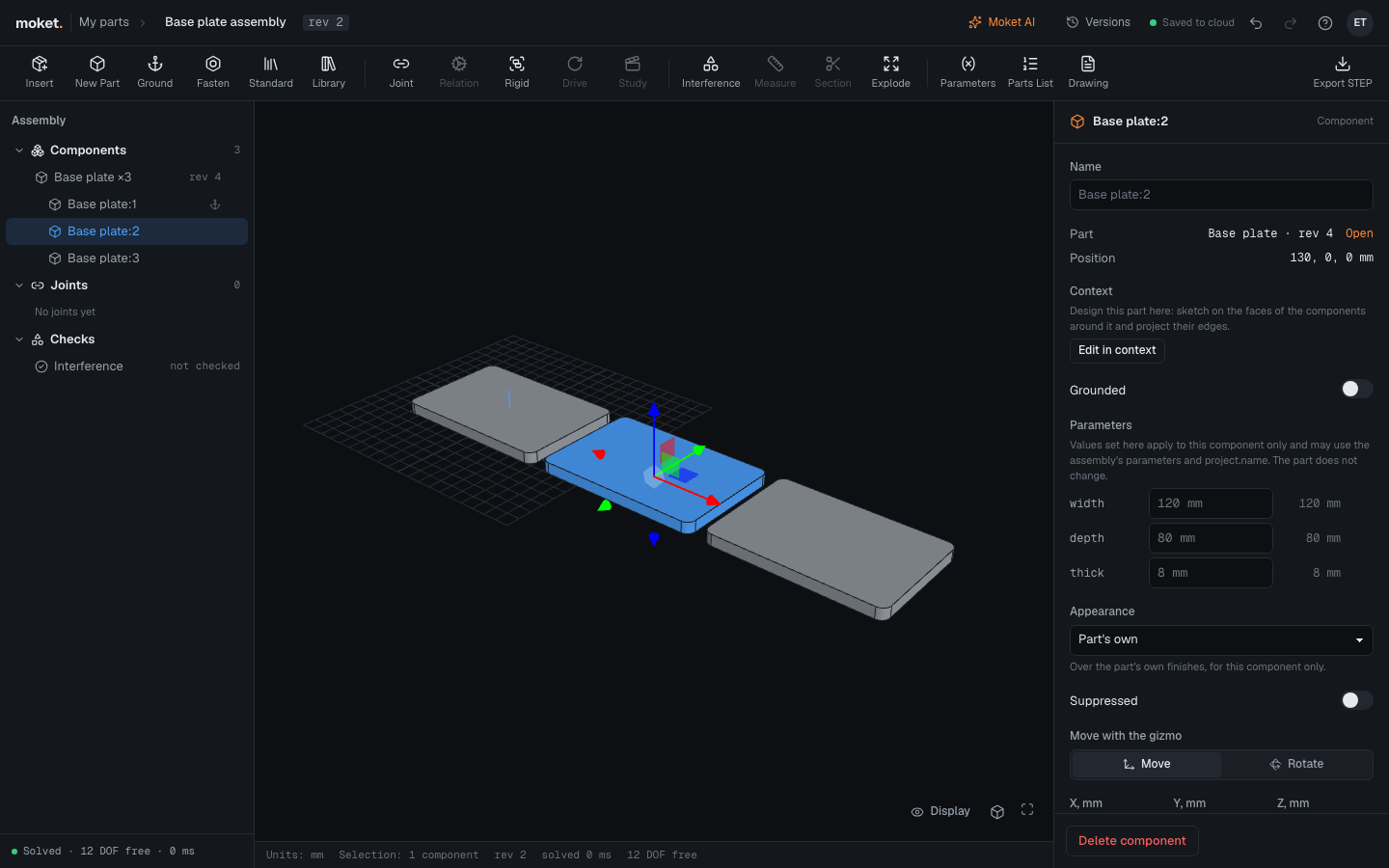
Make an assembly
- From a part: open the part and choose File > New assembly. The assembly opens with the part as its first component, grounded at the origin, and is named after the part.
- From a project: click New > Assembly. The assembly opens empty; insert components to start. The first component you insert is grounded at the origin.
Rename the assembly by clicking its name in the top bar.
The assembly editor
| Area | What it does |
|---|---|
| Top bar | The assembly's project and name (click the name to rename), its revision and save state, Versions, undo and redo, and Help (with Report a problem...). |
| Toolbar | Insert and New Part add components; Ground fixes the selected component in place or frees it; Joint connects two components; Drive plays a joint. |
| Assembly | Components grouped by part, with the part's revision, an anchor on grounded components and an eye to hide them; Joints. The line at the bottom shows the degrees of freedom left free. Drag its right edge to make it wider. |
| Viewport | Every component in its place, with a label on each joint. Click a component to select it; free components move with the gizmo. |
| Properties | The selected component, or the assembly when nothing is selected. |
| Status bar | Units, the selection, the revision and the degrees of freedom. |
Measure and Section are shown in the toolbar and are not available for assemblies yet. Check interference, the parts list, Export STEP and Drawing work.
Show and hide components
Hover over a component in the Assembly column and click the eye icon to hide it from the view. The eye of a part used several times hides all of its components at once, and inside a selected subassembly each part has an eye of its own. Click the eye again to show it.
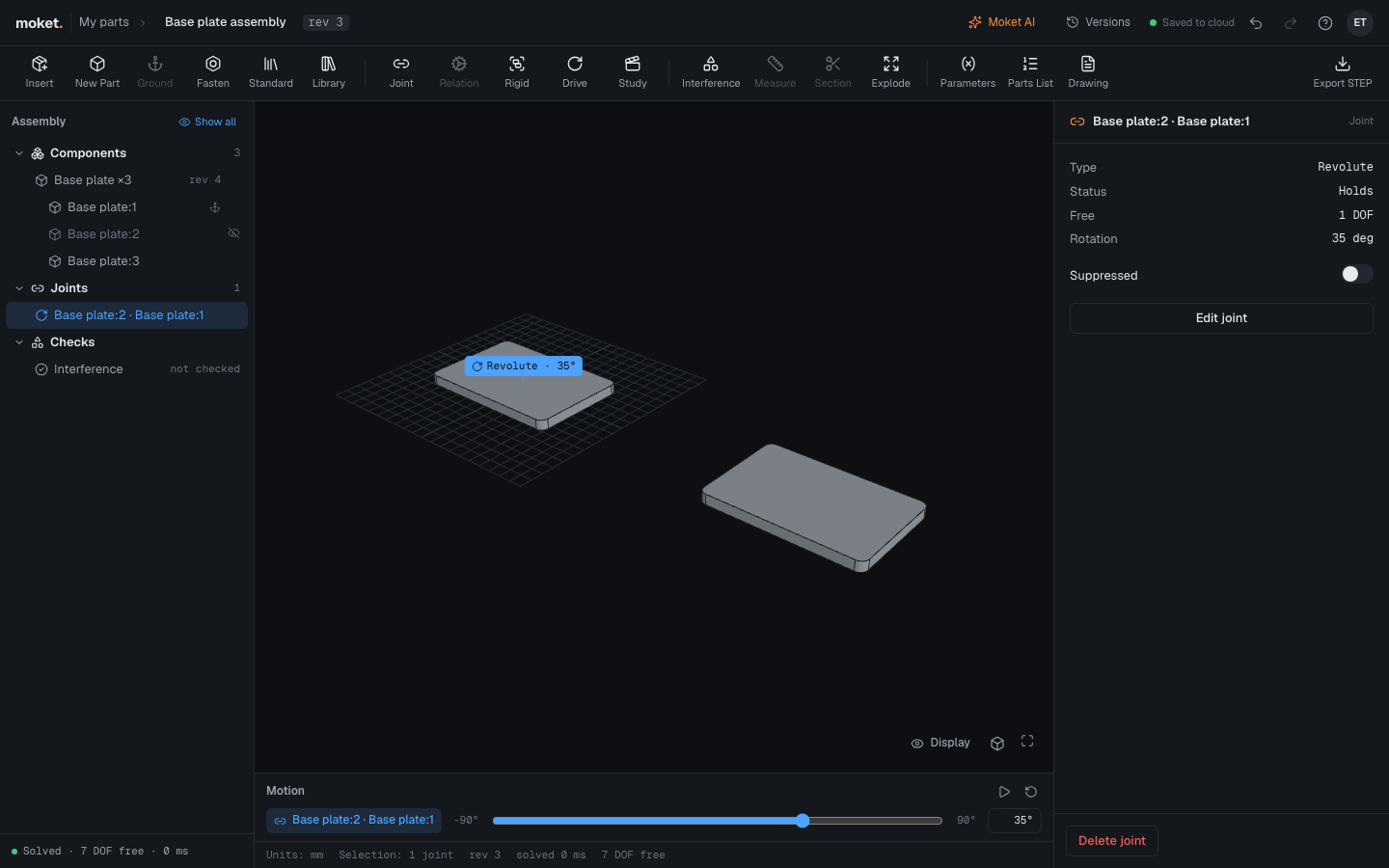
Show all at the top of the column brings back everything you hid. It is there only while something is hidden.
Hiding only changes what you see: joints, interference, the parts list and STEP still include hidden components. A video of a motion study and images of the view show what you see. What you hide is remembered for this assembly in this browser and is not saved with it, so other people see their own.
Degrees of freedom
A grounded component stays where it is. Every free component can still move and turn in all directions: it counts six degrees of freedom. The bottom of the Assembly column shows how many are left, for example Solved · 12 DOF free for two free components.
How the assembly follows its parts
Components always show their part's latest revision. When a part changes in another tab or on another computer, the assembly updates on its own within a few seconds; the tree shows each part's revision. If a part is deleted, its components stay in the tree with a warning and are not drawn.
Versions
The assembly is saved to the cloud as you work, like a part. Versions lists its revisions; name one with Ctrl+S. See Versions of a part.