
Draw in a sketch
Access: Sketch mode toolbar.
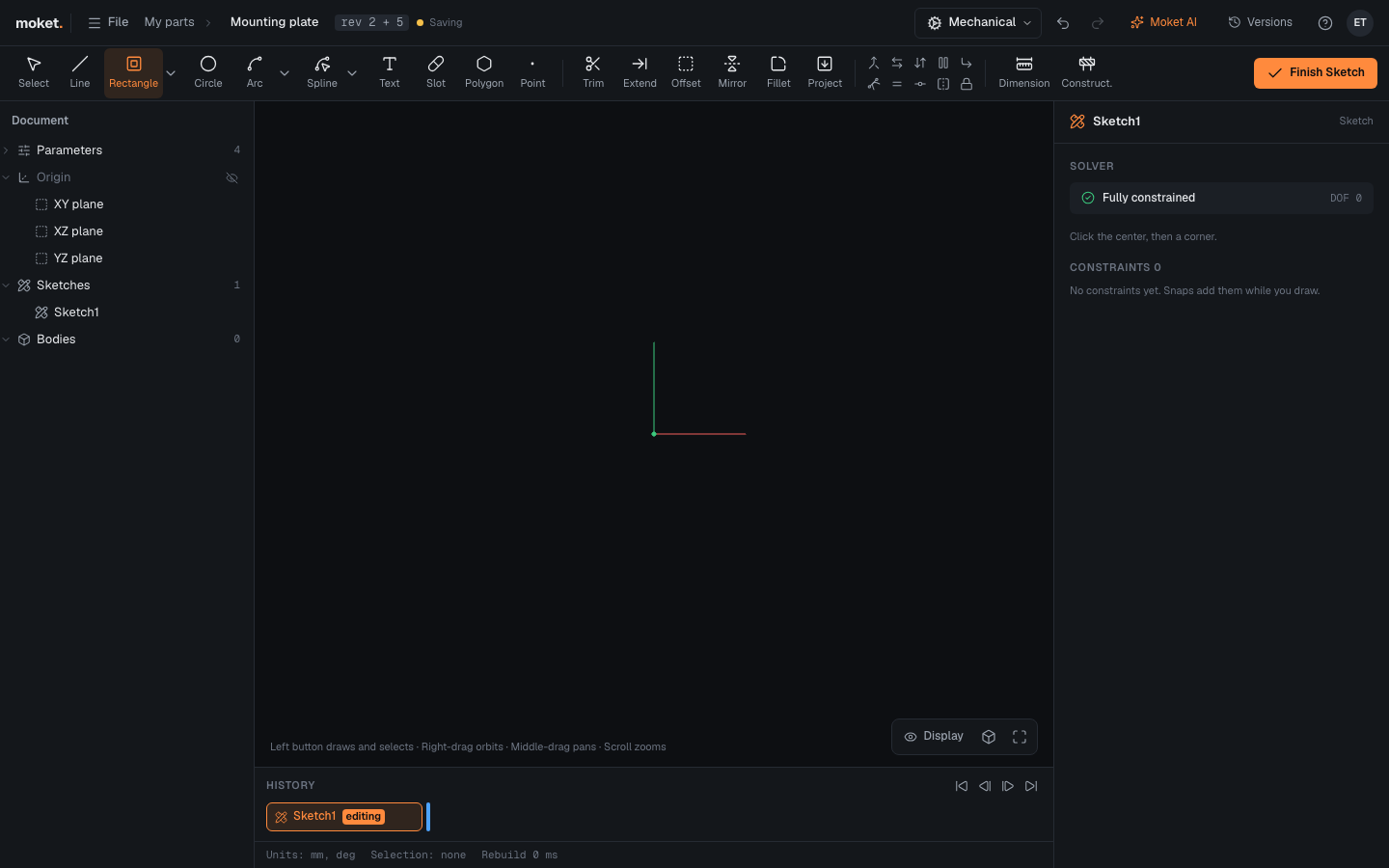
Tools
The toolbar groups the tools: Create draws new geometry, Modify changes what is there, Constrain holds it in place.
| Tool | Shortcut | How to draw |
|---|---|---|
| Select | Click to select, Shift adds; drag on empty space to select by window | |
| Line | L | Click points; each click adds a segment. Click the first point or press Esc to stop |
| Rectangle | R | Click two opposite corners |
| Circle | C | Click the center, then a point on the circle |
| Arc | A | Click the start, the end, then a point on the arc |
| Spline | S | Click points of a smooth curve; Enter ends it. See Draw splines |
| Text | Click where the text starts, then type it. See Add text | |
| Slot | Click both end centers, then the width. See Draw slots and polygons | |
| Polygon | Click the center, then a corner. See Draw slots and polygons | |
| Point | Click to place points, for example hole centers |
Rectangle, Arc and Spline have more ways to draw under the arrow next to them: Center rectangle (the center, then a corner), Center arc (the center, the start, then the end, counter-clockwise) and Control point spline. The button keeps the way you chose last.
| Modify tool | Shortcut | What it does |
|---|---|---|
| Trim | T | Removes the piece of a curve you click. See Trim and extend |
| Extend | E | Lengthens a line or arc to the next curve |
| Offset | O | Copies curves at a distance. See Offset curves |
| Mirror | Copies curves across a line. See Mirror curves | |
| Fillet | Rounds a corner of two lines. See Round sketch corners | |
| Project | P | Brings model edges into the sketch. See Project model edges |
Esc stops the shape in progress, then puts the tool away, then clears the selection.
Snapping
While you draw, the pointer snaps and Moket adds the matching constraint for you:
| Snap | Constraint added |
|---|---|
| On an existing point | The new shape uses that point |
| On the middle of a line | Midpoint |
| On a line, circle or arc | Point on curve |
| In line with another point (dashed guide) | Horizontal or vertical alignment |
| A line close to horizontal or vertical | Horizontal or Vertical |
| A line square to the previous segment | Perpendicular |
Hold Ctrl (Cmd on a Mac) to draw without snapping.
Move geometry
Drag a point, a line or the rim of a circle with Select. Only what constraints leave free moves; dimensioned sizes stay.
Construction geometry
Select curves and click Construct. (X). Construction curves are dashed, help you constrain other geometry, and are not part of profiles. Use a construction line as the axis of a Revolve.
Delete
Select geometry or constraints and press Delete. Constraints on deleted geometry go with it.