
Mirror
Mirror copies features or whole bodies to the other side of a plane. Mirrored features follow their originals: change the original and the copy changes too.
Access: Toolbar > Mirror.
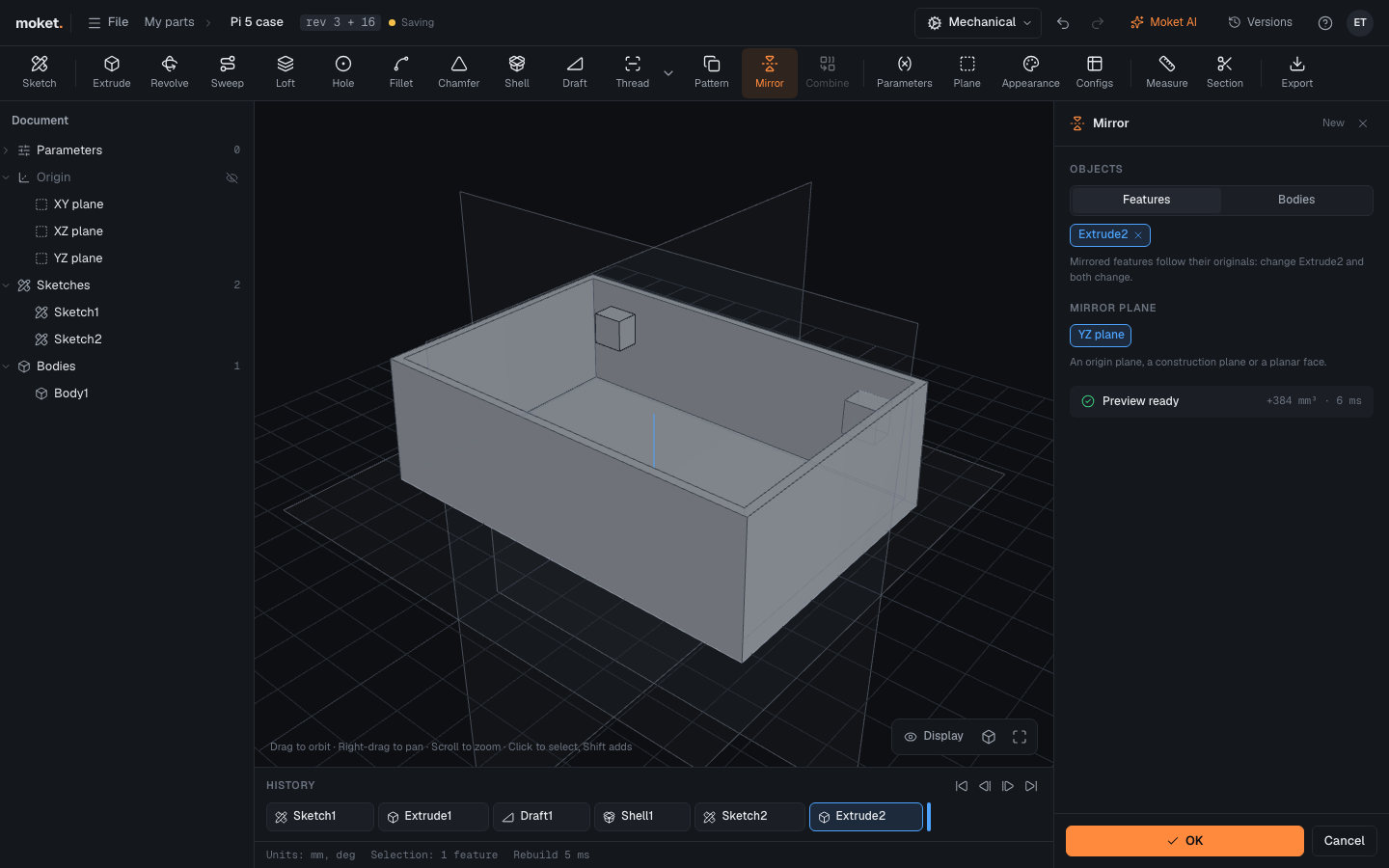
Steps
- Click Mirror. The last extrude, revolve or hole is selected; click others in the history to change the selection.
- Check the Mirror plane: the YZ plane is used until you click another plane or a flat face.
- Click OK.
To mirror whole bodies, choose Bodies under Objects, click a face of each body, and choose Join (the copy becomes part of the body) or New body. Click Pick to choose the mirror plane, so face clicks are not taken as bodies.
Options
| Option | Description |
|---|---|
| Objects | Features: extrudes, revolves and holes picked in the history. Bodies: whole bodies |
| Result | Bodies only: Join the copy to its body, or keep it as a New body |
| Mirror plane | An origin plane, a construction plane or a flat face |
Tips
- A mirrored tapped hole (Features) is tapped too, with the same thread as the original.
Limitations
- Fillets and chamfers have no material of their own and are not mirrored: mirror the feature they sit on, then fillet the copy. When they are picked together with other features, they are skipped with a warning.