
Data, keys and usage of Moket AI
Moket AI runs on models of Anthropic (Claude) and OpenAI. Here you decide whether Moket may send them parts of your work, add your own API keys, and see how much you used this month.
Access: Settings in the Home sidebar, or your account badge > Settings.
What Moket AI sends
| Sent to the provider | Never sent |
|---|---|
| Your messages | Meshes and B-rep geometry |
| Features, sketches and parameters of the open part | Other parts and projects |
| Measurements Moket AI asks for | Your password and sessions |
| Faces and edges you select | Other windows, tabs and the rest of the screen |
| Pictures of the open part, drawing or assembly, only with Send viewport images to AI |
Providers process the data under their API terms. Conversations are kept with the part in your Moket account, so you can read them later, pictures included.
Send part data to AI providers turns this on or off for your account. While it is off, Moket AI sends nothing and asks again when you write to it.
Agents on Moket's server
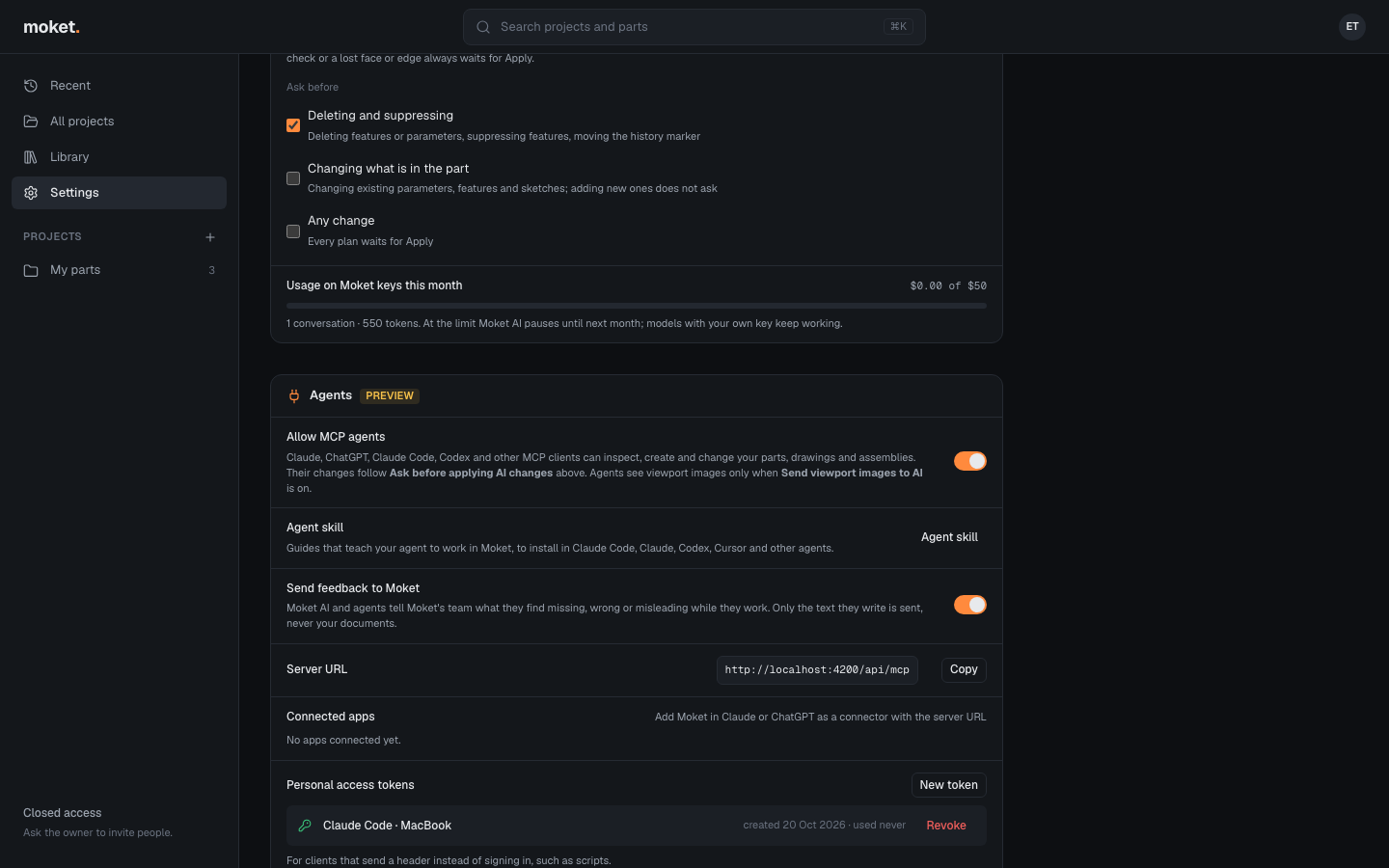
With Work without an open tab on (Settings > Agents, where your Moket server offers it), an MCP agent goes on while no Moket tab is open: Moket opens the documents the agent works on, and the parts they use, on its own server to answer the agent, as your browser would. Nothing goes to anyone else from there, and a document closes again after 10 minutes without the agent's calls. Turn the switch off to keep this work in your browser.
Feedback to Moket
With Send feedback to Moket on (Settings > Agents, on by default), Moket AI and MCP agents tell Moket's team when a tool behaves differently from its description, something they need is missing, or a description misled them. Only the text the agent writes goes: a title, what it did, what happened and what it expected, the tool and the id of the document it worked on. Your documents, pictures and conversations are not sent. Settings > Agents lists what your agents sent and whether it is fixed. Turn the switch off and agents send nothing.
Viewport images
Send viewport images to AI is off by default. When you turn it on, Moket AI and your MCP agents can ask for a picture of the document you have open, to compare it with a photo or a sketch or to see how it looks:
- The picture is what the viewport shows (or the drawing's sheet), from your view or a named one such as Top or Iso, at most 1024 pixels on its longer side. Nothing else on your screen is in it.
- It goes to the same provider as the rest of the turn, or to your MCP agent.
- The panel shows each picture under Looked at the view, and the line under the message box says when pictures may be sent.
While it is off, a request for a picture is refused and Moket AI tells you where to turn it on.
Use your own API keys
With your own key, Moket AI uses it for that provider's models: the provider bills you directly, and Moket's monthly limit does not apply to them.
- Open Settings.
- Under Your API keys, click Add key next to Anthropic or OpenAI.
- Paste the key from your provider account and click Save key.
Moket checks the key with the provider before saving it. The key is stored encrypted and never shown again: the list shows only its last four characters. Replace puts in a new key, Remove goes back to Moket's key.
If the provider refuses a saved key later, for example after you revoked it, the list says Refused by the provider and Moket AI asks you to replace it.
Defaults
- Default model: the model new conversations start with. Each conversation can switch models.
- Ask before applying AI changes: see When Moket AI asks before applying.
Usage and limits
Usage on Moket keys this month shows what Moket AI spent on Moket's own keys against your monthly limit. At the limit, models that run on Moket's keys pause until the next month; models with your own key keep working. The line below the bar also shows an estimate for your own keys.
Troubleshooting
| Message | What to do |
|---|---|
| No AI model is available | Add your own Anthropic or OpenAI key in Settings. |
| Moket AI reached this month's limit | Wait for the next month, or add your own key for the provider. |
| The provider refused your API key | Replace the key in Settings. |
| Open the part in Moket Studio first | Moket AI works on the part open in your browser; open it and try again. |
| Moket AI is still answering in this conversation | Wait for the answer, or click Stop. |