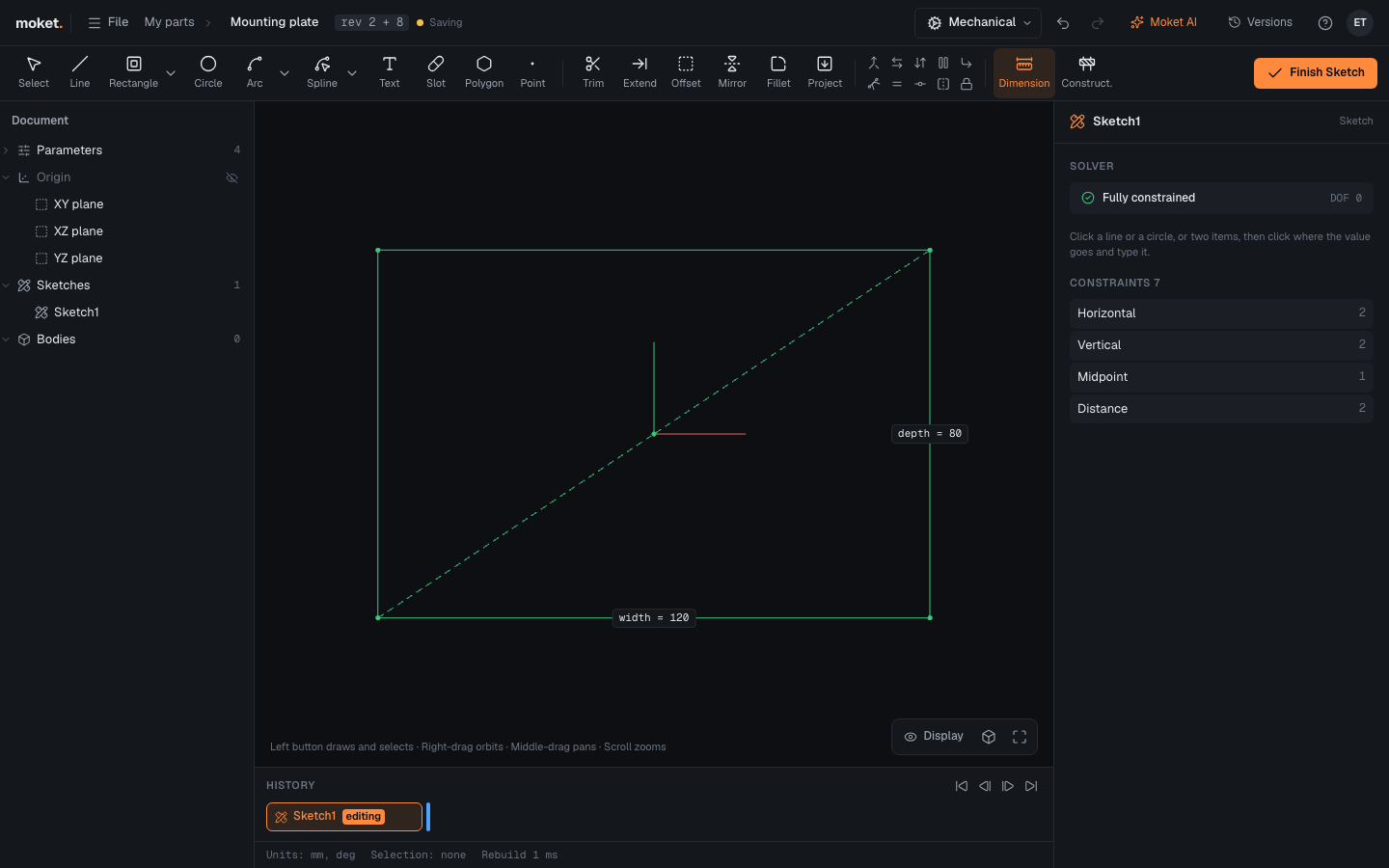
The Moket Studio interface
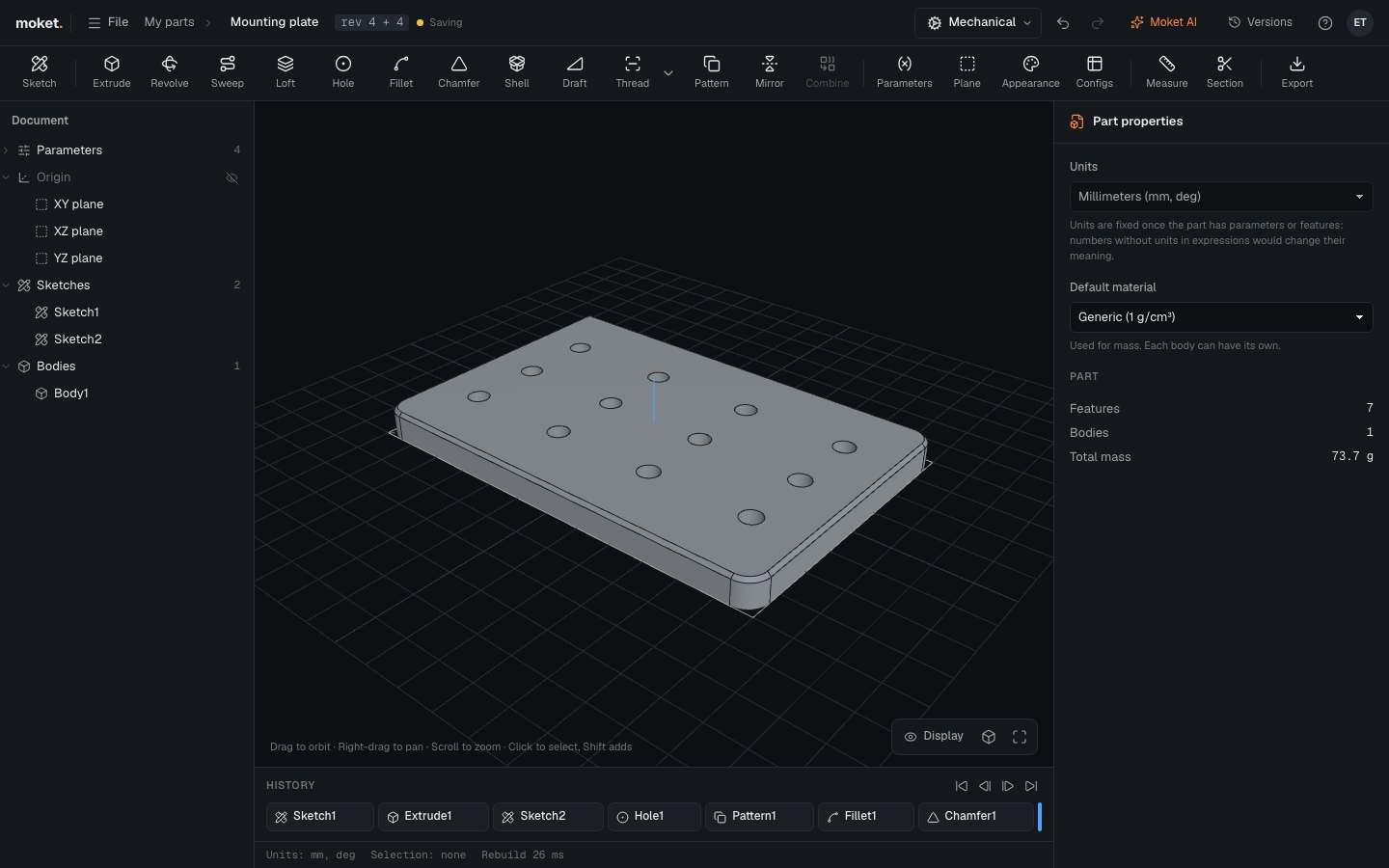
| Area | What it does |
|---|---|
| Top bar | The logo (back to Home), the File menu, the project and the part's name (click to rename), the revision, save state, the workbench (Mechanical, or Leather and those plugins bring), Moket AI, Versions, Undo, Redo, Help (the manual, shortcuts, What's new and Report a problem...) and your account badge (Settings, Sign out) |
| Toolbar | Tools for sketching, features (Extrude to Combine, with Sweep, Loft, Shell, Draft and Mirror), parameters, construction planes, appearance, configurations, measuring and export. A plugin's workbench shows its own tools instead |
| Browser | The parts of your design: parameters, origin planes, construction planes, sketches and bodies |
| Canvas | The 3D view. Click faces, edges, planes and sketch areas to select them |
| History | Every feature in order. Double-click one to edit it; drag the blue marker to roll back |
| Right panel | The open command, the sketch you edit, Measure, Appearance, Problems, or properties of what is selected |
| Status bar | Units, the selection, the last rebuild time, and problems if any. A rebuild that takes longer than a second shows its progress, for example Rebuilding 212 of 300. A large part opened again on the same device shows its saved model while it rebuilds (Saved model · rebuilding); edits wait until the rebuild is done |
Tools that cannot work yet are dimmed. Hover over one to see why, for example Fillet needs a body first.
Move around the canvas
| Action | Mouse |
|---|---|
| Orbit | Drag with the left button |
| Pan | Drag with the right button |
| Zoom | Scroll |
| Fit | Fit to view or Shift+F |
| Views | Views menu: Isometric, Front, Back, Top, Bottom, Left, Right |
| Display | Display: Design or Product view, the style (Realistic, Flat, Wireframe), edges, the aids shown, and a perspective or orthographic camera. See Change the display |
In a sketch the left button draws and selects instead, and the right button orbits.
Show and hide things
Hover over a sketch, body or plane in the browser and click the eye icon. Click the eye next to Origin to show the origin planes. What you hide is remembered for this part in this browser.
To hide all planes, sketches, the grid and the other aids at once, use Display or press Shift+V for Product view. In an assembly, hide components with their eye in the Assembly column, see Show and hide components.
Make a side panel wider
Drag the right edge of the browser to make it wider or narrower. The browser of parts, assemblies and drawings, the outline of a note and the sidebar on Home each keep their width in this browser. Double-click the edge to bring back the usual width. With the edge focused, the arrow keys move it too.
Sketch mode
When you create or edit a sketch, the toolbar switches to sketch tools and the right panel shows whether the sketch is fully defined. See Create a sketch.